










General
USB C Dock vs Hub: Which Fits Your Setup?
A laptop with one USB-C port can look tidy until you need a monitor, keyboard, mouse, charger, network cable and USB drive at the same time. The USB C dock vs hub decision comes down to how you work, how many screens you need and whether your desk is a permanent workspace or just a place to plug in occasionally.
For many students and home users, a compact hub is all that is required. For an office worker using two monitors and wired Ethernet every day, a proper dock is usually money well spent. The right choice is not the one with the longest specification list. It is the one that works reliably with your laptop and removes the daily hassle from your setup.
USB C dock vs hub: the basic difference
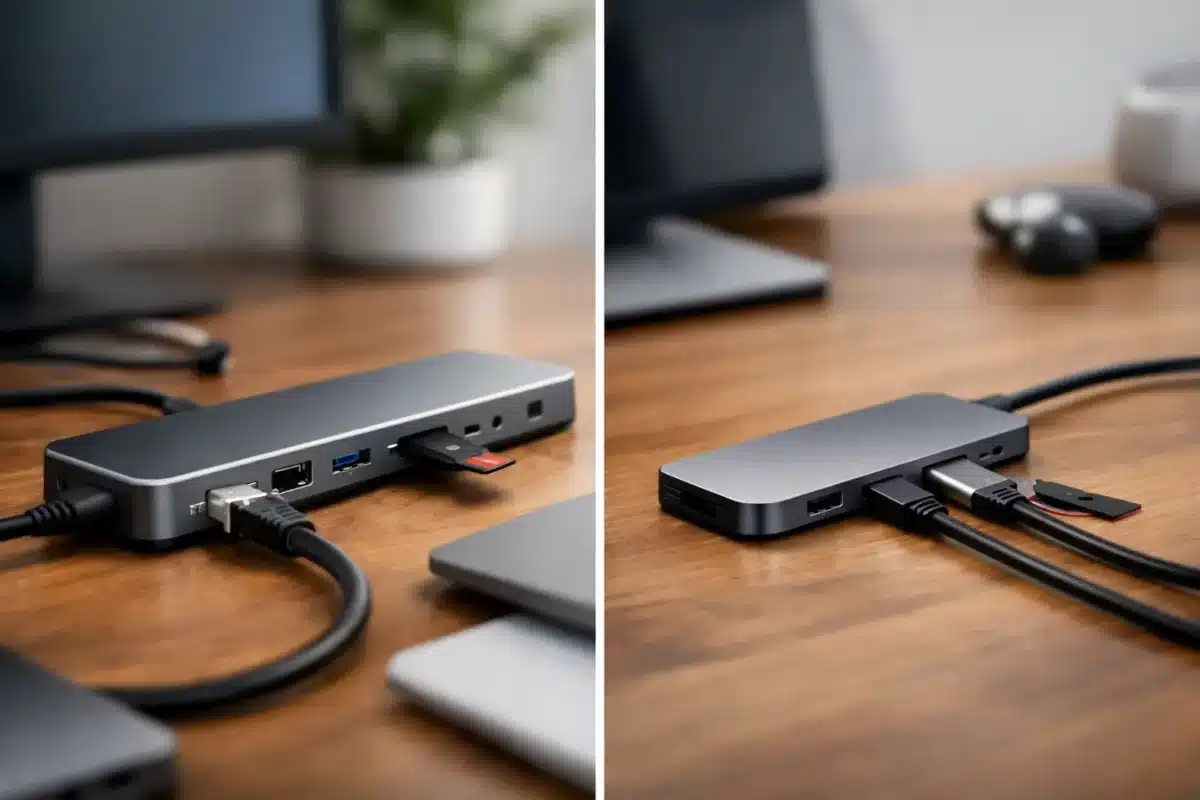
A USB-C hub is a small, portable adapter that expands one USB-C port into several useful connections. Common options include USB-A ports for older accessories, HDMI for a monitor, SD or microSD card readers, Ethernet and USB-C power pass-through. Hubs are generally light, affordable and easy to carry in a laptop bag.
A docking station, often called a dock, is built for a more permanent desk setup. It normally provides more ports, stronger charging capability and better support for multiple displays. Many docks have dedicated power supplies, several USB ports, DisplayPort and HDMI outputs, Ethernet, audio and sometimes a power button or security slot.
In simple terms, a hub adds a few connections when you need them. A dock turns a business laptop into a desktop-style workstation through one cable.
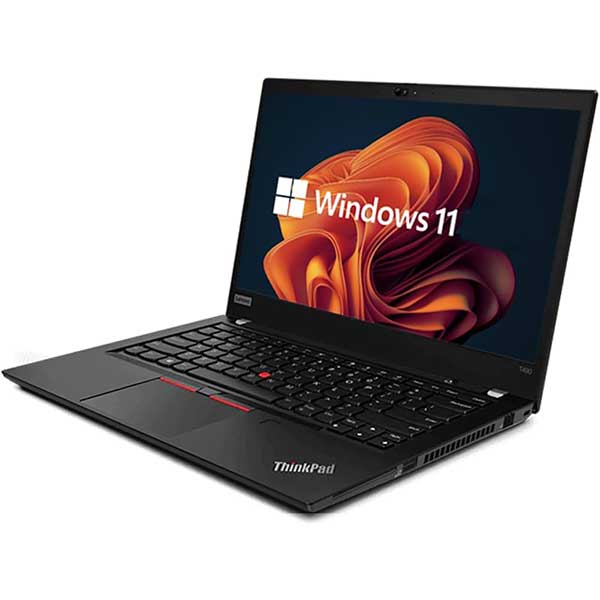
That difference matters when buying refurbished business hardware. Enterprise laptops from Dell, HP and Lenovo are commonly designed to work with docking solutions, making them a practical option for offices replacing older desktops or setting up staff to work from home.
When a USB-C hub is the sensible choice
Choose a hub when portability and price matter more than a full desk replacement. A student moving between class, home and the library may only need HDMI for a projector or external screen, plus USB-A ports for a mouse and flash drive. A compact hub keeps those essentials together without taking up much space.
Hubs also suit occasional hot-desk use. If you have one monitor at home and only connect it a few times a week, there is little point paying for a larger dock with ports you will not use. A hub with HDMI, USB-A and USB-C charging pass-through can cover the basics neatly.
The trade-off is capacity. Most hubs share the bandwidth and power available from a single laptop port. Connecting a hard drive, card reader, monitor and several USB accessories at once can reduce performance or cause devices to disconnect, particularly on lower-cost hubs. They are also less likely to provide enough power for a larger business laptop under heavy use.
A hub is best viewed as an expansion adapter, not a guaranteed replacement for a desktop dock. Check that it supports the monitor resolution and refresh rate you intend to use. A hub advertised with HDMI may support 4K, for example, but only at 30Hz rather than the smoother 60Hz most people expect for office work.
When a docking station is worth it
A dock makes sense if your laptop is your main work computer. At the start of the day, you connect one cable and gain charging, external screens, keyboard, mouse, wired network and other accessories. At the end of the day, unplug once and take the laptop with you.
This is especially useful for staff working between home and office, small businesses fitting out desks, and households sharing a monitor setup. It reduces cable clutter, avoids repeated plugging and unplugging, and makes a laptop-based workspace feel more consistent.
A dock is usually the better choice for dual-monitor setups. Many business-grade docks support two external displays alongside the laptop screen, although the exact resolution and refresh rate depend on the laptop, graphics hardware and connection standard. If you work with spreadsheets, accounting software, browser-based systems or several documents at once, two screens can make a genuine difference to daily productivity.
Docks also tend to offer more reliable wired Ethernet. Wi-Fi is convenient, but a wired connection can be useful for large file transfers, video calls and office environments where a stable connection matters. Extra USB ports are another advantage if you use a webcam, headset, printer, external drive and wired keyboard at the same desk.
The compromise is size and cost. A dock is not designed to live in a backpack, and it may be unnecessary for a basic one-screen setup. Buying a dock with a separate power supply also means checking that its wattage is suitable for your laptop.
Do not assume every USB-C port does the same job
USB-C describes the connector shape, not the full capability of the port. This is the most common source of disappointment when buyers add a hub or dock to an otherwise capable laptop.
For video output, the USB-C port needs to support DisplayPort Alt Mode, Thunderbolt or another compatible video standard. For charging, the laptop must accept USB-C Power Delivery. Some older business laptops have USB-C for data only, while others charge through a separate round connector. A dock may still provide USB ports and network access in that situation, but it may not charge the laptop or run an external monitor through USB-C.
Before buying, confirm the laptop model and its port specifications. The information to check is straightforward: whether USB-C supports charging, whether it supports video output, the maximum display configuration, and the wattage of the original charger.
Cable quality matters as well. A USB-C cable supplied with a phone or low-power accessory may charge slowly or fail to carry video. Use the cable included with the dock where possible, or a properly rated replacement cable designed for data, video and charging.
Displays: where compatibility needs closer attention
If you need dual monitors, begin with the monitors rather than the dock. Check whether they use HDMI, DisplayPort, USB-C or older connections such as VGA. A dock with two DisplayPort outputs is excellent for matching business monitors, but it may add unnecessary adapters if your displays only have HDMI.
Also check the screen resolution you actually need. For everyday office work, two 1080p monitors are usually straightforward for many modern business laptops and docks. Two 1440p screens may also be suitable. Dual 4K displays place greater demands on the laptop and dock, particularly at 60Hz.
Mac compatibility deserves separate attention. Some MacBook models support only one external display natively, even when connected to a dock with multiple video ports. Certain docks use DisplayLink technology to add screens, but this requires software and may not suit every workplace or user. Windows business laptops generally offer broader multi-monitor flexibility, but model-specific checks are still worthwhile.
For a dependable setup, match the dock to the laptop and displays as a complete system. The dock alone cannot overcome a laptop’s graphics limits.
Charging: enough watts for real work
A dock that offers 65W charging may be ideal for a compact laptop but insufficient for a 15-inch mobile workstation. If the laptop needs more power than the dock provides, it may charge slowly, show a warning message or use battery power during demanding work.
Check the wattage printed on the laptop’s original charger, then look for a dock that meets that requirement where possible. A 45W laptop paired with a 65W dock is generally fine. A laptop supplied with a 90W or 130W charger needs more careful matching, especially if it runs demanding applications or has dedicated graphics.
Some enterprise docks use manufacturer-specific charging methods to provide higher wattage. They can be an excellent fit for compatible Dell, HP or Lenovo laptops, but they are not always fully interchangeable across brands. A universal USB-C dock is more flexible for mixed-device households and offices, while a brand-matched dock may offer the most predictable experience for a fleet of the same laptops.
A practical buying checklist
Before choosing between a hub and dock, work through four questions: How many monitors will you use? Do you need the laptop charged through the same cable? Which ports do your existing accessories and monitors use? Will the accessory stay on one desk or travel with you?
If the answer is one monitor, a few accessories and regular travel, choose a quality USB-C hub. If the answer is two monitors, wired Ethernet, charging and a permanent workspace, choose a docking station. For organisations buying several units, standardising on a compatible dock can also make support, replacement and desk setup much easier.
Professionally refurbished docking stations can offer strong value here. They are often built for commercial environments, with durable ports and practical connections rather than unnecessary extras. As with any refurbished IT purchase, confirm compatibility, included power supply and warranty details before ordering.
A good accessory should disappear into your routine. Choose the hub or dock that gives your laptop the connections you use every day, without paying for features that will sit unused on the desk.


