











General
Desktop vs Mini PC: Which Suits Your Work?
A desktop tower can feel like the obvious choice when you need serious performance. A mini PC can look like the smarter option when desk space, power use and budget matter more. In the desktop vs mini pc decision, the right answer comes down to what the computer needs to do every day – not simply which one has the larger case.
For a home office, school desk, reception counter or small business workspace, both can be excellent value. Professionally refurbished business-grade machines make that choice even more interesting, because enterprise desktops and compact PCs are built for dependable daily use and often cost far less than comparable new hardware.
Desktop vs Mini PC: the practical difference
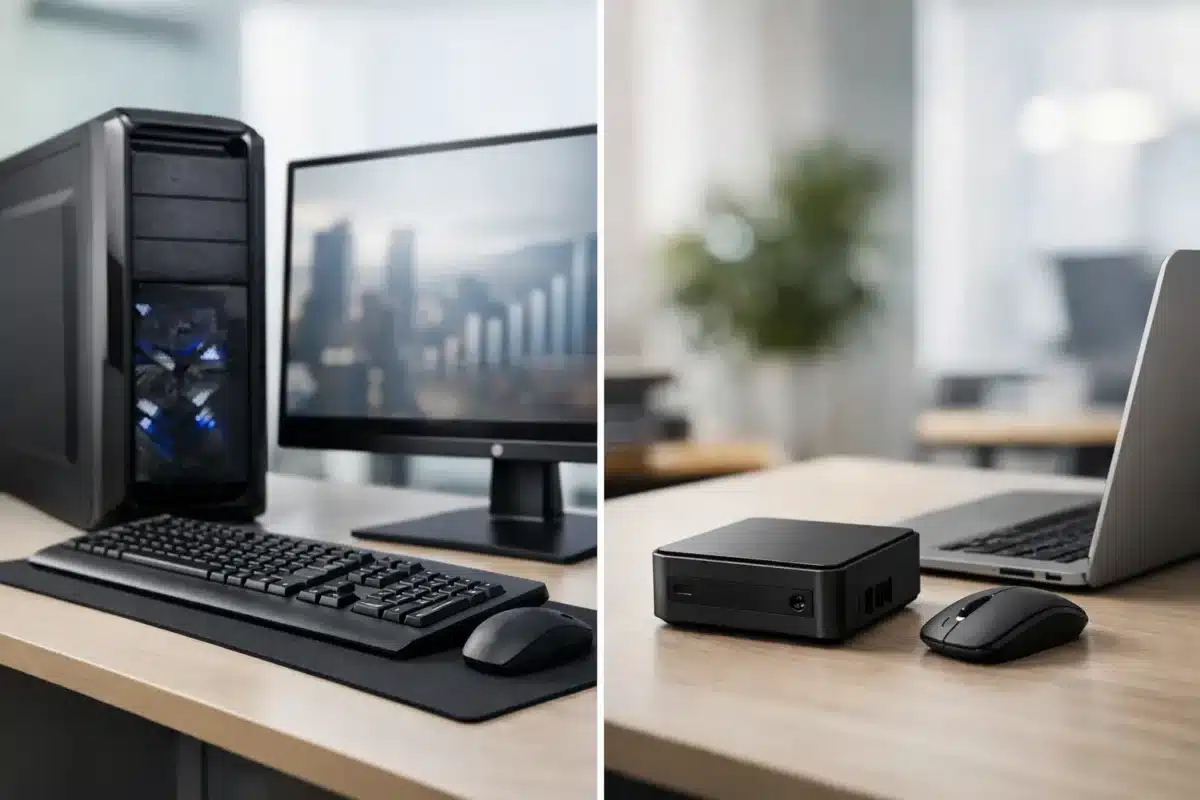
A traditional desktop usually means a tower or small-form-factor business PC that sits on or under a desk. It has more room inside for components, better airflow and, in many models, straightforward access to memory, storage and expansion slots.
A mini PC is a much smaller desktop computer, often small enough to sit behind a monitor or beside a keyboard. Models such as compact Dell, HP, Lenovo and Intel NUC systems can still run Windows, office software, web browsers, video calls and business applications very capably. Their small footprint is their main advantage.
The key difference is not that one is automatically fast and the other is automatically slow. Processor generation, RAM, SSD storage and the tasks you run matter more. A well-specified mini PC can easily outperform an older tower. However, a comparable desktop is usually easier to expand, repair and keep useful over a longer period.
Choose a desktop when performance and upgrades matter
A desktop is often the best-value option for buyers who want flexibility. If your workload changes, you may be able to add more RAM, fit a larger SSD, install extra storage or add a dedicated graphics card. That matters for businesses intending to keep systems in service for several years.
Traditional desktops also tend to handle sustained workloads better. Tasks such as large spreadsheet processing, accounting software with multiple files open, photo editing, light video work or running several displays can place steady demand on a PC. Larger cases generally have better cooling, which helps components maintain performance during longer sessions.
For office teams, a small-form-factor desktop can be a particularly sensible middle ground. It is far more compact than a full tower but usually retains useful upgrade options, multiple display outputs and easy servicing. It suits staff who use two monitors, work across numerous browser tabs and regularly switch between email, documents, cloud systems and video meetings.
Desktops are also the stronger choice if you need specialised connectivity. Depending on the model, they may support additional display ports, expansion cards, wired networking and more USB connections than a mini PC. That can remove headaches in a busy office where printers, scanners, external drives, headsets and dual monitors all need to connect reliably.
The trade-off is physical space. A tower under the desk is not a problem for most workstations, but it may be awkward in a small study, a tidy reception area or a classroom with limited bench room.
Choose a mini PC when space is limited
A mini PC is designed to put a proper Windows desktop where a bulky computer would be inconvenient. It is an excellent fit behind a monitor, under a counter or on a shared family desk. Many models can be mounted to the rear of a compatible monitor, leaving the workspace looking clean and uncluttered.
For everyday workloads, compact PCs are more capable than many buyers expect. A mini PC with a modern Intel Core processor, sufficient RAM and a solid-state drive can handle Microsoft 365, web-based business tools, MYOB or Xero-style accounting work, online learning, streaming, email and video calls without difficulty.
They are especially useful for reception desks, point-of-sale environments, meeting rooms and hot-desk setups. A staff member does not need a large tower to check bookings, manage documents or work across a browser and spreadsheet. Schools and households can also benefit from a compact device that takes up less room while still providing a full keyboard, monitor and desktop operating system experience.
Mini PCs are usually quieter and use less electricity than larger desktops, particularly when compared with older full-size towers. The saving per device may be modest, but it can add up across a small office or a classroom running computers for much of the day.
The compromise is expansion. Some mini PCs allow memory and SSD upgrades, but space is limited and options vary by model. Dedicated graphics cards are generally not an option, and the number of ports may be lower. Before buying, check the RAM capacity, storage type, display outputs and available USB ports rather than assuming every compact PC will suit every setup.
Do not judge performance by size alone
Size is a poor shortcut for performance. A compact business PC with an 8th-generation or newer Intel Core processor, 16GB of RAM and an SSD can be a very responsive work machine. Meanwhile, a large desktop with an old mechanical hard drive and insufficient memory may feel slow even for basic tasks.
For most work, study and home users, start with the specification. An SSD is one of the biggest contributors to a quick start-up and responsive everyday use. For general productivity, 8GB of RAM is workable, while 16GB gives more breathing room for multitasking, multiple browser tabs and video meetings.
Windows 11 compatibility also deserves attention. Businesses and households replacing older equipment should look for systems that are ready to run supported software for the years ahead. A quality refurbished PC with clear specifications gives you a realistic way to upgrade without paying new-device pricing.
Think about your monitor setup first
Your display requirements can decide the desktop vs mini pc question quickly. If you use one monitor for email, study, browsing and standard office work, either type of machine can work well. If you rely on two monitors, confirm that the PC supports both displays at the resolution you need.
Business-grade desktops commonly provide flexible display connections, while mini PCs may use a combination of HDMI, DisplayPort or USB-C. The ports on the computer and monitors need to match, or you may need suitable adapters. This is a small detail that makes a major difference to how easily a workstation comes together.
For a dual-monitor office setup, do not focus only on screen size. Check whether the computer has enough graphics capability and the correct outputs to run both screens comfortably. A professionally refurbished ex-lease system is often well suited to this role because it was designed for commercial desk work from the outset.
Refurbished value: where both options make sense
New mini PCs can look affordable at first, but entry-level models sometimes cut corners on processor power, RAM, storage or warranty support. Likewise, a cheap new desktop may use consumer-grade components that are not designed for a demanding office environment.
A refurbished ex-lease desktop or mini PC offers a different value proposition. Enterprise systems from Dell, HP and Lenovo are designed for repeated business use, with durable construction and practical ports. When professionally refurbished, tested and sold with transparent specifications, they can provide dependable computing at a price that makes sense for families, small businesses and organisations buying several machines.
For example, a compact refurbished mini PC can be an excellent choice for a student, front desk or remote worker who needs a reliable machine and has limited space. A refurbished small-form-factor desktop can be the stronger choice for an administrator, accounts team or office user who needs dual monitors, extra storage and easy upgrades.
NZ Laptop Wholesale focuses on this practical end of the market: quality refurbished business hardware selected around real use cases rather than unnecessary extras. The aim is simple – buy enough performance for the job, with the reliability and value that business-grade equipment can deliver.
A straightforward way to decide
Start with the work, then choose the case size. A mini PC is likely right if you need a compact, quiet computer for standard office work, study, reception or media use. Choose a desktop if you expect heavier multitasking, need more ports, plan to upgrade components or want the best long-term flexibility.
It is also worth considering where the computer will live. A mini PC keeps a small Auckland apartment desk, a school learning area or a customer-facing counter clear. A desktop is easier to service in an office where space is available and the machine may need more storage or connectivity later.
The best purchase is not the biggest computer or the smallest one. It is a tested, fit-for-purpose system with the processor, RAM, SSD storage and display support your work actually requires. Get those essentials right, and either a desktop or mini PC can be a reliable workstation for years to come.


