

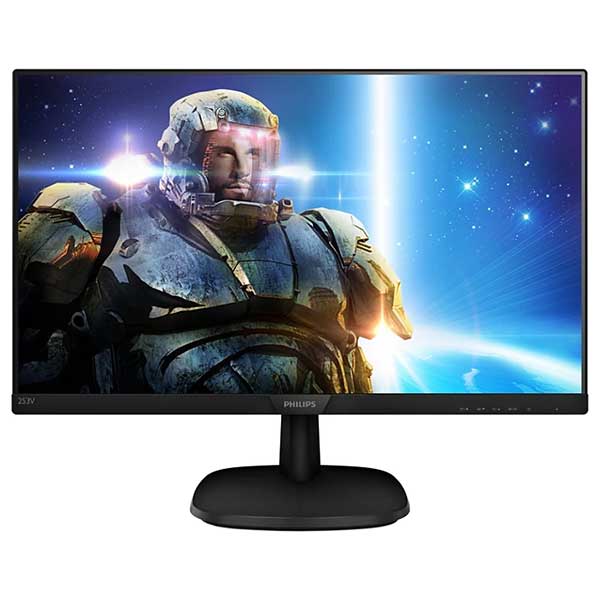




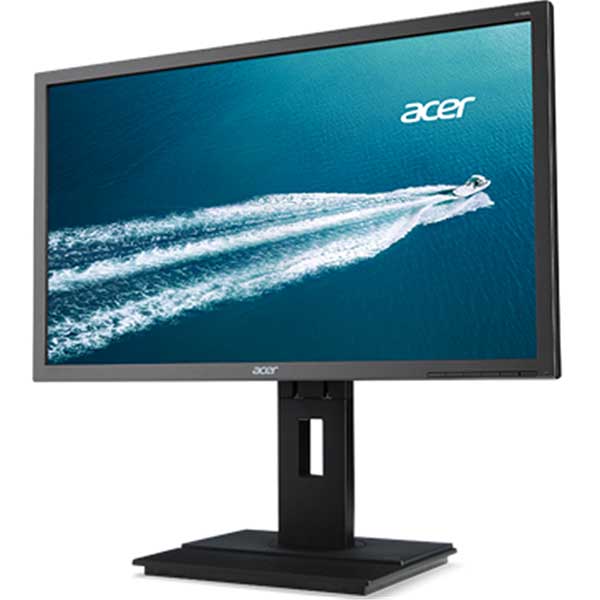

TL;DR: Setting Up Dual Monitors with a Docking Station
To set up dual monitors with a docking station, plug both monitors into the dock using HDMI, DisplayPort or another compatible video cable, then connect the dock to your laptop using its main USB-C, USB-A or Thunderbolt cable.
Quick setup: Connect Monitor 1 to the dock, connect Monitor 2 to the dock, plug the dock into your laptop, power everything on, then open Windows Display Settings and choose Extend these displays.
The most important thing is compatibility. Your docking station needs to support two external displays, and your laptop needs to support the type of dock being used. If only one screen works, check the dock specs, monitor input source, cables and any required drivers.
Setting up dual monitors can make a laptop feel much more comfortable to use, especially for work, study, emails, spreadsheets, research, online meetings or general multitasking. The good news is that the hardware setup is usually quite simple once you understand what plugs into what.
In most cases, your two monitors plug into the docking station, then the docking station plugs into your laptop using one main cable. That cable may be USB-C, USB-A, Thunderbolt, or another dock-specific connector depending on the model.
This guide walks through the setup in plain English, so you can get your dual monitor desk running without overthinking the technical side. If you are still choosing screens, you can also view our dual monitor bundles to see practical ready-to-go options.
Quick Summary: What Plugs Into What?
- Monitor 1 plugs into the docking station using HDMI, DisplayPort, VGA, DVI or another video cable.
- Monitor 2 also plugs into the docking station using a second video cable.
- The docking station plugs into your laptop using its main USB-C, USB-A or Thunderbolt cable.
- Your keyboard, mouse, webcam, speakers and USB devices can often plug into the dock as well.
- Windows display settings let you arrange the screens in the correct order.
Think of the docking station as the central hub. Your monitors and accessories plug into the dock, and the dock connects everything back to the laptop through one main cable. For a broader overview, see our guide explaining what a docking station does.
What You Need Before You Start
Before plugging everything in, it helps to check that you have the right equipment. Dual monitor setups are easy when the laptop, docking station and monitors are all compatible.
You will usually need:
- A laptop that supports docking station use
- A docking station that supports two external displays
- Two monitors
- Two video cables, such as HDMI or DisplayPort
- The dock’s main cable, such as USB-C, USB-A or Thunderbolt
- Power adapters for the monitors and docking station, if required
Important: not every docking station supports dual external monitors. Some basic USB-C adapters only support one screen. If you want two monitors, check that the dock specifically supports dual display output. Our guide to docking stations for laptops covers the main types in more detail.
Why Use a Docking Station for Dual Monitors?
Many laptops only have one built-in video output, such as one HDMI port or one USB-C display output. That can be a problem if you want to run two external monitors at the same time.
A docking station helps solve this by giving you extra display ports and extra connectivity. As a bonus, many docks also add more USB ports, Ethernet networking, audio connections and sometimes laptop charging through USB-C.
| Setup Type | How It Works | Best For |
|---|---|---|
| Laptop only | You use the laptop screen and the laptop’s built-in ports. | Simple portable use, travel, basic home tasks. |
| Laptop plus one monitor | One monitor plugs directly into the laptop using HDMI, USB-C or another video port. | Basic work-from-home, study or admin use. |
| Laptop plus docking station and dual monitors | Two monitors plug into the dock, then the dock connects to the laptop with one main cable. | Office desks, study setups, multitasking, spreadsheets, business use. |
Step 1: Check the Ports on Your Monitors
Start by looking at the back or underside of each monitor. Most modern monitors use HDMI or DisplayPort, but older monitors may use VGA or DVI.
Common monitor ports include:
- HDMI: common on monitors, TVs and many laptops.
- DisplayPort: common on business monitors and docking stations.
- USB-C: found on some newer monitors, but not all USB-C ports support video.
- VGA: older blue analogue connector, usually lower quality than HDMI or DisplayPort.
- DVI: older digital connector, still found on some business monitors.
If your monitor has both HDMI and DisplayPort, either may work. DisplayPort is very common on business-grade monitors and docks, while HDMI is often the easiest option for home users. For a deeper explanation, see our common computer video ports guide and our comparison of HDMI vs DisplayPort.
Step 2: Connect Monitor 1 to the Docking Station
Take your first monitor cable and plug one end into Monitor 1. Plug the other end into the docking station.
For example:
- HDMI from Monitor 1 to HDMI on the dock
- DisplayPort from Monitor 1 to DisplayPort on the dock
- VGA or DVI only if your dock and monitor both support it
Make sure the cable is firmly seated at both ends. A loose cable is one of the most common reasons a monitor shows “No Signal”.
Step 3: Connect Monitor 2 to the Docking Station
Now connect your second monitor to the docking station using a second video cable. This may be the same cable type as the first monitor, or it may be different depending on the available ports.
For example, you might have:
- Monitor 1 connected by DisplayPort
- Monitor 2 connected by HDMI
That is perfectly normal. The two monitors do not always need to use the same cable type, as long as the docking station supports both outputs at the same time. If you are planning a full desk setup, our guide to running dual monitors may also be useful.
Step 4: Connect the Docking Station to Your Laptop
Once both monitors are connected to the dock, connect the docking station to your laptop using the dock’s main cable.
This is usually one of the following:
- USB-C: common on modern laptops and newer docking stations.
- USB-A: common on some DisplayLink-based docks and older laptops.
- Thunderbolt: often uses a USB-C shaped connector, but with higher performance.
- Brand-specific dock connector: used on some older business laptops.
Important: a USB-C port is not automatically a display-capable port. Some USB-C ports only support data and charging, while others support video output. If your dock is USB-C and the monitors do not work, the laptop’s USB-C port may not support display output, or the dock may require a DisplayLink driver. See our guide on why not all USB-C ports are the same, or our simpler explanation of USB-A and USB-C ports.
Step 5: Plug In Power
Make sure both monitors are connected to power and switched on. If your docking station has its own power adapter, plug that in as well.
Some USB-C docks can charge the laptop through the same cable. Others only pass through data and display signals, meaning you still need to plug your laptop charger in separately.
If your laptop battery is going flat while docked, check whether your dock supports laptop charging and whether its power adapter is powerful enough for your laptop.
Step 6: Select the Correct Input on Each Monitor
If a monitor says “No Signal”, it may simply be looking at the wrong input source. Use the monitor’s buttons or menu to choose the correct input.
For example:
- If the cable is plugged into HDMI, select HDMI on the monitor.
- If the cable is plugged into DisplayPort, select DisplayPort on the monitor.
- If the monitor has multiple HDMI ports, choose the matching HDMI number.
This step is easy to miss, especially on monitors that do not automatically detect the correct input.
Step 7: Arrange Your Displays in Windows
Once the monitors are detected, Windows may not know which monitor is on the left or right. You can fix this in Display Settings.
In Windows 10 or Windows 11:
- Right-click on the desktop.
- Select Display settings.
- Click Identify to show numbers on each screen.
- Drag the screen boxes so they match your physical desk layout.
- Choose whether to extend or duplicate the displays.
- Click Apply.
For most dual monitor setups, choose Extend these displays. This gives you one larger workspace across both screens, instead of showing the same thing on both monitors.
Extend vs Duplicate: Which Setting Should You Use?
| Display Mode | What It Does | When to Use It |
|---|---|---|
| Extend | Creates one larger desktop across multiple screens. | Best for normal dual monitor work, emails, spreadsheets, study and multitasking. |
| Duplicate | Shows the same image on both screens. | Useful for presentations, training or showing someone else the same screen. |
| Show only on 1 or 2 | Uses only one selected screen. | Useful for troubleshooting or temporary setups. |
Simple Dual Monitor Setup Checklist
Use this quick checklist if something is not working:
- Both monitors are plugged into power and switched on.
- Monitor 1 is connected to the docking station.
- Monitor 2 is connected to the docking station.
- The docking station is connected to the laptop using its main cable.
- The dock has power, if required.
- Each monitor is set to the correct input source.
- Windows is set to “Extend these displays”.
- The docking station supports two external monitors.
- The laptop supports the type of dock being used.
- Any required dock drivers have been installed.
Common Problems and Simple Fixes
Only One Monitor Works
If only one external monitor is working, the docking station may not support two displays, or the laptop may not support dual display output through that dock.
Try swapping the monitor cables around. If the same monitor always works regardless of port, the issue may be with the dock output or laptop support. If the same cable or monitor fails, the issue may be with the cable or monitor input.
The Monitor Says “No Signal”
This usually means the monitor is not receiving a video signal. Check the cable, monitor input source, dock power and laptop connection.
If using DisplayPort, unplugging and reconnecting the cable can sometimes help the monitor re-detect the signal.
The Screens Are in the Wrong Order
This is very common and easy to fix. Go to Windows Display Settings, click “Identify”, then drag the screens into the correct left-to-right order.
The Text Looks Too Small or Too Big
In Windows Display Settings, check the scale setting. Many users prefer 100%, 125% or 150% depending on the monitor size and resolution. If you are unsure what resolution means, see our monitor resolution guide.
The Dock Needs a Driver
Some USB-A and USB-C docks use DisplayLink technology. These often need a driver installed before the monitors will work correctly. If your dock is DisplayLink-based, install the correct driver from the manufacturer or DisplayLink’s official driver page. We also have a dedicated DisplayLink docking station setup guide.
Safety Warning: Save Your Work Before Changing Display Settings
Changing monitor settings is usually safe, but it is still a good idea to save your work first. If a screen goes blank while testing display settings, wait a few seconds. Windows will usually revert the change if you do not confirm it.
Avoid forcing connectors into ports. HDMI, DisplayPort, USB-C and USB-A all have different shapes. If a cable does not fit easily, double-check the port type before trying again.
What About Laptop Screens?
You can usually use your laptop screen as an extra display as well. For example, you may be able to use the laptop screen plus two external monitors, giving you three screens in total.
However, this depends on the laptop, dock and graphics capability. Some setups support two external monitors only when the laptop lid is open, while others work fine with the lid closed.
If you want to use the laptop with the lid closed, check your Windows power settings so the laptop does not go to sleep when the lid is shut.
Best Uses for a Dual Monitor Docking Station Setup
A dual monitor setup is useful for many everyday situations:
- Working from home: keep emails on one screen and documents on the other.
- Study: view research on one monitor while writing notes on the other.
- Small business admin: use accounting, emails, calendars and browser tabs more comfortably.
- Video meetings: keep the meeting open while taking notes or viewing documents.
- Parents and students: create a more practical desk setup without needing a full desktop PC.
If you are building a budget-friendly workspace, our guide on setting up a cheap study desk with dual monitors is also worth reading.
Do You Need a Special Laptop?
You do not always need an expensive laptop for dual monitors, but you do need a compatible laptop and dock. Business-grade ex-lease laptops are often a practical choice because many were designed for office desk setups, docking stations and external monitors.
At NZ Laptop Wholesale, we sell professionally refurbished laptops, monitors, docking stations and accessories suitable for home, study and small business setups. Our gear is tested and cleaned, and we can help customers choose a practical combination that works together.
We also courier NZ-wide with secure packaging, and our products are backed by our warranty.
Final Thoughts
Setting up dual monitors with a docking station is mostly about getting the connection order right. Plug both monitors into the dock, plug the dock into the laptop, power everything on, then arrange the screens in Windows.
If you are buying a setup from scratch, make sure the laptop, docking station and monitors are compatible before you purchase. A little planning can save a lot of frustration later.
If you are unsure what you need, NZ Laptop Wholesale can help with refurbished business-grade laptops, dual monitor setups and docking station options for customers throughout New Zealand.


