











General
Best Docking Stations for Laptops in NZ
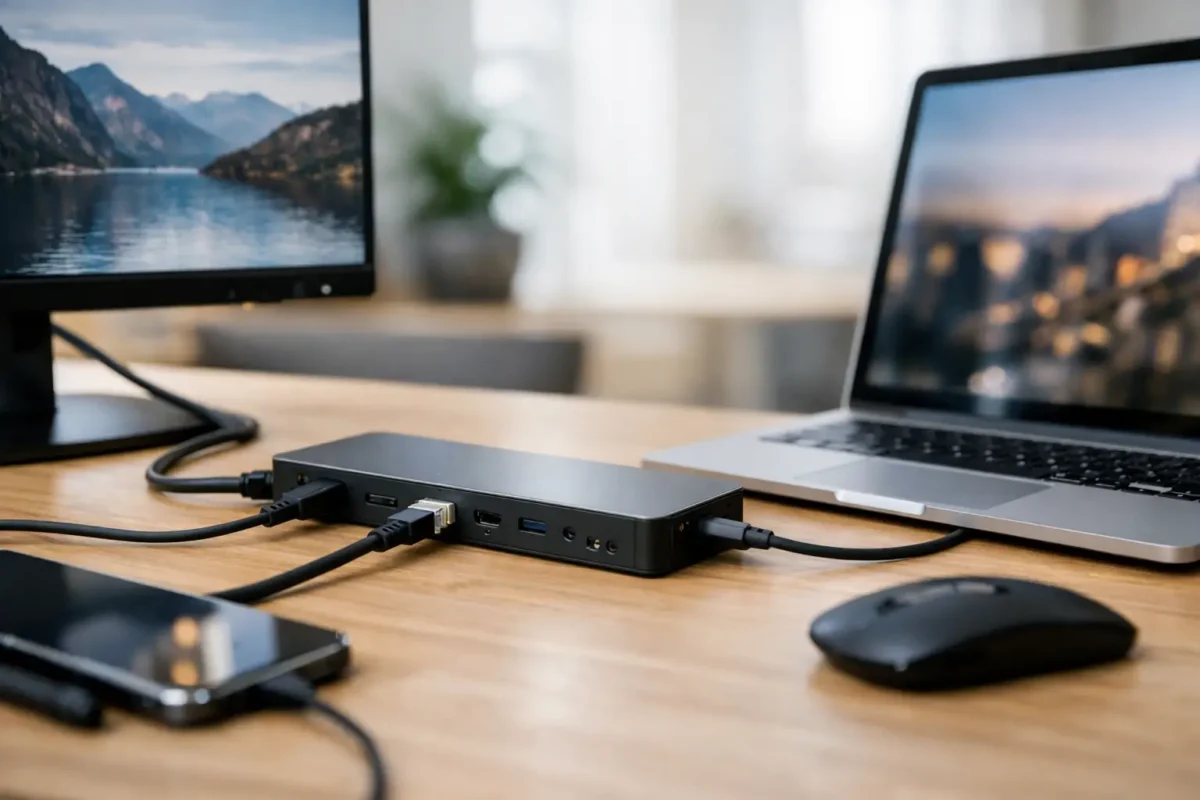
A laptop becomes far more useful when it can arrive at a desk and connect to two monitors, a full-size keyboard, mouse, wired internet and power through one cable. The best docking stations for laptops do exactly that, but the right choice depends on your laptop’s ports, the number of screens you need and how you work. Buying a dock that looks good on paper but does not match your laptop is an expensive way to create a cluttered desk.
For home offices, schools and small businesses, professionally refurbished enterprise docks are often the sensible option. They are designed for daily use with business laptops, typically have more practical ports than small retail adapters, and can offer strong value when paired with quality ex-lease hardware.
What makes a docking station worth buying?
A proper docking station is more than a USB hub. It turns one laptop connection into a fixed workstation, providing display outputs, USB ports, network access, audio and, in many cases, laptop charging. Instead of plugging in five separate cables each morning, you connect one lead and get to work.
The key benefit is consistency. Your monitor layout, keyboard, mouse and internet connection stay at the desk. That matters for a staff member moving between home and office, a student using one device for class and homework, or a business replacing several ageing desktop PCs with laptops and shared workstations.
Do not buy based on the number of ports alone. Video capability, charging wattage and laptop compatibility matter more. A dock with two DisplayPort sockets is not automatically a dual-monitor solution for every laptop. The laptop must support video over USB-C, Thunderbolt or the dock’s particular graphics technology.
The best docking stations for laptops by setup
There is no single best dock for every New Zealand buyer. These are the main dock types worth considering, along with where they make the most sense.
Best for modern USB-C business laptops: USB-C docks
A USB-C dock is the most practical choice for many current Dell Latitude, HP EliteBook and Lenovo ThinkPad laptops. With a compatible USB-C port, one cable can carry charging, display, data and network connectivity.
Enterprise USB-C docks such as the Dell WD19 family, HP USB-C Dock G5 and Lenovo USB-C Dock Gen 2 are popular because they are built around everyday office requirements. Depending on the laptop and dock configuration, they can support two external monitors, wired Ethernet, USB accessories and charging. They are a strong fit for staff working with spreadsheets, browser-based systems, accounting software and video calls.
Check the power supply included with a refurbished dock. A 65W supply can suit many compact laptops, while a 90W or higher supply is usually a better match for larger business notebooks. Some manufacturer-specific docks can deliver higher power to matching models, but may provide less charging power to another brand. That is not a fault – it is simply how the charging standard and manufacturer design work.
Best for premium laptops: Thunderbolt docks
Thunderbolt docks are built for laptops with Thunderbolt 3 or Thunderbolt 4 ports. They offer greater bandwidth than standard USB-C, which helps when running higher-resolution displays, fast external storage or several demanding accessories at once.
They are a worthwhile choice for design work, large data transfers, technical users and premium laptop fleets. For a basic two-monitor office desk, however, Thunderbolt can be more capability than you need. A standard USB-C dock may deliver the same practical result at a better price.
Before choosing Thunderbolt, confirm that the port is genuinely Thunderbolt-capable. A USB-C connector has the same physical shape, but not every USB-C port supports Thunderbolt. Look for the lightning-bolt symbol on the laptop or confirm the specification from the laptop model number.
Best for older or mixed laptop fleets: universal USB docks
Universal docks are useful when an office has a mixture of older USB-A laptops, USB-C devices and different brands. Many use DisplayLink technology to provide video through USB, making them more flexible than docks that rely solely on USB-C video output.
A model such as the Dell D6000 is often a practical option for mixed environments because it can work across a wider range of compatible systems. These docks are especially useful when a business cannot replace every laptop at once but still wants a consistent dual-screen desk setup.
The trade-off is that DisplayLink usually needs software installed on the laptop. It is very good for standard office work, web browsing, email and document handling, but it is not the first choice for fast-paced gaming, colour-critical creative work or high-refresh-rate displays. IT-managed workplaces should also make sure the required driver can be installed under their security policies.
Best for simple one-monitor desks: compact USB-C hubs
A compact USB-C hub can be enough for a student, hot-desk user or home setup with one monitor. These smaller units are easy to carry and commonly provide HDMI, USB-A and charging pass-through.
They are not a replacement for a full dock if you need wired internet, several USB devices and two reliable monitors every day. Hubs also tend to have lower charging capacity and fewer ports. Think of them as a travel-friendly expansion tool, while a docking station is a permanent desk solution.
Check these details before ordering a dock
Start with the laptop, not the monitor. Find its exact model and identify the ports on the side of the machine. A USB-C port may support charging only, data only, or data plus video. A Thunderbolt port normally offers broader capability, while an older USB-A-only laptop may require a universal dock.
Next, check your monitors. DisplayPort is common on business monitors and is generally reliable for office setups. HDMI is also widely used, especially with home monitors and TVs. If your screens have different inputs, cables or adapters may be needed. The dock does not have to match every monitor port directly, but the complete connection path must support the resolution you want.
Resolution is another point often missed. Two 1080p monitors are an easy target for many docks and business laptops. Two 1440p monitors may also be well within range on the right setup. Dual 4K screens, especially at higher refresh rates, place greater demands on the laptop, dock and cables. If screen quality is central to your work, verify the supported resolution and refresh rate for your specific laptop rather than relying on a generic dock specification.
Finally, count the accessories that will stay on the desk. A typical office setup needs a keyboard, mouse, webcam, headset receiver, Ethernet cable and possibly an external drive. Choose a dock with enough USB ports from the start. Running out of ports and adding another cheap hub defeats the purpose of a clean, dependable workstation.
Refurbished docks make sense for business-grade setups
Docking stations have a relatively simple job, but they need to be reliable. Enterprise models from Dell, HP and Lenovo are designed to sit on desks for years, connect and disconnect repeatedly, and support the practical accessories used in offices. That makes quality refurbished units a sensible fit for budget-conscious buyers.
A professionally refurbished dock should be tested for charging, video output, USB connectivity and network access, with the correct power supply included where specified. Cosmetic marks are usually far less important than stable performance and correct compatibility. For schools and organisations fitting out multiple desks, choosing a consistent dock model can also reduce support headaches and make replacements easier.
NZ Laptop Wholesale focuses on business-grade refurbished hardware, so pairing a compatible ex-lease laptop with a tested dock can provide a capable workspace without the cost of buying every component new.
When a dock is not the answer
A dock will not fix every display issue. If a laptop has no compatible video output, limited graphics capability or a damaged USB-C port, a more expensive dock may not help. Similarly, a high-end gaming or editing setup may be better connected directly to the laptop, particularly where high refresh rates, specialised graphics hardware or ultra-fast storage are involved.
It is also worth considering desk habits. If the laptop never leaves the office, a compact refurbished desktop with dual-monitor outputs may offer better value. If it moves between meetings, home and work, a dock is usually the cleaner option because it preserves laptop portability without sacrificing a proper desk setup.
The best choice is the one that matches the laptop you already own, the screens you genuinely use and the work you need to complete. Check compatibility first, choose business-grade hardware where it suits the budget, and your desk should feel less like a cable pile and more like a place to get things done.


