




General
Dual Monitor Setup for Office Work That Fits

TL;DR: Setting Up Dual Monitors for Office Work
A dual monitor setup gives office users, students and remote workers more room to manage email, documents, spreadsheets, browser tabs and video meetings without constantly switching between windows. For most desks, two matching 22-inch or 24-inch monitors provide a practical balance of usable screen space, comfort and affordability.
Quick answer: Two Full HD business monitors are a sensible choice for everyday office productivity. Position the main screen directly in front of you and angle the second inward, or centre the gap if you use both equally. A compatible docking station can make a laptop-based setup much easier to connect and manage.
Before buying, confirm that your computer or dock supports two displays at the required resolution and has compatible HDMI, DisplayPort or USB-C connections. Also consider desk depth, monitor height, cable management and webcam placement so the finished workspace remains comfortable and practical.
If you are constantly swapping between email, spreadsheets, quotes, browser tabs and video calls, a dual monitor setup for office work stops feeling like a nice extra and starts looking like the sensible option. For many offices, remote workers and home desks, the biggest productivity gain is not a faster PC. It is simply having enough screen space to work properly.
A second monitor gives you room to keep one task visible while you work on another. That sounds basic, but the effect is immediate. You spend less time minimising windows, less time losing your place, and less time breaking concentration. For admin teams, accounts staff, customer service roles, students and small business owners, that can make the workday easier without overcomplicating the setup.
Why a dual monitor setup for office use works so well
Most office work is not processor-heavy. It is screen-heavy. You are reading, comparing, copying, checking and replying. On a single display, each of those jobs competes for the same space. On two displays, you can spread the workload naturally.
One screen often becomes the active workspace while the other holds reference material. That might mean a spreadsheet on one side and Xero or Outlook on the other. It could be a document on one screen and research notes on the second. If your day includes Teams or Zoom calls, you can keep the meeting on one monitor and continue working on the other without constantly shuffling windows around.
There is a comfort benefit too. A good setup reduces the small frustrations that build up over a long day. Less clicking, less searching, less visual clutter. That matters just as much as raw speed. Our guide to the benefits of dual monitors looks at these productivity advantages in more detail.
Choosing the right monitors
The best office monitor is not always the biggest one. For most desks, two matching 22-inch to 24-inch monitors hit the sweet spot. They give you enough room for documents and browser windows without taking over the entire desk. For users who handle larger spreadsheets or detailed reporting, 27-inch screens can be worthwhile, but only if the desk depth and viewing distance are right.
Resolution matters, but not in an extreme way. Full HD is still perfectly usable for many office tasks, especially on 22-inch or 24-inch displays. If you want sharper text and more working room, QHD can be a strong upgrade on a 27-inch monitor. Our screen resolution buyer’s guide explains the practical differences between Full HD, QHD and 4K. For budget-conscious businesses or families setting up a study space with dual monitors, the extra cost of a higher resolution is not always necessary.
Panel quality is worth paying attention to. IPS screens generally give better viewing angles and clearer colour consistency than older TN panels, which helps when you spend hours reading text. You do not need a designer-grade display for office use, but you do want something comfortable to look at all day. You can learn more in our guide to common LCD monitor panel types.
Matching monitors are ideal because they create a cleaner viewing experience. The height, bezel size and image quality are more consistent. That said, a mixed setup can still work well if budget is the priority. Plenty of practical office desks run a main screen with a secondary monitor for email or chat, and that is still a major improvement over a single display.
The desk setup matters as much as the screens
A dual monitor setup for office productivity can be excellent or annoying depending on how it is positioned. The most common mistake is placing both monitors too high, too far away or at awkward angles.
For most people, the best layout is simple. Put your primary monitor directly in front of you and the second monitor beside it, angled slightly inward. If you use both equally, centre the gap between them rather than centring one screen. Your eye line should hit roughly the top third of the display, not the very bottom or very top.
Desk depth is important. If the screens are too close, larger monitors can feel overwhelming and force too much head movement. On a compact desk, two 24-inch monitors are often easier to live with than two 27-inch units. A monitor arm can help by freeing desk space and making adjustments easier, but a standard stand is fine if the height is right. Before buying an arm, check that your screens support the correct mounting pattern using our VESA monitor mount guide.
Cable clutter is another small issue that becomes a daily annoyance if ignored. A tidy setup is easier to clean, easier to move and generally feels more professional. In shared offices, that matters more than people admit.
Can your computer handle two monitors?
In many cases, yes. Most business desktops, small-form-factor PCs and docking-capable laptops can support dual displays without drama. The main thing is checking the available video outputs. HDMI, DisplayPort, USB-C and docking stations are the usual options.
If the connection names are unfamiliar, our guide to common computer video ports explains what HDMI, DisplayPort, DVI and VGA look like and how they are normally used. We also have a separate comparison of HDMI versus DisplayPort.
This is where business-grade refurbished hardware often makes a lot of sense. Ex-lease desktops and laptops from Dell, HP and Lenovo are built for office environments, so dual-display support is usually straightforward. A compact desktop with DisplayPort outputs, or a business laptop paired with the right dock, can create a reliable multi-screen workspace at a much lower cost than buying new.
There are still some limitations to watch for. Older systems may support two monitors but struggle with higher resolutions. Some laptops physically have one video output but can run more displays through a compatible dock. Others need an adapter, and not every cheap adapter behaves properly. It pays to check the exact ports and graphics support before buying, especially if you are fitting out multiple desks.
Docking stations make life easier
If you use a laptop at your desk, a docking station is often the difference between a tidy office setup and a daily hassle. Instead of plugging in power, monitor cables, keyboard, mouse and network one by one, you connect through a single dock and get on with work.
That is especially useful for hybrid staff who move between home and office. The laptop stays portable, but the desk remains fully set up. It also cuts down wear on the laptop’s ports and keeps the workspace more consistent across users.
For many buyers, this is where value matters most. You do not need the newest dock on the market. You need one that is compatible, stable and suited to the screens you are using. A professionally refurbished dock paired with a business laptop can be a very cost-effective way to build a proper desk setup.
Before choosing one, read our guide to whether you need a docking station for dual monitors. We also have a practical walkthrough explaining how to connect dual monitors through a dock.
When dual monitors are better than one ultrawide
Some buyers compare a dual monitor setup with one ultrawide display. Both options can work, but dual monitors still suit many office environments better.
Two monitors are often cheaper, easier to replace individually and more flexible for mixed tasks. You can dedicate one screen to communication and the other to active work. You can also turn one monitor vertically if document reading is a big part of the job. In shared or growing offices, replacing or adding standard monitors is usually simpler than redesigning desks around large ultrawides.
An ultrawide can look cleaner and reduce the bezel gap in the middle, but it is not automatically the better business choice. If a monitor fails, the entire workspace is affected. Window management can also depend more heavily on software habits. For straightforward office productivity, two standard monitors remain the more practical option in many cases.
What to buy if budget matters
For most New Zealand buyers, price is part of the decision from the start. The good news is that a useful office setup does not need to be expensive. In fact, spending carefully often gets better results than chasing the latest spec sheet.
A sensible dual-monitor office bundle usually starts with proven business hardware. That might be a refurbished small-form-factor desktop and two matching monitors, or a refurbished laptop with a docking station and external displays. The advantage is simple: commercial-grade machines are designed to run all day, connect properly and stay dependable under normal office use.
That is why businesses, schools and home users often look at refurbished gear first. When it has been professionally tested and sold with clear specifications, it offers strong value. You can often afford better build quality, better connectivity and more practical features than you would get from a brand-new budget model.
At NZ Laptop Wholesale, that value-led approach suits exactly this kind of setup. Buyers are usually not chasing flashy extras. They want tested, business-ready gear that helps them get more done for less. Our dual-monitor setups combine compatible screens, mounting hardware, docking and the required cables into practical office packages.
Small decisions that improve the setup
A keyboard and mouse you actually like using make a difference. So does a proper office chair. If you are on calls all day, think about where the webcam sits once two monitors are in place. If your main screen is off to the side during meetings, your eye contact will look odd, which can be distracting.
Lighting matters too. Try to avoid placing monitors directly opposite a bright window, where glare becomes a constant issue. Even a good monitor is frustrating if reflections are fighting your screen all afternoon.
If more than one person uses the desk, choose a layout that can be adjusted easily. Shared setups are where basic ergonomics matter most, because a position that suits one person can be wrong for the next.
The best office technology is usually the kind that stops getting in your way. A dual monitor setup does exactly that when it is chosen well. Start with the work you actually do, match the screens to the desk, and choose reliable hardware that fits the budget. Done properly, it is one of the simplest upgrades you can make to an office without making the setup harder to manage.
Browse our current dual-monitor office setups, or explore our wider selection of refurbished computer monitors. NZ Laptop Wholesale is based in Auckland and ships securely throughout New Zealand.
-
Dual Dell 22″ Monitors (P2214hb) + New Desk Mount Arms + USB-C Docking Station
Original price was: $349.00.$299.00Current price is: $299.00. -
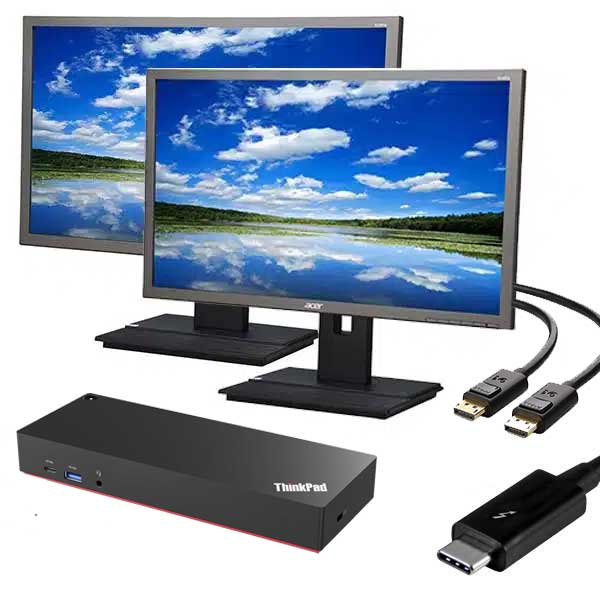
Dual Full HD 24″ Acer Monitors + USB-C Docking Station
$309.00 -
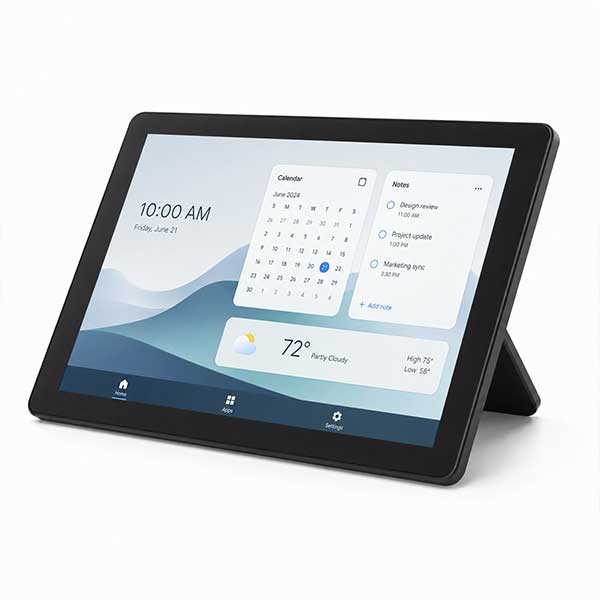
External 12.3″ USB-C Alt Mode Touchscreen Monitor – 1440 × 960
$119.00


