










General
How to Set Up Dual Monitors for Your Desk
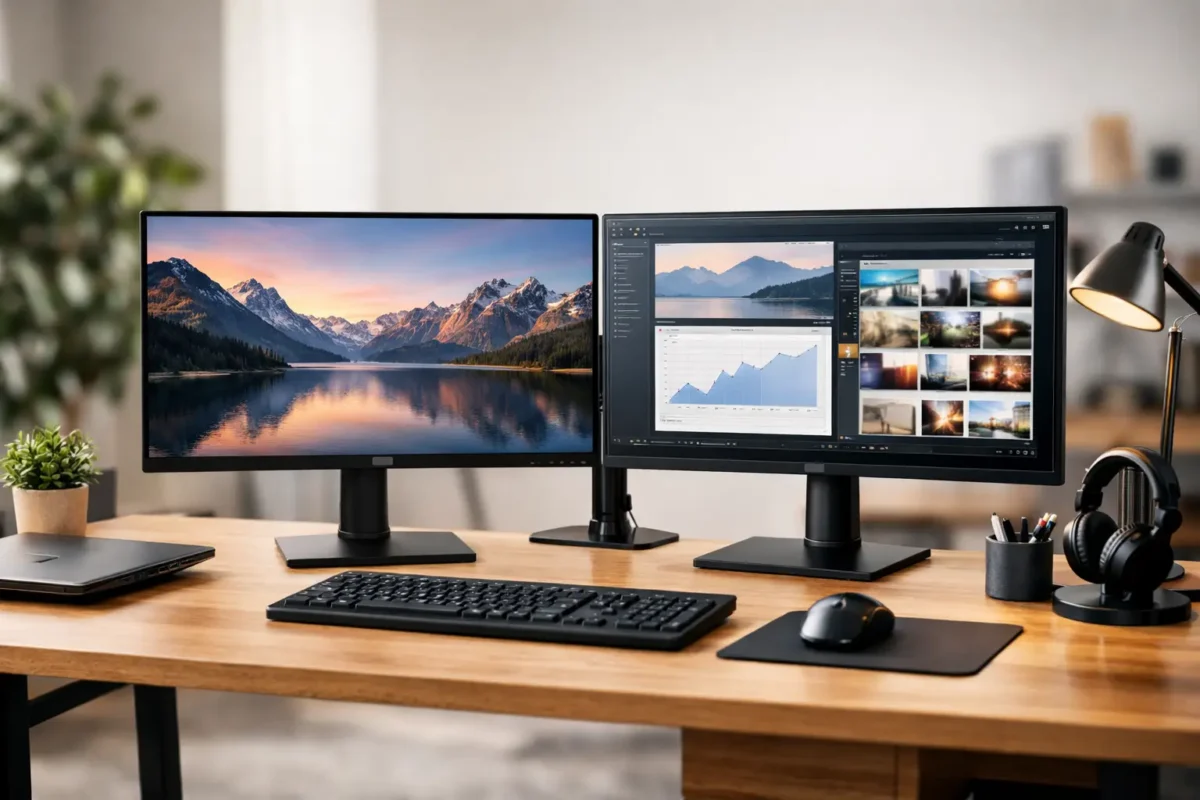
A second screen is one of the simplest upgrades you can make to a work or study desk. Instead of constantly switching between a spreadsheet, browser, email and video call, you can keep the important information visible. Learning how to set up dual monitors properly means checking compatibility first, then arranging the screens and settings to suit the way you actually work.
For remote workers, students and small businesses, a dual-monitor setup does not need to mean buying expensive new equipment. Professionally refurbished business monitors, desktops and docking stations can provide a reliable, practical workspace at a much lower cost.
Start by checking what your computer supports
Before choosing cables or monitors, look at the video ports on your laptop or desktop. Common connections include HDMI, DisplayPort, USB-C and, on older business hardware, VGA or DVI. Your computer needs two usable video outputs to run two monitors directly.
A desktop PC often has more than one display output, but make sure they are active outputs from the same graphics card or motherboard. If your desktop has a dedicated graphics card, use the ports on that card rather than the ports higher up on the motherboard panel. Mixing the two can work on some systems, but it may require BIOS settings and is not the most straightforward option.
For a laptop, the answer depends on its USB-C capability, its HDMI port and the model’s graphics hardware. Many business laptops can run one monitor from HDMI and another through USB-C. Others need a compatible docking station to add two external displays. USB-C connectors look the same, but not every USB-C port carries video, so check the specifications rather than assuming.
If you are buying equipment for a shared office, school or home workspace, match the dock to the laptop model and the intended monitor resolution. A basic dock may support two Full HD screens, while a higher-spec model may be needed for two 1440p or 4K displays.
Choose monitors that work well together
Two matching monitors make a desk easier to use. The bezels line up, colours tend to look closer, and the display settings are simpler to manage. Matching screens are helpful, but they are not essential. A larger monitor can sit alongside a smaller one if you mainly use one screen for your main task and the other for reference material.
For everyday office work, 22-inch to 24-inch Full HD monitors are a sensible value choice. They give you enough room for documents, accounting software, web research and online learning without taking over a standard desk. A pair of 24-inch screens is a popular option for administration teams and home offices.
If you work with wide spreadsheets, design files or multiple application windows, 27-inch monitors with 1440p resolution provide more usable space. They cost more and need a little more desk depth, but the extra resolution can reduce scrolling and make text clearer. Two 4K displays are worthwhile for specialist work, though they are often more than most general office users need.
Where possible, choose monitors with HDMI or DisplayPort inputs, as these are the most common options on refurbished business desktops and docking stations. Check whether cables are included. A monitor may have several ports, but you only need the connection that matches your computer or dock.
How to set up dual monitors physically
Place the monitor you use most directly in front of you. This should be the screen where you write, enter data or do focused work. Position the second monitor beside it at a slight angle, so you can glance across without repeatedly twisting your neck.
Try to keep the top edge of each monitor around eye level or slightly below. The exact height depends on your chair, glasses and posture, but you should not need to look sharply up or down. If the supplied stands do not give enough adjustment, monitor arms can free up desk space and make it easier to align two different screens.
Keep both monitors at a similar distance from your eyes. For most desk setups, that is roughly an arm’s length away. Avoid placing one screen much closer than the other, particularly if you will use both all day. It can become tiring surprisingly quickly.
Connect each monitor to the computer, dock or desktop, then connect power. Turn the monitors on before adjusting software settings. Select the right input source using each monitor’s buttons if the screen initially shows no signal.
Set up the displays in Windows 11
Once both monitors are connected, Windows 11 will usually detect them automatically. Right-click an empty area of the desktop and select Display settings. You should see two numbered rectangles representing your screens.
Select Identify to show a number on each physical monitor. Then drag the rectangles so they match the position of the monitors on your desk. If the second monitor is to the left of your main screen, move its rectangle to the left in Windows. This small step matters because it ensures your mouse moves naturally between displays.
Under Multiple displays, choose Extend these displays. This gives each monitor its own desktop area. Avoid choosing Duplicate unless you specifically want both screens to show exactly the same thing, such as when presenting to a group.
Next, select the screen you want as your main display and tick Make this my main display. Your taskbar, Start menu and most newly opened programs will appear there by default. Many people set the central monitor as the main screen and use the side monitor for Teams, email, browser tabs or a reference document.
Check the resolution and scale for each screen. Use the monitor’s recommended resolution where possible. If text looks too small on a higher-resolution screen, increase display scaling rather than lowering the resolution. A 125% or 150% scale setting often makes a 27-inch 1440p or 4K monitor more comfortable for office use.
Useful shortcuts for working across two screens
Dual monitors are most useful when you can move windows quickly. Hold the Windows key and press Shift plus the left or right arrow key to move the active window between monitors. Windows key plus the arrow keys can also snap a window to one side of a screen.
You can keep a video call on one display while working on a document on the other, compare two versions of a file side by side, or place your inbox on the second screen so messages do not interrupt your main task. The aim is not to fill both monitors with distractions. Give each screen a clear job.
For example, an accounts worker may keep accounting software on the main display and invoices or bank records on the second. A student may write an assignment on one screen and read course material on the other. A small business owner might keep a customer order system open while checking email and stock information beside it.
If your second monitor is not working
Start with the simple checks. Confirm that the monitor has power, the correct input is selected and both cable ends are firmly connected. Try swapping cables or ports if you have an alternative available. A damaged or low-quality cable is a common cause of flickering, blank screens or a monitor that only works at a lower resolution.
If Windows cannot see the second display, open Display settings and use the Detect option under Multiple displays. Restarting the laptop, desktop or dock can also help after connecting new hardware. For a docked laptop, connect the dock’s power adaptor as well. Some docks cannot reliably run two monitors when powered only by the laptop.
A USB-C adaptor is not always the answer. Simple USB-C to HDMI adaptors can add one display where the port supports video, but they do not necessarily create a second independent display. If your laptop only supports one external monitor natively, you may need a dock designed for that model or a DisplayLink-based solution. These can be useful, but they involve driver software and may not suit graphics-heavy work.
If one screen looks noticeably different from the other, adjust brightness and colour settings using the monitor’s on-screen controls. Different panel types and models will never look perfectly identical, which is one trade-off of mixing monitors. For office work, consistent brightness usually matters more than perfect colour matching.
A practical dual-monitor buying checklist
Before ordering, confirm these four details:
- Your laptop or desktop can support two external displays.
- The monitor inputs match your computer or docking station outputs.
- The dock supports your chosen resolution on both screens.
- Your desk has enough width, depth and power points for the setup.
NZ Laptop Wholesale can be a practical option when you need tested ex-lease monitors, business desktops or docking stations that are suited to office use rather than flashy specifications you will never use. The right setup is the one that supports your daily workload, fits your desk and stays within budget.
Once the screens are connected and arranged properly, spend a day using them before making final adjustments. A small change to monitor height, scaling or screen position can make the difference between a setup that merely looks productive and one that genuinely makes work easier.


