





General
Can Old Laptops Run Windows 11?
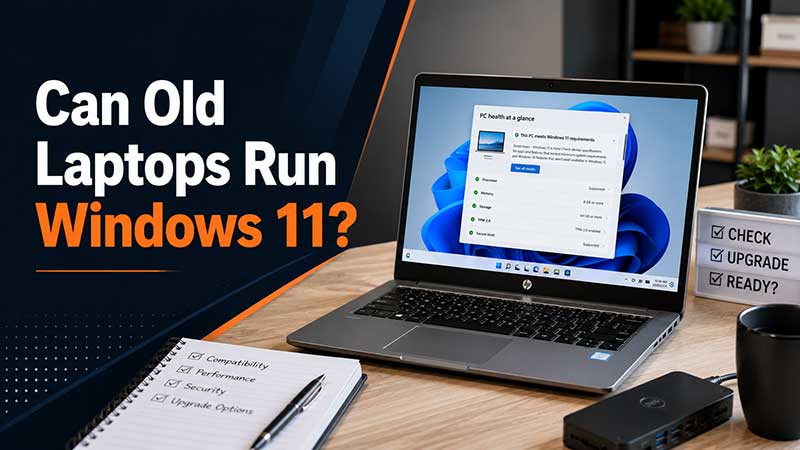
That old laptop in the cupboard might still turn on fine, hold a decent charge and handle email without complaint. The real question is can old laptops run Windows 11, and the answer is a very practical one: some can, many cannot, and the deciding factor is usually hardware support rather than day-to-day speed.
That catches a lot of buyers out. A laptop can feel perfectly usable on Windows 10, yet still miss out on Windows 11 because it lacks the right processor generation, TPM 2.0 support, Secure Boot, or firmware settings. If you’re trying to stretch value from existing hardware, it pays to check the details before spending time on upgrades.
Can old laptops run Windows 11 or not?
Windows 11 has stricter hardware requirements than earlier Windows versions. Microsoft drew a firmer line around security features and supported processors, which means age matters more than it used to.
In plain terms, most laptops from roughly 2018 onward have a better chance of qualifying, while many machines from 2015 to 2017 sit in the grey area. Some older business laptops can pass if they have the right CPU and security chip, but plenty of otherwise reliable machines are excluded.
This is why two old laptops that look nearly identical can have completely different outcomes. One may install Windows 11 without fuss. The other may fail the eligibility check because of a single missing requirement.
What usually stops an older laptop from upgrading?
The biggest blocker is the processor. Windows 11 generally supports Intel 8th Gen and newer, along with selected AMD Ryzen generations and later chips. If your laptop runs a 6th or 7th Gen Intel processor, it may still be a solid machine for basic work, but it often will not meet the official list.
The next common issue is TPM 2.0. This is a security module, and in many business-grade laptops it is present but disabled in BIOS. That means some systems fail the check at first, then pass once the setting is enabled. Consumer laptops can be more hit and miss.
Secure Boot is another requirement that can trip people up. Again, the hardware may support it, but the setting is not always turned on. Storage and RAM are less of a problem, as most decent older laptops already meet the minimum. Still, a machine scraping by with low RAM and a tired hard drive is unlikely to give a good Windows 11 experience even if it technically installs.
Why business laptops often age better
This is where ex-lease enterprise models stand out. Business laptops from Dell, HP and Lenovo were usually built with longer service life in mind, better firmware support and more predictable specs. They were also more likely to include the security hardware that Windows 11 expects.
That does not mean every old business laptop is Windows 11-ready. It means they are more often worth checking. A well-specced ex-corporate unit has a far better chance than a bargain consumer notebook that was entry-level when new.
For schools, small businesses and home users trying to buy wisely, this matters. A refurbished business laptop with confirmed Windows 11 support can be better value than hanging onto an older unsupported machine and hoping for the best.
How to check if your current laptop can run it
The cleanest starting point is the CPU model. If you can find that, you can quickly work out whether the laptop is even in the right generation. On many laptops, this alone tells most of the story.
After that, check whether TPM 2.0 and Secure Boot are available and enabled. Some machines fail only because these settings are off. If you are comfortable entering BIOS, this can be a straightforward fix. If not, it may be worth having an IT technician check it rather than guessing.
You should also look at practical performance, not just eligibility. A laptop with an older SATA hard drive, 4GB of RAM and a weak dual-core processor may pass some checks poorly or run a workaround install, but that is not the same thing as being fit for work or study.
Officially supported versus unofficial workarounds
This is the part where trade-offs matter. Yes, there are unofficial ways to install Windows 11 on unsupported hardware. You can find registry edits and installation methods that bypass the standard checks.
For a hobby machine at home, some people are happy to do that. For a student laptop, office device or shared family computer, it is usually not the sensible option. Unsupported installs can create uncertainty around updates, driver support and long-term stability. If the machine is relied on every day, the cheap option upfront can become the expensive one later.
For most buyers, especially if the laptop is used for school, remote work, bookkeeping or general business tasks, officially supported hardware is the safer call. You want clear compatibility, routine updates and no mucking around.
When keeping Windows 10 still makes sense
Not every older laptop needs to be replaced immediately. If your current machine is running well and your software needs are modest, staying on Windows 10 for the short term can still be reasonable while you plan a replacement.
The key word there is plan. Windows 10 will not be the forever fallback, so an older unsupported laptop should be treated as a stopgap rather than a long-term strategy. If you are managing devices for staff, students or a household, waiting until the last minute tends to create more pressure and fewer good buying options.
This is especially true for fleet purchases. Replacing one failed laptop is manageable. Replacing ten at once because they are all too old for the next step is a different story.
If your old laptop misses out, what should you buy?
If your current device does not qualify, the best value move is often a professionally refurbished business laptop that is already Windows 11-ready. That gives you a supported operating system, stronger hardware and a better screen, keyboard and build quality than many cheap new consumer models.
For everyday office use, study, browser-based work and video calls, you do not need the latest premium model. You need a reliable CPU, sensible RAM, an SSD, solid battery health and confirmed compatibility. That is where refurbished ex-lease stock tends to shine.
A good example is an 8th Gen Intel or newer business laptop with 8GB or 16GB RAM and an SSD. That sort of machine hits the practical sweet spot for many New Zealand buyers. It keeps costs under control without forcing you into outdated hardware.
For businesses in Auckland, Hamilton, Wellington or Christchurch, this approach also makes budgeting easier. You get consistent specs, predictable performance and less risk than piecing together mixed second-hand machines of unknown quality.
Is it worth upgrading parts in an older laptop?
Sometimes yes, sometimes no. If the laptop is already Windows 11-compatible and only feels slow because it has a hard drive or not enough RAM, a simple upgrade can extend its life nicely. Swapping to an SSD and adding memory can make an older business laptop feel far more responsive.
If the processor is unsupported, though, hardware upgrades will not solve the core problem. You can spend money improving a machine that still does not meet the Windows 11 standard. In that case, replacement is usually the cleaner investment.
This is why it helps to check compatibility first and performance second. There is no point fitting new parts to a laptop that has already aged out of support for your intended use.
The practical answer for most buyers
So, can old laptops run Windows 11? Some can, but only if they meet Microsoft’s hardware and security requirements. Age alone does not decide it, but processor generation, TPM 2.0 and firmware support usually do.
If your current laptop qualifies and still performs well, you may have more life left in it. If it does not, forcing the upgrade is rarely the smart long-term move. A tested, professionally refurbished business laptop with confirmed Windows 11 support is often the better buy – especially when reliability matters more than chasing the lowest ticket price.
The goal is not just to get Windows 11 installed. The goal is to end up with a laptop that starts quickly, works every day and does the job without fuss.


