










General
Best Monitors for Office Productivity in NZ
A slow laptop gets blamed for plenty of frustrating workdays, but a cramped or poor-quality screen is often the real problem. The best monitors for office productivity give you enough clear, comfortable workspace to keep email, spreadsheets, browser tabs and video calls visible without constantly resizing windows. For most New Zealand offices, that improvement matters more than chasing the biggest screen or the highest specification on paper.
A good office monitor should make routine work easier from 9 am to knock-off. That means readable text, sensible screen size, useful connections and a stand that can be adjusted properly. It also means buying a screen that suits the computer and the desk, rather than paying extra for features that will never be used.
What makes a monitor productive for office work?
Office productivity is not about gaming refresh rates or dramatic colour effects. It is about seeing more information at once, reading comfortably for long periods and keeping a clean, dependable workspace. A monitor that is well suited to office work will usually have an IPS panel, a matte or anti-glare finish, at least Full HD resolution and connections that match your laptop, desktop or docking station.
Screen resolution has a direct effect on how much room you have to work. Full HD, or 1920 x 1080, remains a practical choice for general administration, point-of-sale systems, email and everyday documents. QHD, at 2560 x 1440, provides noticeably more room for two documents side by side, wider spreadsheets and browser-based business software. A 4K screen can be excellent for detailed design work, large reports or high-resolution imagery, but it is not automatically the best value for standard office tasks.
The panel type also matters. IPS displays are generally the safe choice for office use because they offer good viewing angles and consistent image quality across the screen. That is helpful when colleagues are looking at the display with you or when your position changes during the day. Older TN panels can still work for basic tasks, particularly in a budget dual-monitor setup, but they are less comfortable to view from an angle.
The best monitor sizes for office productivity
There is no one screen size that fits every desk. The right choice depends on the work being done, available space and whether you prefer one larger display or two matching screens.
24-inch Full HD: the sensible everyday choice
A 24-inch Full HD monitor is one of the best-value options for general office use. Text is usually clear at a normal desk distance, the screen does not dominate a compact workspace and it is easy to place two of them side by side. This size suits reception desks, school administration, home offices, call centres and staff who mainly use email, cloud applications and standard documents.
It is also a practical place to save money without compromising reliability. Professionally refurbished enterprise monitors from Dell, HP and Lenovo are commonly built for long-term business use, with sturdy stands and straightforward connections. For a growing business replacing several screens at once, matching 24-inch displays can deliver a tidy, consistent setup at a more manageable cost than new retail models.
The limitation is workspace. If you regularly work with wide spreadsheets, accounting software, multiple browser windows or detailed reports, a single 24-inch Full HD screen can feel restrictive. In that case, consider adding a second monitor or moving to a 27-inch QHD display.
27-inch QHD: more room without excess
For many remote workers, managers and spreadsheet-heavy roles, a 27-inch QHD monitor is the sweet spot. It offers more desktop space than Full HD without requiring the scaling adjustments that can make 4K text and menus feel awkward on some systems. You can keep a report open beside Teams, compare two documents, or view a dashboard without squashing everything into narrow columns.
QHD is especially worthwhile when the monitor will be the main screen for a business laptop. Check that the laptop, dock and cable can support 2560 x 1440 at the refresh rate required. Most modern business devices can, but older laptops may have limitations through certain HDMI ports or docking stations.
A 27-inch monitor also needs a reasonably deep desk. If the screen is too close, you may find yourself turning your head across the display all day. A monitor arm can help by creating more usable desk space and allowing a better viewing distance.
32-inch and ultrawide displays: best for specific roles
A 32-inch QHD or 4K monitor can work well for users who need a large canvas, such as office managers reviewing complex schedules, analysts working through dense spreadsheets or designers handling detailed files. The benefit is having a single, uninterrupted screen rather than a bezel between two monitors.
Ultrawide monitors are useful for timeline-based work, wide spreadsheets and people who keep several applications open continuously. They are not always the most economical option, however. Two refurbished 24-inch or 27-inch monitors can provide similar workspace, more flexibility and simpler replacement if one screen fails. For standard business work, dual monitors are often the better value purchase.
Why dual-monitor setups still work so well
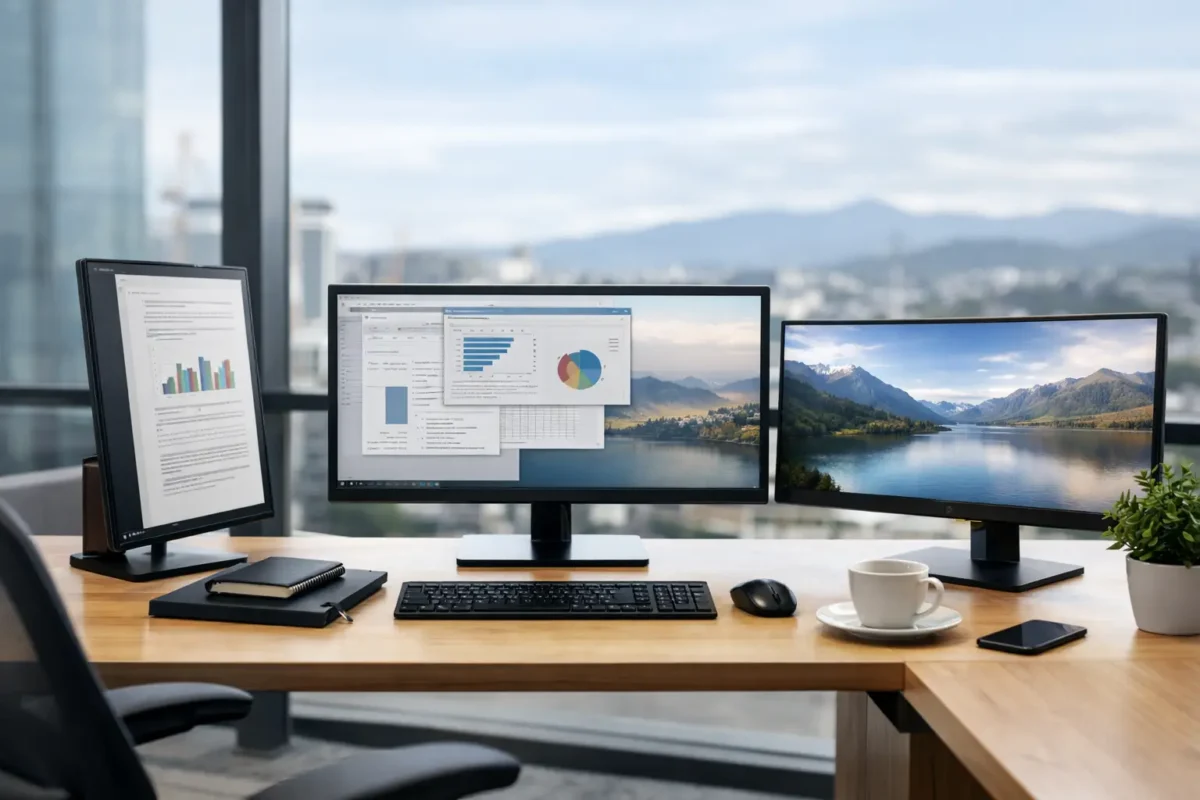
A dual-monitor office setup is one of the simplest ways to improve day-to-day efficiency. One screen can hold email, Teams or reference material while the other is used for the task at hand. That reduces the constant switching between windows that breaks concentration and slows small jobs down.
For administration and accounts teams, two matching 24-inch Full HD monitors are often the practical starting point. For staff working with larger data sets, two 27-inch QHD monitors create a substantial workspace, though they need more desk width and a capable dock or desktop graphics output.
Before buying, check the computer has enough display outputs. A docking station is often the cleanest solution for laptop users, particularly when it can connect monitors, power, keyboard, mouse and network through one cable. Confirm the dock supports the required resolution across both screens, not just one. This detail prevents the common disappointment of buying two QHD monitors and finding one runs at a lower resolution.
Connections, stands and other details worth checking
A monitor can have an excellent panel and still be a poor fit if it does not connect easily to your equipment. HDMI and DisplayPort are common on business monitors and desktops. USB-C is increasingly useful for newer laptops because one cable can carry video and, on compatible models, charging and USB data. Older devices may use VGA or DVI, so adapters can be useful, but a direct digital connection is preferable where possible.
Do not overlook the stand. Height adjustment, tilt, swivel and pivot are genuinely useful office features, not luxuries. The top of the screen should generally sit around eye level, with the monitor placed far enough away that you can view it without leaning forward. A height-adjustable stand makes it much easier to set up correctly for different staff members, especially in shared workspaces.
Other features are useful but should be weighed against price. Built-in speakers are convenient for basic calls, although a headset or dedicated speakers will sound better. Blue-light settings and flicker-reduction modes can improve comfort for some users, but they will not fix a screen that is too bright, too close or badly positioned. A matte finish is usually preferable in offices with windows or overhead lighting because it reduces distracting reflections.
Buying refurbished monitors for better value
Refurbished business-grade monitors can be a smart option when fitting out a home office, replacing an ageing screen or purchasing for a team. Enterprise models are designed for commercial environments, which often means solid construction, VESA mounting options and more adjustable stands than entry-level consumer displays.
The key is to buy from a supplier that clearly states the monitor’s condition, size, resolution, ports and included accessories. Ask whether a stand, power cable and video cable are supplied, as these details affect the real cost of getting set up. It is also sensible to check the warranty and understand what cosmetic wear may be expected on ex-lease equipment.
For businesses, consistency matters. Buying the same model or at least the same screen size and resolution makes desks easier to set up, supports staff moving between workstations and gives the office a more organised look. NZ Laptop Wholesale focuses on professionally refurbished business hardware, making it easier to build practical monitor setups around reliable enterprise equipment rather than mismatched consumer screens.
Choose for the work, not the specification race
If your day is mostly email, documents and browser-based systems, a 24-inch Full HD IPS monitor is hard to beat for value. If you spend hours comparing files, managing accounts or working in large spreadsheets, step up to 27-inch QHD. If you are constantly moving information between applications, put the budget towards a second matching monitor and a suitable dock before paying for unnecessary 4K resolution.
The best setup is the one that gives your work room to breathe, fits your desk and works properly with the equipment you already own. A well-chosen refurbished business monitor can make every ordinary task feel less cramped, more comfortable and easier to finish.


