




Buying Advice, FAQs, Guides, Tech-Info
USB-C Docking Station Compatibility | NZ Guide
TL;DR: Will Your Laptop Work with a USB-C Dock?
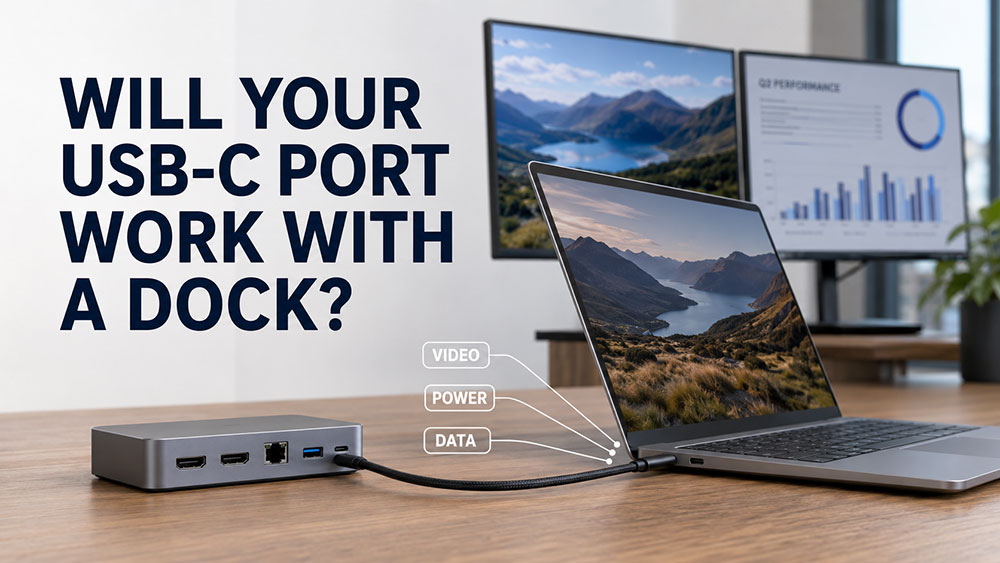
A USB-C docking station can connect monitors, accessories, Ethernet and sometimes laptop charging through one cable. However, the USB-C connector shape alone does not confirm compatibility, as different laptop ports may support data, video, charging or Thunderbolt in different combinations.
Quick answer: For a straightforward one-cable setup, choose a laptop with USB-C DisplayPort Alt Mode and Power Delivery, or a compatible Thunderbolt port. A DisplayLink dock may be suitable when the laptop only has USB-A or lacks native USB-C video support.
Before buying, check the exact laptop model, dock connection type, required number of monitors, supported resolutions and charging wattage. The laptop, dock, cable and power supply must all support the features you expect.
Docking Stations and USB-C Alt Mode: What Laptop Ports Do You Need?
A docking station can turn a laptop into a practical desktop workstation, connecting monitors, a keyboard, mouse, network cable and other accessories through one main connection.
The confusing part is that not every USB-C port offers the same features. Two laptops may have ports that look identical, while only one of them can send video to a monitor or receive power from a docking station.
This guide explains USB-C docking station compatibility in plain language, including DisplayPort Alt Mode, Thunderbolt, Power Delivery and DisplayLink. It will also show you what symbols and specifications to look for on your laptop.
Quick answer: which laptop port is best for a docking station?
For the easiest one-cable docking setup, look for one of the following:
- USB-C with DisplayPort Alt Mode and Power Delivery support
- Thunderbolt 3, Thunderbolt 4 or Thunderbolt 5
These connections can potentially carry video, USB data and power through one cable. However, the exact features still depend on the laptop, dock, cable and power supply.
If your laptop only has USB-A, it may still work with a DisplayLink docking station, but it will normally require software and will not charge the laptop through the USB-A connection.
What does a docking station do?
A docking station adds extra connections to your laptop. Depending on the model, a dock may provide:
- HDMI or DisplayPort monitor outputs
- USB-A and USB-C accessory ports
- Wired Ethernet networking
- Audio connections
- Memory card readers
- Laptop charging through USB-C
Instead of connecting every cable separately when you sit down, you connect one main dock cable to the laptop.
This is especially useful for work-from-home desks, small offices, hot-desking and dual-monitor setups.
USB-C describes the connector, not everything it can do
USB-C is the small, rounded and reversible connector found on many modern laptops. The plug can be inserted either way up.
However, the USB-C shape does not guarantee that the port supports:
- External monitors
- Laptop charging
- Thunderbolt devices
- High-speed data transfers
- Multiple displays
Some USB-C ports are designed mainly for ordinary USB devices such as storage drives, phones, keyboards and mice. Others can also carry video and power.
The same warning applies to USB-C cables. A cable that charges a phone may not have the wiring or capability required for monitors, high-speed data or laptop charging. Our guide to USB-C ports and cables explains these differences in more detail.
What is DisplayPort Alt Mode?
DisplayPort Alt Mode, often shortened to DP Alt Mode, allows a compatible USB-C port to carry a DisplayPort video signal.
This lets the laptop send video through USB-C to:
- A USB-C docking station
- A USB-C monitor
- A USB-C to HDMI adapter
- A USB-C to DisplayPort adapter
The laptop’s graphics system produces the video signal directly. This is often referred to as a native video connection because it does not normally rely on DisplayLink graphics software.
A USB-C port must specifically support DisplayPort Alt Mode for this type of dock or adapter to produce a picture. A basic data-only USB-C port will not provide native video, even though the connector fits.
USB-C, Thunderbolt and DisplayLink compared
| Connection type | External monitors | Laptop charging | Software required | Typical use |
|---|---|---|---|---|
| Basic USB-C data port | No native video | Possibly, but charging is a separate feature | No for normal USB accessories | Storage, keyboard, mouse and USB hubs |
| USB-C with DisplayPort Alt Mode | Yes | Only if the laptop also accepts USB Power Delivery | Normally no special display software | USB-C docks, monitors and video adapters |
| Thunderbolt 3, 4 or 5 | Yes | Often supported, but verify the laptop and dock | Normally handled by the operating system and device drivers | Higher-performance docks, displays and storage |
| DisplayLink dock through USB-A or USB-C | Yes, through USB graphics technology | USB-A will not charge the laptop; USB-C charging depends on the dock and laptop | DisplayLink software may be required | Adding displays when native USB-C video is unavailable |
| HDMI or DisplayPort on the laptop | Yes, directly to a monitor | No | Normally no special software | A simple direct monitor connection |
What port symbols should you look for?
Check the area beside the USB-C socket for a printed symbol. Common markings include:
DisplayPort symbol

A DisplayPort-style symbol beside the USB-C port generally indicates that the connection supports DisplayPort Alt Mode and can send video to a compatible dock, monitor or adapter.
Lightning bolt symbol

A lightning bolt normally identifies a Thunderbolt port. Thunderbolt 3 and newer versions use the same physical USB-C connector.
A compatible Thunderbolt dock can carry displays, data and other connections through one cable. Charging still depends on whether the particular laptop accepts power through that port and whether the dock can supply enough wattage.
Battery or power symbol
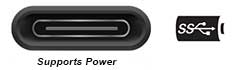
A battery, plug or charging symbol may indicate that the USB-C port can be used for laptop charging.
This does not automatically confirm monitor support. Charging and video are separate capabilities.
USB or “SS” symbol
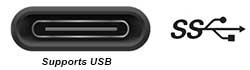
A USB trident or “SS” marking generally relates to USB data capability or speed. It does not, by itself, confirm DisplayPort Alt Mode or Thunderbolt support.
Please err on the side of caution and assume there is no hardware based video support.
No symbol at all

An unmarked port may still support video or charging. Manufacturers do not always label every capability clearly, so the symbol should be treated as a clue rather than final proof.
How to check your exact laptop model
The safest way to confirm docking station compatibility is to find the laptop’s exact model and check its official specifications.
- Check the label underneath the laptop. Look for a model, product number, machine type or service tag.
- Open System Information in Windows. Search for “System Information” from the Start menu and look for the System Model entry.
- Search for the model’s specifications or user manual.
- Look under the ports or connectivity section.
Useful specification phrases include:
- DisplayPort over USB-C
- DisplayPort Alt Mode
- USB-C with DP support
- Thunderbolt 3, 4 or 5
- USB4 with DisplayPort support
- USB Power Delivery
- USB-C charging
If the specifications only say “USB-C” without explaining what the port supports, do not assume that monitor output or laptop charging will work.
What is USB Power Delivery?
USB Power Delivery, usually written as USB PD, allows compatible USB-C equipment to negotiate and provide power.
For a dock to charge your laptop, all of the following need to be suitable:
- The laptop must accept charging through that USB-C or Thunderbolt port
- The dock must support power delivery to the laptop
- The dock’s power supply must provide sufficient power
- The USB-C cable must support the required power level
A dock advertised with a large power supply does not necessarily deliver all of that power to the laptop. Some power is reserved for the dock itself and any connected USB devices.
Compare the dock’s stated power delivery to the wattage of the laptop’s normal charger. A laptop that usually uses a higher-powered charger may charge slowly, display a low-power warning or still require its original charger.
Can a dock work without charging the laptop?
Yes. A docking station may successfully run monitors, USB devices and Ethernet while the laptop continues to use its normal charger.
This is common when:
- The laptop supports video through USB-C but not USB-C charging
- The dock cannot provide enough power
- The laptop uses a higher-powered proprietary charger
- The dock is connected through USB-A
Using a separate charger is less tidy, but it does not stop the docking station from being useful.
What is a DisplayLink docking station?
DisplayLink docks create external display outputs through a normal USB data connection. They can work through USB-A or USB-C and do not require the laptop to provide a native DisplayPort Alt Mode signal.
This makes DisplayLink useful when a laptop:
- Has USB-C but no native video output through it
- Only has USB-A ports
- Needs additional office displays beyond its normal connections
DisplayLink software may need to be installed or updated. For setup instructions, see our DisplayLink docking station setup guide.
DisplayLink is well suited to general office work, web browsing, documents, email and accounting. Buyers with specialised graphics, gaming, protected video or very high-resolution requirements should check the dock and software requirements carefully.
What should you check before buying a dock?
1. The host connection
Check whether the dock connects through USB-A, USB-C, Thunderbolt or a manufacturer-specific docking connector.
Do not judge compatibility only by looking at the dock’s accessory ports. A dock may have several USB-C sockets while using a different port or captive cable for its connection to the laptop.
2. Native Alt Mode or DisplayLink
Find out whether the dock relies on DisplayPort Alt Mode, Thunderbolt or DisplayLink. These technologies have different laptop requirements.
3. Number of monitors
Check how many external monitors you want to use. Support for one display does not automatically mean that two displays will work.
The result can depend on the laptop’s graphics system, the dock, available video bandwidth, screen resolution, refresh rate and operating system.
4. Monitor resolution
Two Full HD office monitors generally require less video bandwidth than two high-resolution or high-refresh-rate screens.
Check the dock’s supported monitor combinations rather than relying only on the largest resolution printed on the box.
5. Monitor connections
Check whether your monitors use HDMI, DisplayPort, DVI, VGA or USB-C. You may need different cables or active adapters.
Our guide to common computer video ports can help you identify each connection.
6. Laptop charging requirements
Compare the dock’s power delivery rating with the laptop’s original charger. Confirm that the laptop accepts charging through its USB-C or Thunderbolt port.
7. Included power supply and cable
Check that the correct dock power supply and host cable are included. A random USB-C charging cable may fit but fail to carry video, high-speed data or enough power.
8. Operating-system support
Confirm compatibility with your version of Windows, ChromeOS or macOS, particularly when using DisplayLink or multiple monitors.
Common laptop and dock combinations
USB-C with Alt Mode and Power Delivery
This is usually the best one-cable setup. The dock may handle monitors, accessories, networking and laptop charging through one connection.
USB-C with Alt Mode but no laptop charging
The displays and accessories may work, but the laptop will need its normal charger.
USB-C charging but no Alt Mode
The dock may charge the laptop and connect ordinary USB devices, but native monitor outputs on the dock may remain blank. A DisplayLink dock may be an alternative.
USB-C data only
Basic USB accessories may work, but native USB-C video and charging may not. DisplayLink can provide a display option if the laptop and operating system are supported.
USB-A only
A USB-A DisplayLink dock can add monitors, USB devices and Ethernet. The laptop will still require its separate charger.
HDMI plus ordinary USB ports
You can connect a monitor directly through HDMI and use a separate USB hub for accessories. This is not a true one-cable docking setup, but it can be a practical low-cost option.
Quick docking station compatibility checklist
- Do you know the laptop’s exact model number?
- Does its USB-C port support DisplayPort Alt Mode or Thunderbolt?
- Can the laptop be charged through that port?
- Is the dock Alt Mode, Thunderbolt or DisplayLink based?
- How many monitors do you need?
- What resolutions and refresh rates will the monitors use?
- Do the dock and monitors have matching video connections?
- Is the correct dock power supply included?
- Can the dock provide enough power for the laptop?
- Is the host cable capable of video, data and the required charging power?
- Does the dock support your operating system?
Why is my docking station not working?
If the dock has been connected but the monitor remains blank, work through these checks:
- Connect the dock’s power supply.
- Make sure the dock is connected to its correct laptop or host port.
- Try another USB-C port on the laptop if one is available.
- Confirm that the laptop port supports Alt Mode, Thunderbolt or the technology required by the dock.
- Check that the monitor is set to the correct HDMI or DisplayPort input.
- Reconnect the monitor cables at both ends.
- Try one monitor at a time.
- Restart the laptop with the powered dock connected.
- Install Windows, graphics, dock firmware and DisplayLink updates where applicable.
- Test with a known-compatible full-featured USB-C or Thunderbolt cable.
If one monitor works but the second does not, the issue may be a display limitation, resolution setting, cable problem, unsupported port combination or insufficient video bandwidth.
Safety and data warning
Save your work and safely eject external storage drives before disconnecting a dock. Removing a dock while files are being copied can corrupt open files or data on an attached drive.
Back up important files before updating laptop BIOS, dock firmware or low-level system drivers. Keep the laptop and dock connected to reliable power while firmware updates are running.
Use the correct power supply for the docking station. Avoid damaged, poor-quality or unidentified USB-C cables and chargers, particularly when laptop charging is involved.
Can docks work across different laptop brands?
Standards-based USB-C, Thunderbolt and DisplayLink docks can often work across Dell, HP, Lenovo and other laptop brands.
However, some features may be brand-specific, including:
- Dock power buttons
- Firmware management
- Network MAC address functions
- Very high-powered laptop charging
- Special security or management features
Basic monitors, USB accessories and networking may work even when every manufacturer-specific feature does not.
Frequently asked questions
Does every USB-C laptop work with a USB-C dock?
No. The connector may fit even when the laptop does not support the display or charging features required by the dock.
Can USB-C carry video and charge at the same time?
Yes, when the laptop, dock and cable support both DisplayPort Alt Mode and USB Power Delivery. These are separate capabilities and must be confirmed individually.
Can a USB-A port run an external monitor?
Not as a normal native video output. However, a DisplayLink dock or adapter can provide displays through a compatible USB-A connection.
Will a Thunderbolt dock work in an ordinary USB-C port?
Some will, but not all. Many older Thunderbolt docks require a genuine Thunderbolt host. Some newer models support reduced USB-C operation. Check the specifications of the exact dock rather than assuming compatibility.
Can one USB-C port run two monitors?
Possibly. It depends on the laptop, dock, video standard, graphics hardware, monitor resolution and operating system. A laptop supporting one external display is not automatically guaranteed to support two.
Why does my dock run monitors but not charge my laptop?
The laptop may not accept USB-C charging, the dock may provide insufficient power, or the host cable may not support the required wattage. Some higher-powered laptops must continue using their original charger.
Getting help choosing the right docking station
The most useful information you can provide is the exact laptop model, the number of monitors you want to connect, and the connections available on each monitor.
At NZ Laptop Wholesale, we offer tested and cleaned business-grade ex-lease laptops, monitors and docking equipment. Our refurbished equipment is backed by our warranty, with secure NZ-wide courier delivery and real local support from our Auckland team.
You can also view our current docking station options. Compatibility matters, so contact us with your laptop model if you are unsure which dock will suit your setup.
Related guides
- How to choose the best docking station for your laptop
- How to set up dual monitors with a docking station
- Understanding the difference between USB-A and USB-C
- DisplayPort Alt Mode vs Thunderbolt explained
- A simple guide to common computer video ports
-
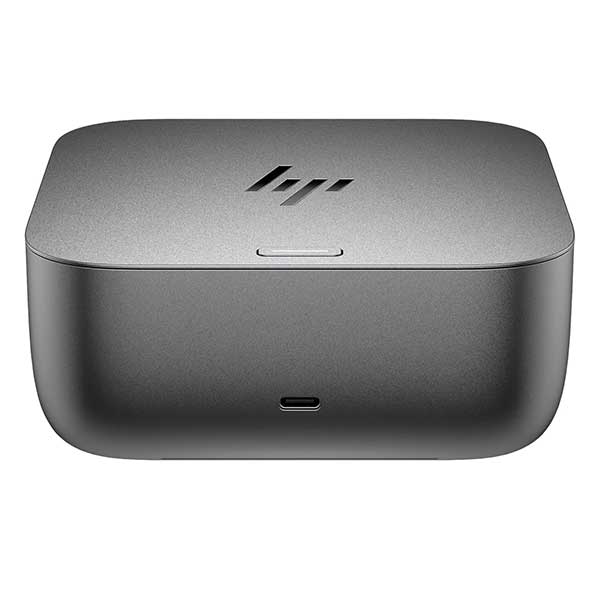
HP G6 Thunderbolt 4 100W Dock – As New
Original price was: $422.00.$369.00Current price is: $369.00. -
HP Thunderbolt Dock G2 – 120W | Dual 4K Display Docking Station NZ
Original price was: $249.00.$179.00Current price is: $179.00. -

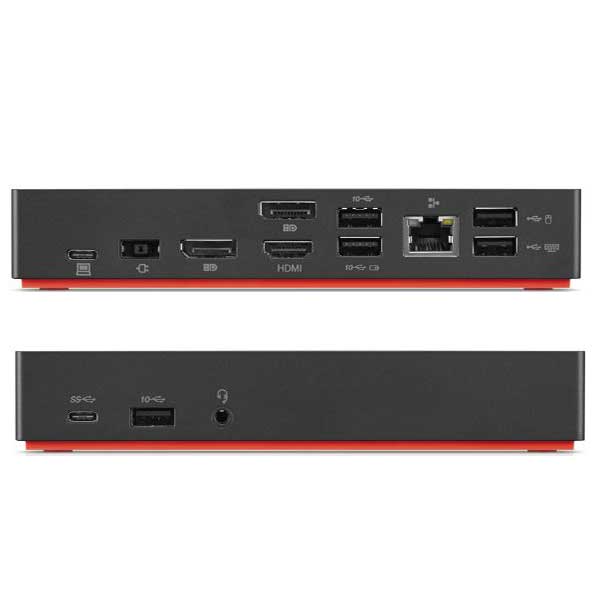
Lenovo ThinkPad USB-C Dock Gen 2 (LDC-G2)
$169.00 -
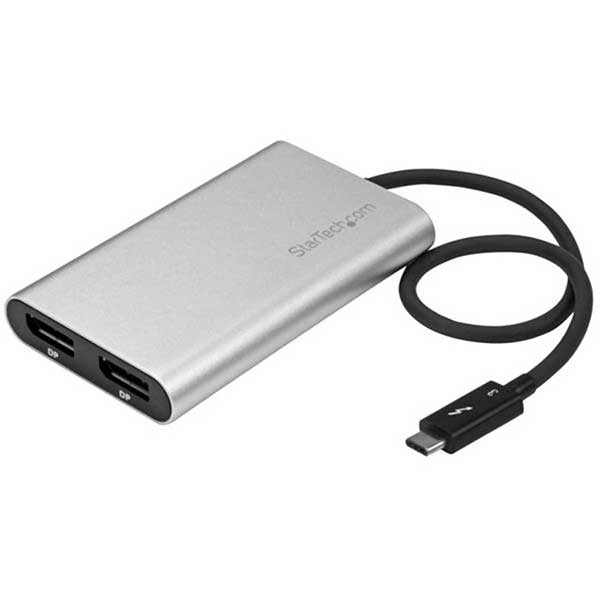
Thunderbolt 3 to Dual DisplayPort Adapter 4K 60Hz – Thunderbolt 3 Certified
Original price was: $139.00.$99.00Current price is: $99.00.