










Buying Advice
What Monitor Size Do I Need?
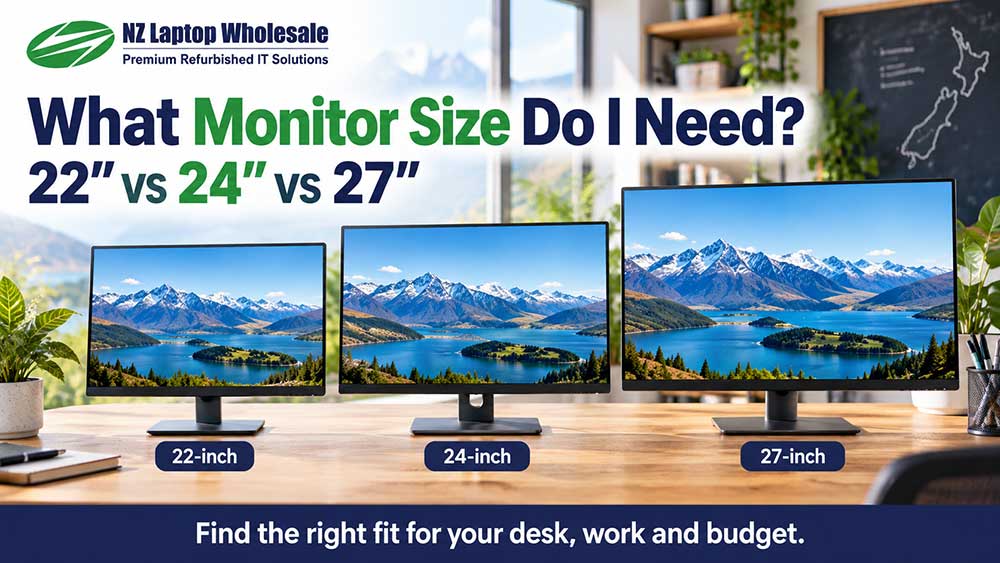
For most home, study and office setups, a 24-inch monitor is a sensible starting point. A 22-inch screen can suit a smaller desk or tighter budget, while a 27-inch monitor provides a larger display if you have the space.
However, screen size is only part of the decision. Resolution, desk depth, how close you sit and the work you do all affect which monitor will suit you best.
The biggest monitor is not automatically the best choice. The aim is to choose a screen that fits your workspace and makes everyday tasks comfortable.
What monitor size should I buy?
If you want a quick starting point, these are our practical recommendations:
- 21.5 to 22 inches: A compact option for smaller desks, everyday computing and keeping costs down.
- 23.8 to 24 inches: A useful all-round size for work, study, home use and dual-monitor setups.
- 27 inches: A larger display for people who want a bigger picture or more workspace when paired with a higher resolution.
- 32 inches and larger: Worth considering for specific workloads and larger desks, with careful attention to resolution and viewing distance.
Sizes such as 21.5 inches and 23.8 inches are commonly grouped into the 22-inch and 24-inch categories. Check the individual listing for the exact screen size.
How is monitor size measured?
A monitor’s advertised size is measured diagonally across the visible screen, from one corner to the opposite corner.
It does not describe the monitor’s width, and it does not include the stand or the frame around the screen.
For example, a 24-inch monitor is not 24 inches wide.
This matters when measuring your desk. Two monitors with the same advertised screen size can have different overall dimensions because of their bezels and stands.
Monitor sizes compared
The measurements below show the approximate visible screen dimensions of common 16:9 widescreen monitors. The full monitor will be larger, and the stand will take up additional desk space.
| Screen size | Screen width | Screen height | Typical uses |
|---|---|---|---|
| 21.5 inches | 48cm | 27cm | Smaller desks, basic office tasks and budget setups |
| 23.8 inches | 53cm | 30cm | General home use, study, office work and dual screens |
| 24 inches | 53cm | 30cm | Everyday computing and compact workstations |
| 27 inches | 60cm | 34cm | A larger picture or higher-resolution workspace |
| 32 inches | 71cm | 40cm | Larger desks and tasks suited to a large display |
These measurements do not apply to every screen shape. For example, some business monitors use a taller 16:10 format, while ultrawide monitors have a wider shape.
Is a 22-inch monitor big enough?
A 21.5-inch or 22-inch monitor can be perfectly practical for email, internet browsing, documents, accounting and general home use.
It is worth considering if you have limited desk space, mainly work in one application at a time or want an affordable second screen.
A Full HD model can also provide a useful step up in physical screen size from a laptop display.
The main limitation is that side-by-side windows can feel more cramped than on a larger screen. If you regularly compare documents or keep several applications visible, a 24-inch or larger model may be more comfortable.
Is a 24-inch monitor a good all-round choice?
A 23.8-inch or 24-inch monitor is a good starting point for many everyday setups.
It provides a useful amount of screen space without dominating most desks. It is also a practical size if you plan to use two monitors side by side.
A Full HD display at this size can suit Microsoft 365, web browsing, schoolwork, administration and general business use.
Before buying, also consider the stand. A height-adjustable 24-inch monitor may fit your workspace better than a larger screen with limited adjustment.
Should I choose a 24-inch or 27-inch monitor?
The main difference is the physical size of the picture. A 27-inch monitor gives you a noticeably larger display, but whether it gives you more working space depends on its resolution.
A 27-inch Full HD monitor has the same number of pixels as a 24-inch Full HD monitor.
At the same display scaling, it shows roughly the same amount of content, spread across a larger area. Text and icons appear physically larger, rather than extra rows and windows automatically becoming available.
That can be useful if you prefer a larger picture or sit a little further away. However, individual pixels may be more noticeable when viewed close up.
A 27-inch QHD monitor has more pixels than a Full HD model. It can provide more room for spreadsheets and side-by-side windows, although increasing display scaling reduces how much content fits on screen.
- Choose 24 inches if you want a practical everyday display, have a smaller desk or are planning a compact dual-monitor setup.
- Choose 27-inch Full HD if you want a larger picture and are comfortable with the lower pixel density.
- Consider 27-inch QHD if your priority is extra working space and sharper detail at a similar viewing distance.
Why resolution matters as much as size
Screen size tells you how large the display is. Resolution tells you how many pixels it contains.
Common resolutions include:
- Full HD: 1920 × 1080 pixels
- QHD: 2560 × 1440 pixels
- 4K UHD: 3840 × 2160 pixels
At the same screen size, a higher resolution can display finer detail. At the same resolution, a larger screen spreads those pixels over a bigger area.
This is why you should check both specifications rather than buying on inches alone.
Higher-resolution screens may also need display scaling to make text comfortable to read. You do not have to use tiny text simply because the monitor has more pixels.
How much desk space do you need?
Measure the space you actually have before choosing a monitor.
Desk width matters, but depth matters too. A large screen on a shallow desk may sit closer to your face than you would like, particularly if its stand has a deep base.
Check:
- Overall width: Include the monitor’s frame, not just the visible screen.
- Stand depth: Leave enough room for your keyboard, mouse and other equipment.
- Available height: Check shelves, window ledges or cupboards above the desk.
- Adjustment: Consider whether the stand can position the screen where you want it.
- Space for another display: Include your laptop if you intend to keep its screen open.
A simple way to visualise the fit is to mark the monitor’s overall width and stand footprint on your desk using removable tape.
How far away should you sit?
There is no single viewing distance that suits every person and every monitor.
As a practical starting point, place the screen around an arm’s length away, then adjust its position and text size to suit you.
You should be able to read your normal applications comfortably without leaning forward. You should also be able to take in the parts of the screen you regularly use without repeatedly turning your head.
If a monitor feels overwhelming on your desk, moving it further back may help. If that makes text too small, increase the text size or display scaling rather than assuming you need to sit closer.
Is one large monitor better than two smaller monitors?
It depends on how you work.
Two monitors can be convenient when you want separate applications visible at the same time, such as email on one screen and accounting software on the other.
A single larger, higher-resolution monitor can suit people who prefer one continuous workspace for spreadsheets, documents or several arranged windows.
Two 24-inch monitors require a substantial amount of desk width. Using a laptop screen alongside one external monitor can be a more compact alternative.
Before buying two screens, confirm that your computer or docking station supports the number of independent displays you want to run, at their intended resolutions. An ordinary HDMI splitter usually duplicates the picture rather than creating an extended desktop.
What monitor size is best for working from home?
For email, documents, video calls and general administration, a 24-inch monitor is a practical starting point.
If you spend much of the day comparing documents, using large spreadsheets or switching between applications, consider a 27-inch QHD display or a dual-monitor setup.
If you mainly want a larger version of your current display, a 27-inch Full HD model may suit you without needing the extra resolution.
The right choice depends on your working habits as much as the size printed on the box.
Does a bigger monitor make text easier to read?
It can, particularly when comparing monitors with the same resolution and display scaling.
However, you can also increase text size, browser zoom or operating-system display scaling on a smaller monitor.
If reading comfort is your main concern, consider screen position, reflections, brightness and text settings alongside physical size.
What else should you check before buying?
Once you have chosen a suitable size, check the details of the individual monitor:
- Resolution: Make sure it suits the screen size and your intended work.
- Connections: Check compatibility with your computer or docking station.
- Stand adjustment: Height, tilt, swivel and portrait rotation vary by model.
- Mounting: If you use a monitor arm, confirm VESA compatibility and the arm’s weight limits.
- Audio: Do not assume a monitor has speakers simply because it has HDMI or DisplayPort.
- Condition and inclusions: Read the listing for the grade, any disclosed marks and supplied cables.
Frequently asked questions
Is 27 inches too big for an office monitor?
Not necessarily. A 27-inch monitor can work well for office tasks if your desk has enough space and you can position it comfortably. Check its resolution as well as its size.
Is a 24-inch monitor big enough for two windows?
It can be, particularly for simple documents or a browser beside another application. Complex spreadsheets and applications with large toolbars may feel cramped. Resolution and display scaling also affect how much fits.
Does a bigger monitor slow down a computer?
Physical screen size alone does not. A 27-inch Full HD monitor has the same pixel count as a 24-inch Full HD model. Higher resolutions and refresh rates can place greater demands on graphics hardware, particularly in games and graphics-heavy applications.
Can I connect a large monitor to a small laptop?
Yes, provided the laptop supports the monitor’s connection, resolution and refresh rate. The laptop’s own screen size does not determine the size of external monitor it can use.
Are two monitors better when they are the same size?
Matching sizes and resolutions can make a setup feel more consistent, but they are not essential. You can use different monitors together if your computer supports them and their positioning suits your work.
Our practical recommendation
Start with 24 inches for a general-purpose monitor, consider 22 inches when space or budget is tight, and look at 27 inches when you want a larger picture or higher-resolution workspace.
Then check the resolution, stand, connections and overall dimensions before making your final choice.
You can browse our refurbished monitors available throughout New Zealand, or contact NZ Laptop Wholesale if you would like help matching a screen to your computer and workspace.
Ready to Find a Monitor That Fits?
Browse our refurbished monitor range and compare screen sizes, resolutions and connections. If you are unsure which model suits your computer or desk, our team can help.
Browse Refurbished Monitors


