










General
Monitor Connections Explained: HDMI, DP, USB-C & More
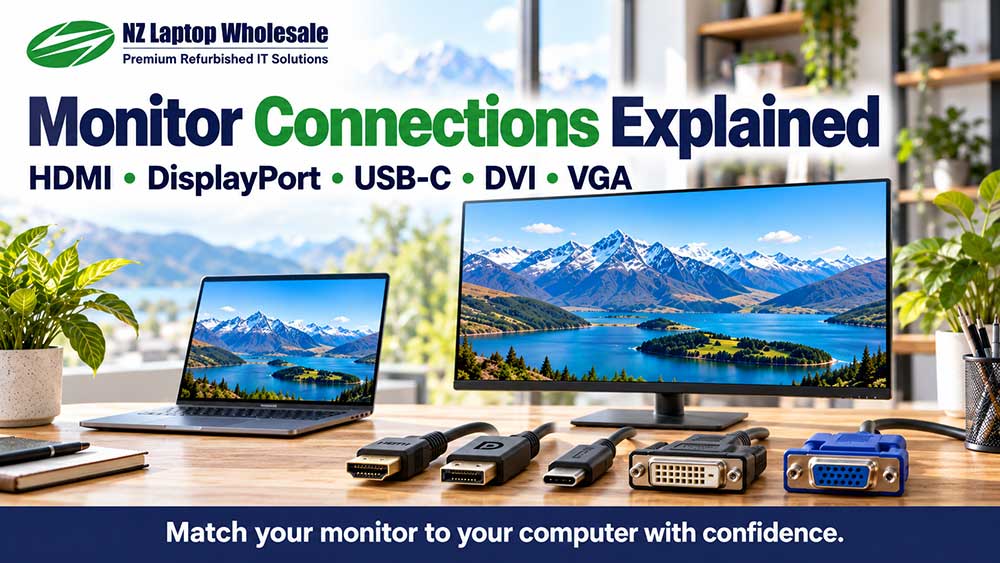
The easiest way to connect a monitor is usually to match a video output on your computer with a compatible input on the monitor. HDMI and DisplayPort are common digital connections, while older monitors may use DVI or VGA. Some computers and monitors also support video over USB-C, but not every USB-C port can do this.
Before buying a monitor or cable, check both ends of the connection. A cable that physically fits is only part of the picture: your computer, monitor and any adapter or docking station must support the display settings you want to use.
Which monitor connection do I need?
For everyday home, study and office use, a direct HDMI-to-HDMI or DisplayPort-to-DisplayPort connection is often the simplest option when both devices support it.
If the connections are different, a suitable adapter may work. However, adapters are not all interchangeable, and many work in only one direction.
| Connection | Common use | Important detail |
|---|---|---|
| HDMI | Laptops, desktops, monitors and TVs | Can carry video and audio; supported resolution and refresh rate vary. |
| DisplayPort | Business desktops, docking stations and monitors | Can carry video and audio; common on ex-lease office equipment. |
| USB-C | Compatible laptops, docks and monitors | The port and cable must support video. Charging is a separate capability. |
| DVI | Older desktops and monitors | Usually used for video only; connector types and capabilities differ. |
| VGA | Older computers, monitors and projectors | Analogue video only; picture quality can depend on the cable and signal. |
HDMI: a familiar option for everyday setups
HDMI is found on many laptops, desktop computers, monitors and televisions. It carries a digital picture and can also carry audio.
If your computer has an HDMI output and your monitor has an HDMI input, a suitable HDMI cable is normally all you need.
However, the shape of the connector does not tell you everything about its capabilities. Maximum resolution and refresh rate depend on the computer’s output, monitor’s input and cable.
An HDMI connection also does not mean the monitor has built-in speakers. Some monitors accept audio through HDMI but only make it available through a headphone or audio-output socket. Others have no usable audio facilities at all.
DisplayPort: common on business equipment
DisplayPort is particularly common on business desktops, professional monitors and docking stations. It is a useful connection to recognise when buying ex-lease equipment.
A full-size DisplayPort connector is roughly rectangular, with one corner cut at an angle. Some cables have a locking clip that should be released before unplugging them.
Like HDMI, DisplayPort can carry digital video and audio. The supported resolution and refresh rate depend on the particular equipment and cable.
If your desktop and monitor both have DisplayPort, a direct DisplayPort cable is usually a straightforward choice.
What is Mini DisplayPort?
Mini DisplayPort is a smaller connector used on some computers and older devices. A suitable Mini DisplayPort-to-DisplayPort cable can connect a compatible output to a full-size DisplayPort monitor input.
Some older Thunderbolt ports use the same physical connector as Mini DisplayPort. Check the computer’s specifications rather than identifying its capabilities by shape alone.
USB-C: check video support before buying
USB-C describes a connector shape, rather than guaranteeing a particular set of features.
A USB-C port may support data, charging, video or a combination of these. Some USB-C ports cannot output a picture at all.
For a direct USB-C monitor connection or a common USB-C video adapter, look for documented support for DisplayPort Alt Mode or suitable Thunderbolt display capabilities.
The cable matters too. A USB-C charging cable is not automatically suitable for connecting a monitor.
Can one USB-C cable charge my laptop and run the monitor?
Yes, with compatible equipment. Some USB-C monitors can receive video, connect their USB hub and supply power to a laptop through one cable.
For this to work, the laptop must support the required video connection and USB-C charging, the monitor must provide suitable USB Power Delivery, and the cable must support those functions.
Check the monitor’s power output against the laptop’s requirements. A connection that charges a lightweight business laptop may provide insufficient power for a more demanding machine.
Do not assume that every monitor with a USB-C socket can charge a laptop or accept video through that socket.
DVI: still useful for everyday office work
DVI is found on many older business monitors and desktop computers. A compatible digital DVI connection can still provide a clear picture for documents, email, browsing and general administration.
There are several DVI connector types, including DVI-D and DVI-I, as well as single-link and dual-link versions. Their capabilities and pin arrangements differ.
For ordinary monitor shopping, treat DVI as a video connection and plan on separate speakers or headphones if you need sound.
If you are using an adapter, check the exact DVI type and supported resolution. Do not force a connector into a socket with a different pin arrangement.
VGA: an older analogue connection
VGA is the older 15-pin connection, often identified by a blue socket and screw fittings on either side.
It carries analogue video and does not carry audio.
A VGA monitor can still suit basic office and home tasks, particularly when paired with an older computer. However, a digital connection is generally preferable when both devices support one, especially for consistent text clarity.
With VGA, cable quality, cable length and the monitor’s adjustment settings can affect the picture.
Can I connect different ports with an adapter?
Often, yes. The important details are the signal type, direction and display settings the adapter supports.
- HDMI to DVI: A suitable cable or adapter commonly works for compatible digital video connections. Plan on separate audio.
- DisplayPort to HDMI: A passive adapter can work with a compatible dual-mode DisplayPort output. Other setups need an active adapter.
- HDMI to DisplayPort: Usually requires an active converter designed specifically for an HDMI source and a DisplayPort monitor. It may need USB power.
- HDMI or DisplayPort to VGA: Requires conversion from digital to analogue using a suitable active adapter.
- USB-C to HDMI or DisplayPort: Common adapters require a USB-C port that supports video output.
“DisplayPort to HDMI” and “HDMI to DisplayPort” are not the same purchase. Check which device is the source and which is the display before ordering.
A useful way to describe your setup is: “My computer has HDMI output, and my monitor has DisplayPort input.” That makes the required direction clear.
Does an adapter improve the monitor’s resolution?
No. An adapter does not add pixels to the monitor or give your computer capabilities it does not have.
The final display settings are limited by the complete connection: computer, port, adapter, cable and monitor.
For example, an adapter that supports Full HD may be unsuitable if you want to run a higher-resolution monitor at its native resolution.
Where practical, use a direct compatible connection to reduce the number of parts you need to check.
Will a USB port on a monitor connect the picture?
Not necessarily. Many business monitors have USB ports that act as a hub for a keyboard, mouse or other accessories.
These monitors may use a separate USB upstream cable to connect the hub to your computer, while HDMI, DisplayPort, DVI or VGA carries the picture.
USB-A accessory ports on a monitor are generally not video inputs. Check the model’s specifications before assuming that a USB cable will replace a display cable.
Can I use a docking station?
A compatible docking station can make it easier to connect monitors and accessories to a laptop.
However, the number of sockets on a dock does not guarantee that every connected monitor can run independently at any resolution.
Check the dock’s compatibility with your laptop, its display limits and any operating-system requirements. Some docks also require drivers.
USB-C docks, Thunderbolt docks and USB graphics docks can work differently, even when their connectors look similar.
What if I want two monitors?
Your computer and any docking station must support the number of independent displays you want to use, at their intended resolutions and refresh rates.
An ordinary HDMI splitter normally shows the same picture on both monitors. It does not create two separate workspaces for an extended desktop.
Some DisplayPort setups support daisy-chaining, where one monitor connects to another. This requires compatible computer hardware, monitor features and operating-system support. It is not available on every DisplayPort monitor.
If you are planning a dual-monitor setup, check the complete arrangement before buying the screens and cables.
Check the correct socket on a desktop computer
Some desktop computers have display connections on both the motherboard and a separate graphics card.
Where a dedicated graphics card is fitted, its ports are commonly the correct place to connect the monitor. The motherboard’s display outputs may be disabled or unavailable, depending on the configuration.
If you have connected everything but see no picture, confirm that you are using an active output and that the monitor is set to the matching input.
Our checklist before buying
- Computer output: Which video ports does your laptop, desktop or dock actually have?
- Monitor input: Which connections does the individual monitor accept?
- Display settings: Will the complete connection support the monitor’s native resolution and your intended refresh rate?
- Cable or adapter: Is it the correct type and direction?
- Audio: Does the monitor have speakers, or will you use separate audio?
- USB-C features: Are video support and any required charging capabilities confirmed?
- Included accessories: Read the listing to see which cables and power equipment are supplied.
Frequently asked questions
Is HDMI better than DisplayPort?
For everyday office use, either can provide an excellent picture when it supports the monitor’s intended settings. A direct connection that matches your equipment is often more useful than choosing one connector simply because of its name.
Can a monitor with VGA still be useful?
Yes. It can be a practical option for basic tasks with compatible equipment. Check whether your computer has VGA or needs an active adapter, and include that adapter cost when comparing monitors.
Why does my USB-C monitor cable not work?
The computer’s USB-C port may not support video, the cable may be intended only for charging or data, or the monitor may need a different input selected. Confirm the capabilities of all three parts.
Does HDMI mean the monitor has sound?
No. HDMI can carry audio, but the monitor needs built-in speakers or a suitable audio output to make use of it.
Can I connect a monitor to a laptop and keep using the laptop screen?
Usually, yes, provided the laptop supports the external display. Choose an extended desktop in your display settings to use the screens as separate workspaces.
Need help matching a monitor to your computer?
Browse our refurbished monitor range and check each listing for its connections and supplied accessories.
If you are unsure, contact NZ Laptop Wholesale with your computer model, monitor model and, if possible, clear photos of the ports. We can help you work out what connection you need before you buy.
Connections Sorted. What About Screen Size?
Compare 22-inch, 24-inch and 27-inch monitors, and learn how desk space, resolution and everyday tasks affect the right choice for your setup.
Read Our Monitor Size Guide


