










General
How to Test a Used Laptop Battery Before Buying
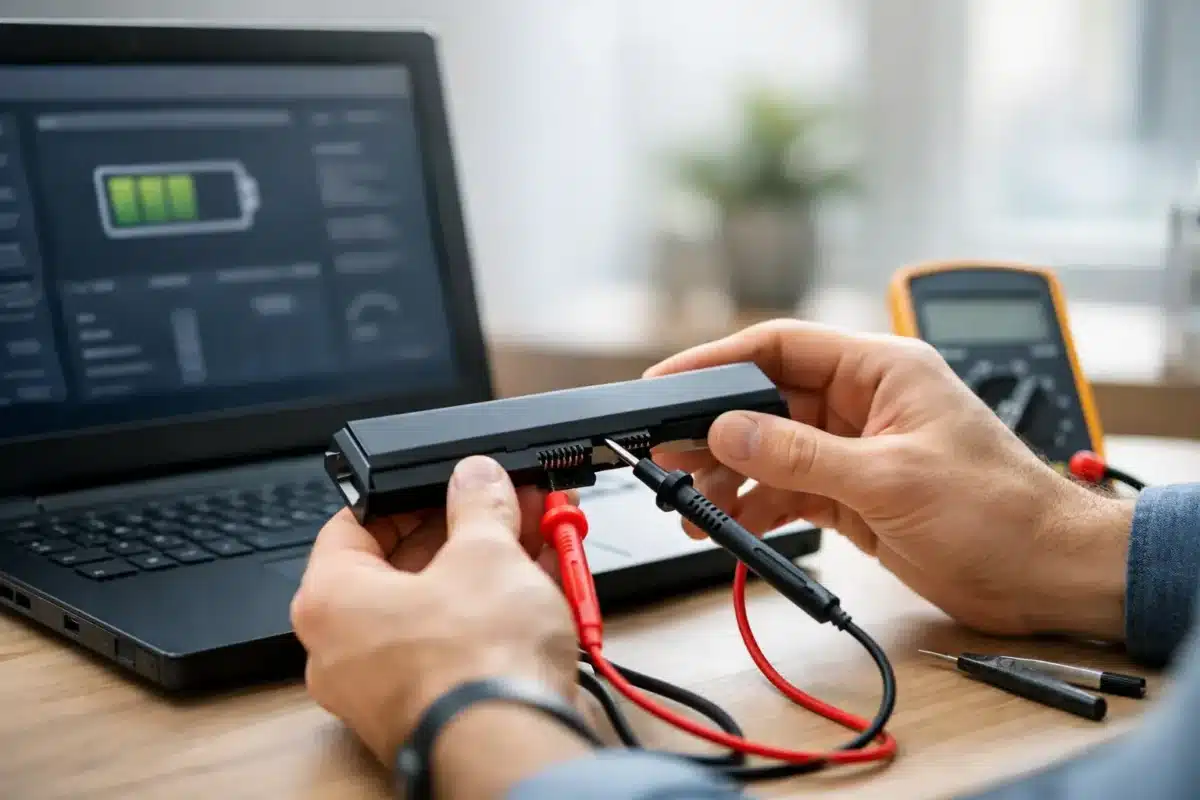
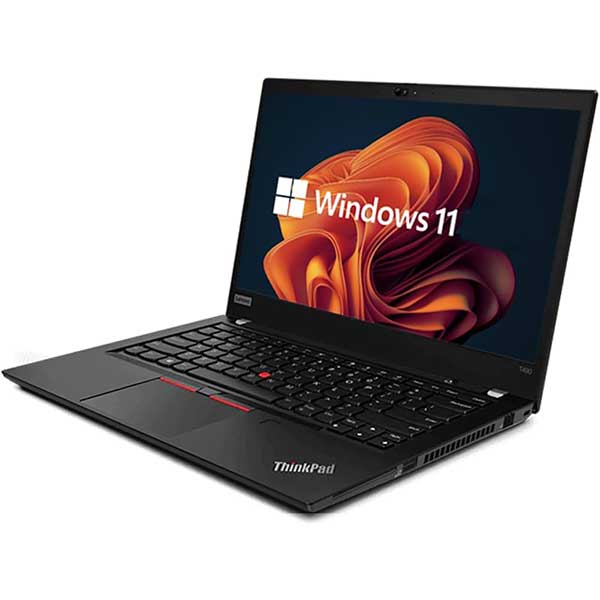
A refurbished business laptop can still have years of useful service left, but its battery deserves a closer look than the processor or screen. When you test used laptop battery health before buying, you are checking the one component that naturally wears with age and use. A weak battery does not necessarily make a laptop a bad buy, particularly if it will spend most of its time at a desk. It should, however, be reflected in the price and understood before the laptop becomes part of your work, study or school routine.
For most buyers, the goal is not to find a battery that performs exactly like new. It is to confirm that it charges safely, holds a sensible amount of power and suits the way the device will be used.
What battery health means on a used laptop
Laptop batteries are consumable parts. Every charge and discharge cycle gradually reduces the amount of energy they can store. A three- or four-year-old ex-lease Dell, HP or Lenovo may still be an excellent business-grade machine, yet have less battery capacity than it did when it left the factory.
The key comparison is between design capacity and full charge capacity. Design capacity is the battery’s original capacity when new. Full charge capacity is what it can hold now. If a battery was designed for 50,000 mWh and now reaches 40,000 mWh, it is operating at roughly 80 per cent health.
There is no single pass or fail figure. Around 80 per cent or higher is generally a reassuring result for a refurbished laptop. Between 60 and 80 per cent can still be practical, depending on the laptop’s price, age and intended use. Below 60 per cent may mean shorter run time, so it is worth asking whether a replacement battery is available and what it will cost.
A battery’s actual runtime also depends on the laptop itself. A compact 13-inch model with an efficient processor can run for longer than a larger 15-inch laptop with a brighter screen, even when their battery-health percentages are similar.
How to test a used laptop battery in Windows
The most useful battery check is built into Windows. It provides real figures from the laptop’s battery controller rather than relying on a vague percentage indicator.
Create a Windows battery report
Open Command Prompt as an administrator, then type the following command:
`powercfg /batteryreport`
Windows will create an HTML battery report and show where the file has been saved. Open the report in a browser and look for the sections labelled “Installed batteries”, “Recent usage”, “Battery usage” and “Battery capacity history”.
Under Installed batteries, compare Design Capacity with Full Charge Capacity. This gives the clearest starting point for battery health. For example, a design capacity of 45,000 mWh and a full charge capacity of 36,000 mWh indicates approximately 80 per cent remaining capacity.
The report may also show a cycle count. A cycle is roughly equal to using 100 per cent of the battery’s capacity, though it does not need to happen in one go. A laptop charged from 50 per cent to 100 per cent twice has effectively used one cycle. Lower cycle counts are generally preferable, but age, heat exposure and charging habits matter too. A low count is helpful, not a guarantee.
If the report shows no battery information, do not assume the battery is fine. Some systems do not supply all details to Windows, while a missing or faulty battery may also prevent useful readings. In that case, a practical charge and runtime test becomes even more important.
Check whether it charges normally
Plug in the supplied charger and watch the battery percentage for several minutes. It should show that it is charging and rise gradually. Intermittent charging, a loose connector, an error message, or a percentage that does not move can point to a charger, charging port or battery problem.
Also check the charge limit if the laptop has a manufacturer utility installed. Some business laptops are configured to stop charging at around 80 per cent to extend long-term battery life. This is not a fault, but it should be understood before judging the battery’s capacity.
Run a real-world battery test
A battery report tells you what the system thinks the battery can hold. A short practical test shows whether that capacity translates into usable time.
Start with the battery at 100 per cent, set screen brightness to around 50 per cent and disconnect the charger. Use the laptop as you normally would for 30 to 60 minutes: browse a few websites, work in a document, play a short video, and keep an eye on the percentage. The battery level should fall steadily rather than dropping in sudden jumps.
For a more consistent comparison between laptops, play a locally saved video at medium brightness with Wi-Fi on. This is not a perfect scientific test, but it provides a fair indication of ordinary use. Avoid judging a battery after only a few minutes of demanding gaming, video editing or software updates. Those tasks can drain even a healthy battery quickly.
Pay attention to behaviour as well as runtime. A laptop that shuts down at 30 per cent, falls from 50 per cent to 10 per cent unusually fast, or becomes excessively hot may have a degraded battery. Likewise, a battery that remains at one percentage for a long time and then suddenly drops can have inaccurate calibration or worn cells.
Inspect the laptop before relying on the battery
Battery software checks are useful, but a physical inspection matters just as much. Turn the laptop over and look for a bulging base, separated seams, a raised trackpad or a keyboard that appears pushed upward. These can be signs of a swollen battery.
Do not buy or continue using a laptop with suspected battery swelling. A swollen lithium-ion battery is a safety issue, not a minor cosmetic fault. It needs professional attention and should not be pressed, punctured or placed back on charge.
Check the charger as well. Enterprise laptops often use purpose-built chargers with the correct wattage. An underpowered replacement charger may charge slowly or struggle while the laptop is under load. A proper charger is part of a reliable setup, especially for staff or students who need to work away from a power point.
Decide what battery result is good enough
The right battery condition depends on how you will use the laptop. A home office laptop that lives on a desk can still represent excellent value with moderate battery wear. A student carrying a laptop between classes, or a mobile worker travelling between sites, will benefit from stronger health and longer tested runtime.
Before purchasing, ask for clear information on the laptop’s condition, battery testing process and warranty. Professionally refurbished devices should be checked for charging, stability and general operation, rather than simply switched on and listed. At NZ Laptop Wholesale, the value in business-grade ex-lease hardware comes from matching tested equipment to a real need, whether that is a budget study device, a dependable office laptop or a Windows 11-ready replacement.
It is also sensible to check whether the model has a readily available replacement battery. Many popular Dell Latitude, HP EliteBook and Lenovo ThinkPad models have replacement options, but cost and fitting difficulty vary. An internal battery may require removing the base cover, while older designs can have an external battery that is simpler to change.
Battery care after you buy
Once the laptop is yours, good habits can slow further wear. Keep it out of hot cars and away from blocked vents, as heat is hard on batteries. Use the correct charger, avoid regularly draining it to zero, and install manufacturer firmware updates when appropriate.
If the laptop stays plugged in at a desk most days, a charge threshold of around 80 per cent can be worthwhile if the manufacturer supports it. If you need maximum mobile runtime for a day of classes or travel, charge it fully beforehand instead. Battery care is about matching the setting to the job, not following one rule for every user.
A used laptop battery will never be a permanent component, but it should not be a mystery either. Check the report, test normal runtime, inspect the hardware and buy based on how you genuinely work. That approach makes it far easier to get reliable performance and strong value from a quality refurbished laptop.


