










General
Choosing an Interactive Display for Boardroom Use
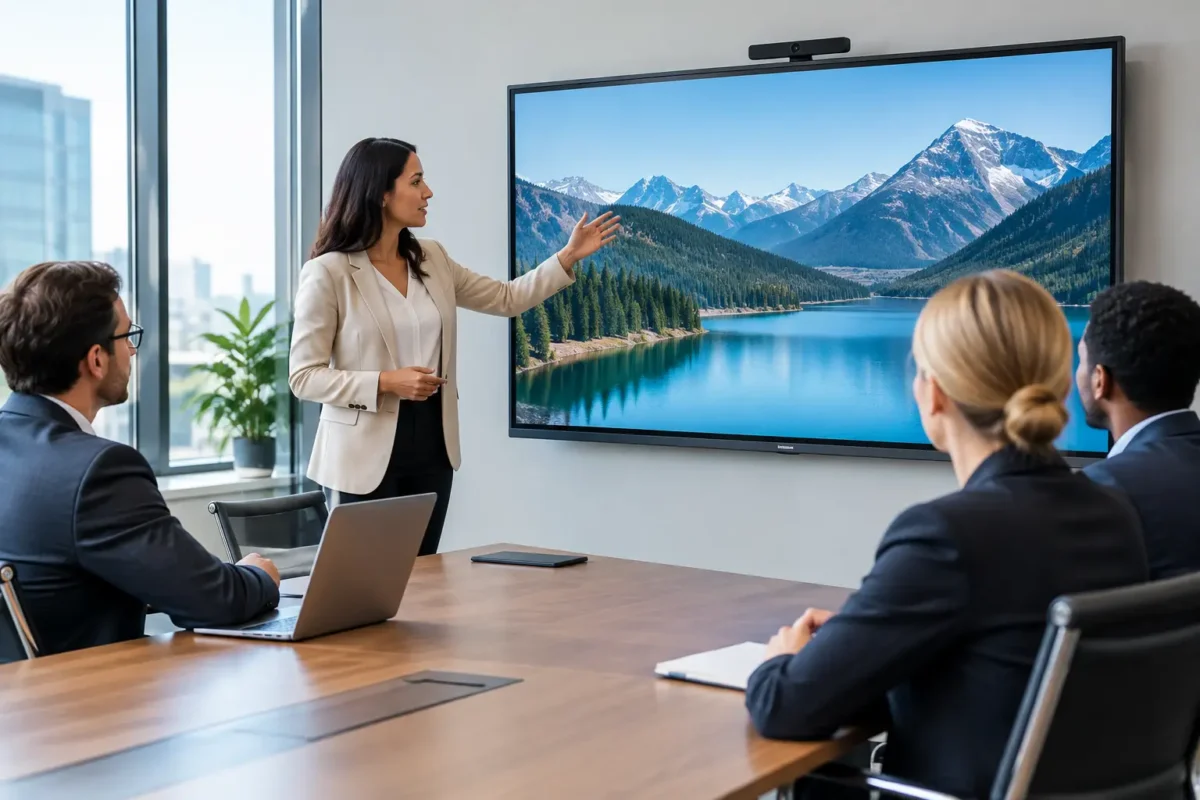
A meeting that starts with a flat battery, a missing adaptor or ten minutes of screen-sharing problems is not a good use of anyone’s time. The right interactive display for boardroom use gives teams one clear place to present, annotate, video call and make decisions. But a large touchscreen is only worthwhile when it suits the room, the people using it and the equipment already in place.
For New Zealand businesses watching their IT budget, the best result is often a sensible combination: a quality commercial display, practical accessories and reliable refurbished business hardware to run it. The goal is not to buy the biggest screen with the longest feature list. It is to make meetings easier to start and easier to follow.
Start with the boardroom, not the screen
Interactive displays are commonly bought because a standard meeting-room TV or monitor has become limiting. Staff may need to mark up plans together, compare documents side by side, share a laptop without passing cables around, or include remote colleagues in the discussion. Those are useful reasons to upgrade.
First, consider how the room is actually used. A small meeting room for four people has different requirements from a boardroom used for weekly management meetings, client presentations and hybrid workshops. Think about the furthest chair from the display, the amount of daylight, wall space, table layout and whether people will stand at the screen to write.
Screen size matters, but bigger is not automatically better. In a compact room, a 55-inch or 65-inch display can be easier to view and less overwhelming than an oversized panel. Larger boardrooms often suit 75-inch, 86-inch or bigger displays, particularly when spreadsheets, detailed drawings or dashboards are frequently shown. If people at the back cannot read normal presentation text, the screen is too small or the seating plan needs work.
Brightness also deserves attention. A screen facing strong windows can look washed out, even when the panel is large. Blinds, display placement and anti-glare glass can be just as useful as paying more for extra brightness.
What an interactive display should do well
At its core, an interactive display combines a commercial-grade screen with touch capability, often including a whiteboard function, speakers and an onboard operating system. It should support everyday meeting tasks without making staff learn a new process every time they enter the room.
Touch response is one of the main differences between a basic display and an interactive model. A responsive panel allows participants to write notes, move content and annotate documents naturally. Multi-touch support is valuable where two people may work at the screen together, such as planning sessions or training. For board-level presentations where nobody writes on the screen, touch may be less valuable than high image quality and dependable video conferencing.
The writing experience varies considerably between models. Look for low pen delay, palm rejection and pens that are easy to find and charge, or do not require charging at all. Test whether handwriting is legible at normal writing speed. A feature-packed whiteboard app is less useful if staff still reach for a marker and a physical board because the digital version feels awkward.
Built-in speakers are convenient, although they are rarely enough for a large room. For regular video calls, budget for a proper camera, microphone and speaker solution. Audio is often the first thing remote attendees notice, and poor microphone pickup can make an expensive boardroom display feel like a poor investment.
Wired connections still matter
Wireless sharing is appealing, particularly for guests and staff moving between rooms. However, it should not be the only way to present. Wireless networks can be busy, visitor devices may have restrictions, and some people simply need to connect quickly with a cable.
A practical interactive display setup includes accessible HDMI and USB-C connections. USB-C is especially useful because a compatible laptop can send video, touch control, network data and charging through one cable. Check the power delivery rating before assuming it will charge every laptop. Larger business laptops may need more power than the display provides.
If the boardroom is used by different teams, place the main connections near the table rather than only behind the screen. A tidy cable-management solution costs far less than the frustration caused by crawling under a cabinet to find an adaptor.
Choose the right computer setup
Many interactive panels run basic apps without a separate computer. That can work for opening simple files, using the digital whiteboard or joining selected calls. It can be restrictive when staff rely on Windows applications, browser-based systems, multiple user profiles or specialised software.
For most businesses, a dedicated Windows PC or compact business desktop gives more control. It can be configured with the organisation’s preferred meeting software, security settings and user access. A professionally refurbished Dell, HP or Lenovo mini desktop can be a cost-effective option for this role, especially where a current Windows 11-ready system is required. These enterprise machines are designed for long office use and are easier to replace or service than an unknown consumer device.
A laptop-based arrangement is more flexible if the room is used infrequently or presenters need their own files and settings. The trade-off is that every meeting depends on someone bringing a charged laptop and connecting it correctly. Some organisations use both: a fixed PC for normal meetings and a front-facing USB-C cable for visiting presenters.
Plan for hybrid meetings from the beginning
An interactive display alone does not create a good hybrid meeting room. Remote participants need a clear view of the room, readable shared content and sound they can understand without asking people to repeat themselves.
A camera should be mounted at a sensible height and wide enough to capture everyone without making faces appear distant. In a longer boardroom, a camera with framing or tracking features can help, but it is not essential for every room. A quality USB conference bar may be enough for a small space, while larger rooms may need separate microphones positioned closer to participants.
When using the touchscreen whiteboard, confirm that remote attendees can see annotations in real time. This depends on the meeting platform and the way the display is connected. It is worth testing with an actual remote user before rolling the setup out across several rooms.
Reliability, support and security are part of the purchase
A boardroom display is shared equipment. Unlike a personal laptop, it may be used by dozens of people with different technical confidence. The best setup has a simple start process: turn it on, select the right input or meeting app, and begin.
Avoid relying on a personal account logged into the display. Use an organisation-managed account where appropriate, set clear sign-out procedures and keep the panel’s software updated. If the display includes an Android-based operating system, check how updates are handled and whether applications can be managed centrally.
Commercial displays are generally built for longer daily use than household televisions, but their warranty terms, operating hours and service arrangements still vary. Ask what is covered, who handles faults, and whether replacement parts or local support are available. A lower upfront price can become poor value if the display is difficult to repair or unsupported after a short period.
A practical buying checklist
Before ordering an interactive display for boardroom use, confirm these points with the people who will use it:
- The screen is large enough for the furthest seat and suitable for the room’s lighting.
- The display has the wired ports your laptops and room PC require, including USB-C where it adds value.
- The chosen camera, microphones and speakers suit the size and shape of the room.
- Staff can use the meeting software, whiteboard and screen-sharing method without specialist help.
- There is a clear plan for security updates, warranty support, cables and replacement hardware.
Do not overlook the mounting solution. A fixed wall mount keeps the room neat, while a height-adjustable trolley can be useful in training rooms or shared spaces. A trolley adds flexibility, but it also needs safe cable routing and enough room to move without blocking walkways.
Spend where it improves the meeting
There is a wide gap between entry-level touchscreens and premium collaboration displays. Higher-priced models may offer better touch accuracy, stronger glass, improved speakers, management tools and longer support. Those features can be justified in a heavily used executive boardroom or a training room that runs all day.
For a small business meeting room, though, spending every dollar on the display can leave too little for the PC, camera, microphones and installation. A well-matched 65-inch panel with a reliable refurbished business desktop and good audio can be more useful than a much larger screen paired with poor connectivity.
Buy for the meeting your team has most often, not the occasional presentation with fifty attendees. A clear, dependable setup that starts first time will earn its place in the boardroom far more quickly than an impressive screen with features nobody uses.


