





General
What Docking Station Do I Need for My Laptop?
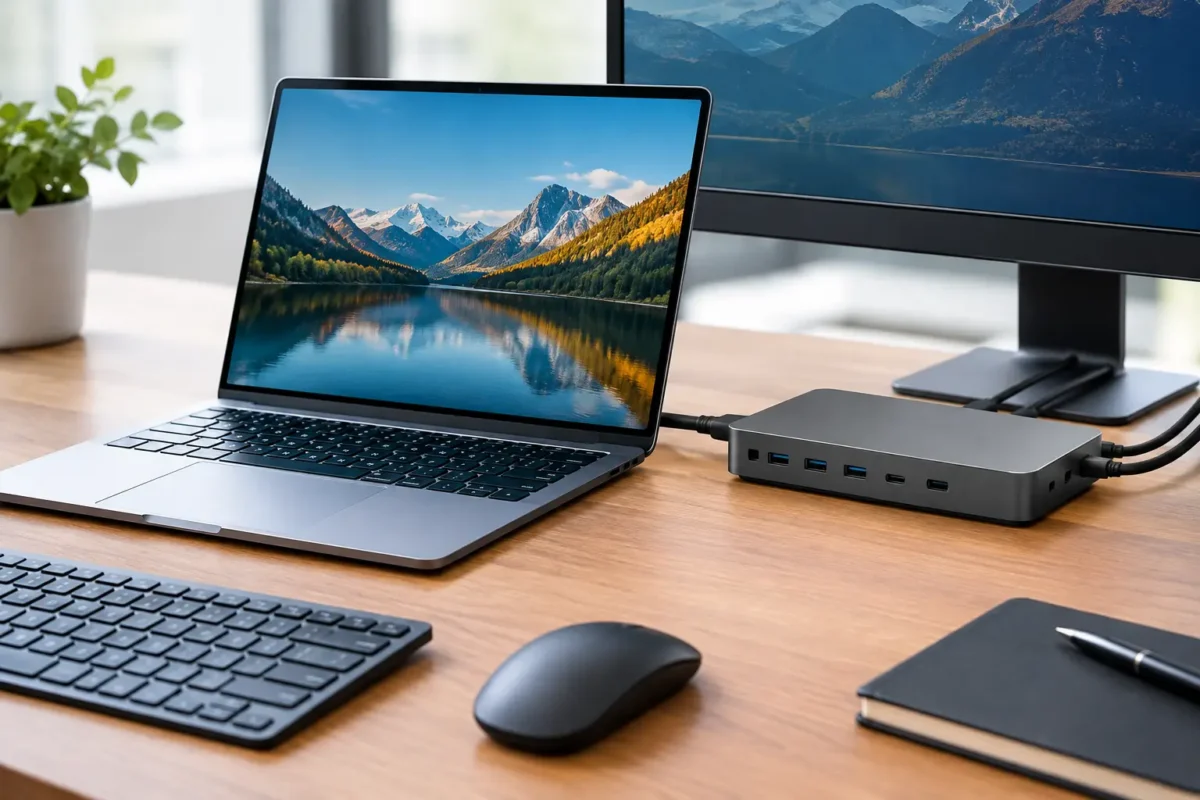
A laptop is easy to carry, but a desk full of loose chargers, monitor leads and USB devices soon gets frustrating. If you are asking, “what docking station do I need?”, start with what needs to connect when you sit down: your screens, keyboard, mouse, network cable, storage and power. The right dock turns that collection into one cable to your laptop. The wrong one may still charge the laptop but leave you with a monitor that will not run at its proper resolution, or no display at all.
For home offices, student desks and small business workstations, the best choice is usually not the dock with the most ports. It is the one that is compatible with your laptop and supports the way you actually work.
What docking station do I need for my laptop?
First, identify the connection on the laptop itself. Most newer business laptops use USB-C, while premium models may use Thunderbolt 3, Thunderbolt 4 or USB4. Older Dell, HP and Lenovo machines can use a brand-specific docking connector, often on the underside or side of the laptop. These proprietary docks can be excellent value when matched to the correct ex-lease laptop, but they are not generally interchangeable between brands or model ranges.
A USB-C-shaped port does not automatically mean every USB-C dock will run monitors. The laptop must support video output over USB-C, commonly called DisplayPort Alt Mode. Many business-grade laptops do, but it is worth checking the exact model specifications rather than relying on the shape of the port.
Thunderbolt docks offer more bandwidth than standard USB-C docks. They are a strong option for users with two high-resolution monitors, fast external drives or several accessories connected at once. However, a Thunderbolt dock usually costs more, and it is unnecessary for a straightforward office setup with one or two 1080p monitors. A good USB-C dock is often the better-value choice for email, browser-based work, accounting software, video calls and study.
Start with your monitor setup
Displays are normally the deciding factor. Before choosing a dock, write down how many monitors you want to use, their resolution and their refresh rate. A basic dual-monitor desk with two Full HD 1920 x 1080 screens has far lower demands than two 4K displays.
For one external monitor, a USB-C dock with HDMI or DisplayPort output is usually enough. For two Full HD monitors, look for a dock that explicitly states dual-display support at 1080p. If you want two 4K monitors, confirm the dock’s stated resolution and refresh rate for your exact laptop connection. “Dual 4K” can mean 4K at 30Hz on some docks, which is acceptable for documents but can feel less responsive when moving windows or scrolling.
Also check the ports on the monitors. DisplayPort is common on business monitors and is usually a dependable option for multi-screen setups. HDMI is widely used and convenient, particularly for home monitors and TVs. A dock may have one of each, which is fine if your displays have matching inputs. Adapters can work, but choosing a dock that directly suits your monitor inputs reduces potential issues.
Mac users need an extra compatibility check. Some MacBook models support only one external display through their native USB-C or Thunderbolt connection, regardless of how many video ports are on the dock. DisplayLink docks can provide an alternative for some multi-monitor Mac setups, but they need software installed and are not always the best fit for video editing, gaming or high-motion content.
Do not judge a dock by port count alone
A dock advertised with three display outputs does not guarantee that all three will work simultaneously at the advertised resolution. Its capability depends on the dock, the laptop’s graphics hardware and the connection protocol. Check the specifications for the exact combination you plan to run, especially when buying for an office fleet.
For most Windows 11-ready business laptops, dual 1080p monitors are a practical, affordable productivity upgrade. They provide more room for spreadsheets, email, browser tabs and video meetings without the cost of a high-end graphics setup.
Make sure the dock can charge your laptop
A docking station should reduce cables, not add another power brick to the desk. Look at your laptop’s original charger wattage, then choose a dock that can supply enough USB-C Power Delivery.
Many compact business laptops need 45W or 65W. Larger 15-inch laptops, mobile workstations and performance models may need 90W, 100W or more. A 65W dock may still operate a laptop that normally uses a 90W charger, but it can charge slowly or lose battery during heavy use. You may also see a performance warning.
There is a further catch: the wattage written on a dock’s power adaptor is not always the wattage delivered to the laptop. A dock with a 120W adaptor may reserve power for its own ports and provide 90W to the laptop. Read the laptop charging output specification, not just the largest number on the box.
Dell, HP and Lenovo docks can sometimes offer their best charging and management features when paired with laptops from the same brand. That does not mean a cross-brand USB-C dock cannot work, but matching business hardware often gives the clearest result for charging, monitor support and firmware updates.
Choose the everyday ports you will actually use
A practical office dock should have enough USB ports for a keyboard, mouse, webcam and occasional USB drive. USB-A remains useful because many everyday accessories still use it. USB-C ports are handy for newer storage, mobile charging or a modern webcam, but they should not come at the expense of the ports you need now.
Ethernet is worth prioritising for a fixed work desk, school office or reception area. A wired network connection is generally more consistent than Wi-Fi for large uploads, cloud backups and video calls where wireless signal is variable. Gigabit Ethernet is the normal standard to look for.
An audio jack can be useful for wired headsets, although it is less essential if your headset connects directly to the laptop or by Bluetooth. SD card readers are helpful for photographers and content teams, but are not a reason to pay extra for a general office workstation.
Think about where the dock will sit. A vertical dock can keep a compact desk tidy, while a horizontal dock with front-facing USB ports is easier when you regularly plug in flash drives. Cable length matters too. A short attached USB-C lead is neat, but may not reach comfortably if the laptop is on a stand.
When a universal dock is the better choice
A universal USB-C dock is sensible for shared desks, hot-desking and households with more than one laptop brand. It gives a consistent desk setup without locking you into a particular Dell, HP or Lenovo model. For a small office replacing laptops over time, this flexibility can be more valuable than a cheaper proprietary dock.
DisplayLink universal docks are another option when native video output is limited. They send display data through USB and use a driver to create additional screen outputs. This is useful for ordinary office work, but there are trade-offs: staff need permission to install and update software, and graphics-heavy work may not feel as responsive as a native USB-C or Thunderbolt connection.
If your laptop only has USB-A, a USB-A universal dock may add ports and displays through DisplayLink. It can extend the life of an older laptop, though it is not the first choice where high-resolution monitors, low latency or full charging through one cable are required.
Check these details before buying
Before committing, confirm the laptop model, its available ports and charger wattage. Then check the dock’s supported monitor combinations, the maximum charging power delivered to the laptop, and whether a power adaptor is included. Some docks also require a compatible USB-C or Thunderbolt cable, and not every cable supports charging, high-speed data and video equally.
For refurbished business hardware, a matched laptop and docking station can be a very cost-effective setup. NZ Laptop Wholesale focuses on professionally refurbished, business-grade equipment because these systems are built for the daily connecting and disconnecting that home and office desks demand.
A dock is worth buying when it removes a repeated nuisance from your day. Choose one that supports your current laptop, screens and charger properly, with just enough room for the accessories you are likely to add next.


