










General
Hybrid Office Deployment That Stays on Budget

A staff member working from home on a slow personal laptop, then arriving at the office to find a different setup, is not getting the benefit of hybrid work. They are losing time to chargers, logins, missing files and awkward video calls. A well-planned hybrid office deployment gives people a dependable way to work in either location without forcing the business to buy premium new hardware for every desk.
For most New Zealand small businesses, schools and growing teams, the right answer is not one identical device for everyone. It is a practical mix of business-grade laptops, desktop workstations, docks and monitors chosen around the job each person needs to do. The aim is consistency where it matters, flexibility where it helps, and value throughout.
Planning a hybrid office deployment
Start with work patterns, not a product catalogue. Ask which staff work mainly at home, which are office-based, and which move between sites several days a week. A finance administrator handling large spreadsheets has different needs from a field salesperson checking email and attending video meetings. A graphic designer, developer or staff member running specialist software may need more memory, storage and screen space again.
This early assessment stops two expensive mistakes: buying more machine than people need, or choosing entry-level devices that become frustrating within a year. It also makes it easier to standardise the essentials. Staff should know that their laptop charger fits their dock, their files are accessible in approved cloud storage, and the monitor arrangement at the office supports the same tasks they do at home.
A useful deployment plan usually separates staff into three practical groups. Mobile users need a portable laptop and a simple home setup. Desk-based staff benefit from a laptop or compact desktop connected to one or two larger monitors. Power users may need higher-specification business laptops or desktops with extra RAM, fast solid-state storage and dual-monitor support. These categories keep purchasing decisions clear without turning every order into a custom IT project.
Choose business-grade hardware that suits the role
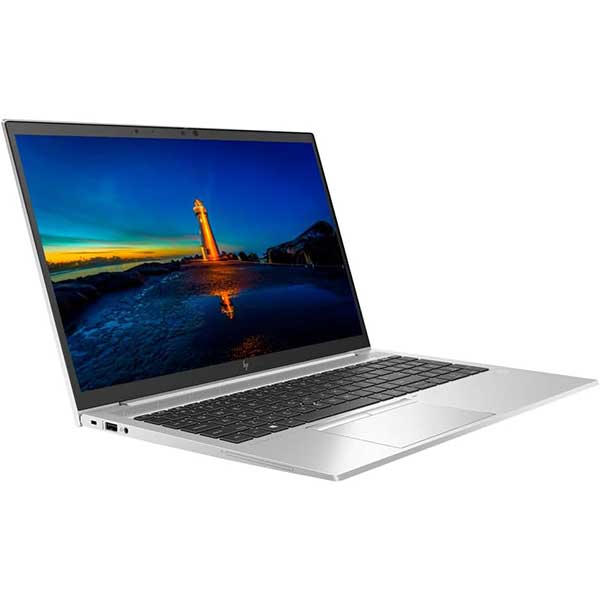
Ex-lease Dell, HP and Lenovo machines are often a strong fit for hybrid teams because they were built for commercial use. They generally offer better keyboards, ports, serviceability and durability than many low-cost consumer laptops. When professionally refurbished and tested, they can provide excellent day-to-day performance at a considerably lower upfront cost than comparable new equipment.
For general administration, education, web applications and Microsoft 365 work, a Windows 11-ready laptop with an Intel Core i5 processor, 8GB to 16GB of RAM and a solid-state drive is usually a sensible baseline. The exact specification depends on the software being used and the expected lifespan of the device. If the business keeps equipment for several years, choosing 16GB of RAM can be worthwhile, particularly for staff who regularly use video conferencing, multiple browser tabs and spreadsheets at the same time.
Screen size is a trade-off. A 13-inch or 14-inch laptop is easier to carry between home and office. A 15-inch model gives more working room without an external display, which can suit staff who travel or do not have a fixed home workspace. Neither option replaces a proper monitor for someone working at a desk all day.
Desktop PCs still have a place in hybrid operations. Reception staff, accounts teams, shared office users and employees who rarely work away can get reliable performance from a compact business desktop. This can free up budget for better laptops and docks for people who genuinely need mobility. Small-form-factor desktops are also easier to position in busy offices where desk space is limited.
Make the desk experience consistent
The laptop is only part of the setup. A hybrid arrangement works properly when a person can arrive at their desk, connect one cable or use a compatible dock, and have access to power, displays, keyboard, mouse and network. That is where docking stations earn their place.
A dock reduces cable clutter and makes it realistic for staff to move between work locations. Compatibility needs checking before purchase. Confirm the laptop connection type, charging capability, number of displays supported and preferred monitor resolution. A cheap dock that cannot power the laptop or run two screens at the required resolution creates more support calls than it saves in dollars.
Dual monitors are often one of the best-value upgrades available. They help staff compare documents, keep a video meeting open while taking notes, work across accounting software and email, or manage research without constant window switching. For standard office work, two matching 22-inch or 24-inch monitors are usually a practical choice. Larger screens can be worthwhile for detailed spreadsheets, design work or users who need more visible information, but they take up more desk space and are not automatically more productive.
Do not overlook the home workstation. Not every employee needs a duplicate office desk, especially if they work remotely only occasionally. However, regular home workers should have an appropriate monitor, keyboard, mouse and reliable charging solution. This helps with comfort and productivity while reducing wear on the laptop’s built-in keyboard and screen.
Standardise the setup, not every single device
Standardisation keeps hybrid support manageable. That does not mean every staff member must receive the same model. It means limiting the number of approved device types, docks, chargers and monitor configurations. A small business might standardise around two laptop ranges, one desktop range, one docking option and two monitor sizes.
This approach makes replacement easier when a device fails or a new employee starts. It also simplifies accessories, driver updates and troubleshooting. If a team has six different docks purchased over several years, identifying why one monitor will not connect becomes a far slower job.
Keep a simple asset record with the device model, serial number, allocated user, charger type, dock model and date issued. It does not need to be complicated software for a small team. What matters is knowing what is in use, who has it and what can be redeployed when roles change.
Budget for the whole working setup
The lowest laptop price is not always the lowest deployment cost. A staff member may still need a dock, monitor, webcam, headset, keyboard, mouse and replacement charger. Include these items in the budget from the start, particularly when setting up new hires.
Refurbished business equipment can make this more achievable. Instead of spending the entire budget on a new laptop, a business may be able to supply a professionally refurbished enterprise laptop plus a quality monitor and docking station. The employee receives a better overall work environment, while the organisation retains funds for spares, warranties or future upgrades.
There are sensible limits. Very old hardware may be cheap but can struggle with current operating system requirements, battery condition or modern connectivity. Confirm that laptops are Windows 11-ready where required and that specifications match the software your team relies on. Check battery expectations for mobile users and factor in whether a replacement battery may be needed during the device’s working life.
Buying a small number of spare laptops and accessories is also worth considering. A ready-to-go replacement device can prevent a broken laptop from becoming two lost working days. For larger teams, spare chargers, display cables and keyboards solve many common issues immediately.
Put security and support into the rollout
Hybrid work extends the workplace beyond the office, so devices need basic safeguards. Use individual staff accounts, strong passwords or passphrases, multi-factor authentication and automatic updates. Business data should sit in approved cloud services rather than only on a laptop desktop. If a device is lost, the business needs to know what information may be exposed and how access can be removed.
Before issuing equipment, set it up in the same way each time. Install required applications, apply updates, configure security settings and test the dock, charger, Wi-Fi and monitors. Give staff a short handover sheet covering how to connect their desk, who to contact for support and what to do if a device is damaged or misplaced.
For organisations without an internal IT person, keeping the technology choices simple matters even more. NZ Laptop Wholesale can help buyers focus on tested, fit-for-purpose refurbished hardware rather than chasing specifications that do not improve the actual working day.
A hybrid office deployment should make work feel ordinary wherever it happens. When staff can open their laptop at home, connect at the office and get on with the job, the technology is doing exactly what it should.


