










General
How to Choose Ex Lease Desktop PCs for Work
A $300 desktop that handles a busy office day is better value than a $700 machine with more power than you will ever use. That is the practical starting point when deciding how to choose ex lease desktop PCs: buy for the work you need done, not for a specification sheet that looks impressive.
Ex-lease desktops are usually enterprise machines from brands such as Dell, HP and Lenovo. They have spent several years in a corporate, school or government fleet, then been professionally refurbished for a second working life. Their original build quality is often a step above low-cost new consumer PCs, but the right model still depends on your software, workspace and budget.
Start with the job the desktop needs to do
Before comparing processors, write down who will use the computer and what will run on it. A reception desk answering emails and using cloud-based accounts software has very different needs from a staff member managing large spreadsheets, editing photos or working across two monitors.
For everyday home use, study, web browsing, email, video calls and Microsoft Office, a business desktop with an Intel Core i5 processor, 8GB of RAM and a solid-state drive is generally a sensible baseline. It will feel quick for normal tasks and offers much better day-to-day responsiveness than an older PC with a traditional hard drive.
For a small business, remote worker or busy administration role, 16GB of RAM is worth considering. It gives more breathing room when several browser tabs, Outlook, Teams, accounting software and spreadsheets are open at once. A larger 500GB or 1TB SSD may also be the better fit if files are stored locally rather than in the cloud.
If the desktop will be used for video editing, 3D design, modern gaming or specialist engineering software, take more care. Many compact ex-lease systems use integrated graphics, which are excellent for office work but not designed for demanding visual workloads. A larger tower with a compatible dedicated graphics card may be required, and in some cases a newer workstation is the more economical choice.
How to choose ex lease desktop specifications
The most useful specification is not always the newest-looking model number. Focus on the parts that affect how the PC performs in real use.
Choose a processor with useful life left
For most buyers, Intel Core i5 desktop processors from the 8th generation onwards offer a strong balance of cost and performance. They are well suited to office software, schoolwork, web applications and multi-monitor setups. Core i7 systems can be worthwhile for heavier multitasking, larger data sets and more demanding professional applications, but they are not essential for basic tasks.
Older Core i5 machines can still be good value for light use, especially where the price is the priority. Check the generation, not just the Core i5 label. A newer 8th-generation i5 will usually provide better long-term compatibility and performance than a much older i7.
Do not compromise on storage
An SSD is one of the biggest practical upgrades in any refurbished desktop. It improves start-up times, application loading and general responsiveness. A 256GB SSD is enough for many students and office users who mainly use cloud storage, while 500GB gives more room for documents, photos and software.
Avoid judging capacity alone. A 1TB traditional hard drive may hold more files, but it will usually feel noticeably slower than a smaller SSD. Some systems combine an SSD for Windows and applications with a second drive for storage, which can suit users with larger local file collections.
Match memory to multitasking
8GB of RAM remains suitable for straightforward work. It is a practical minimum for a family computer, basic office machine or school desktop. For a system expected to stay in service for several years, 16GB is often the smarter buy.
Memory can sometimes be upgraded later, but this depends on the model and available slots. Small form factor desktops may have tighter limits than full towers, so check the installed RAM and maximum supported capacity before assuming an upgrade will be easy.
Check ports and display support
A desktop can have the right processor and still be frustrating if it does not connect neatly to your monitor, network or accessories. Check for the ports you actually use, including DisplayPort, HDMI, USB-A, USB-C, Ethernet and audio connections.
For dual-monitor office work, confirm that the desktop supports two displays at your preferred resolution and that you have the correct cables or adapters. DisplayPort is common on enterprise PCs, while many home monitors use HDMI. This is a small detail that can delay a new setup if overlooked.
Pick the right desktop size for the workspace
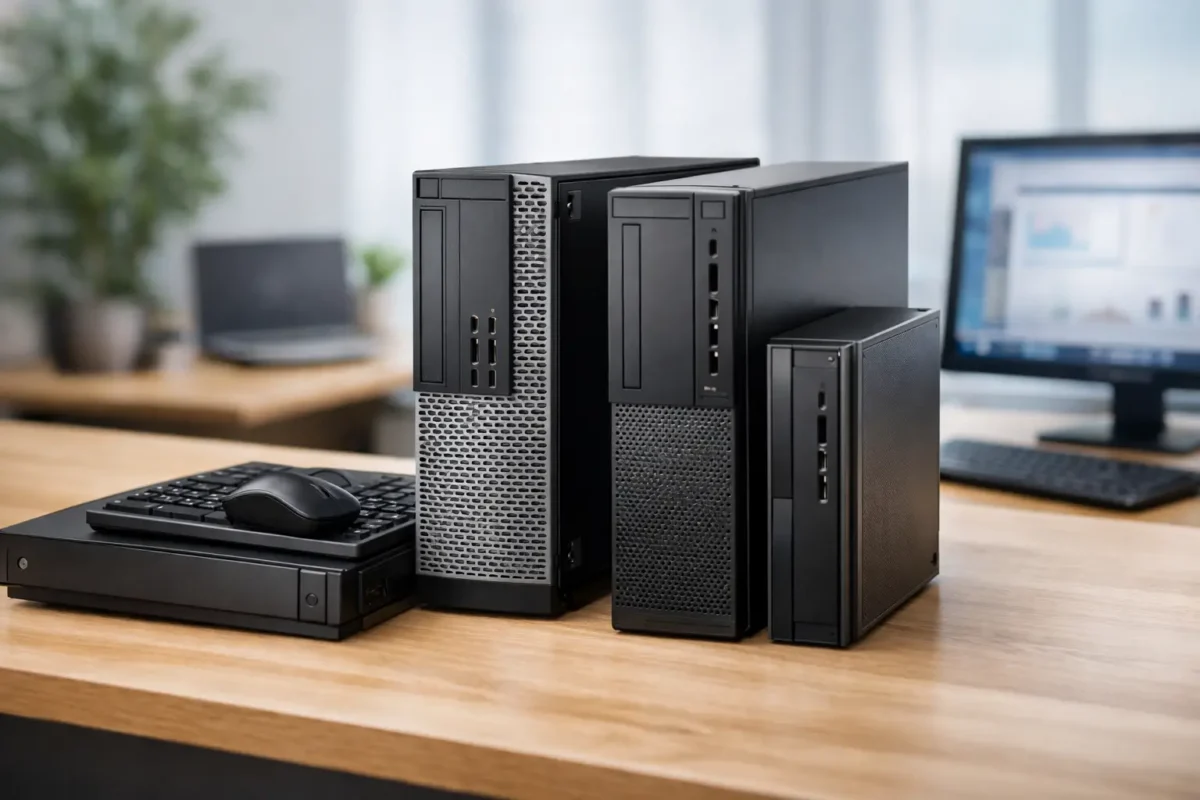
Ex-lease desktops commonly come in three sizes: mini or micro PCs, small form factor systems, and full desktop towers. The best option depends on available space and future upgrade needs.
Mini PCs are ideal behind a monitor, at a reception counter or in a compact home office. They use little desk space and are usually very quiet. Their trade-off is limited internal expansion, so they are best for standard business applications rather than graphics-heavy work.
Small form factor desktops are a popular middle ground. They fit neatly on or under a desk while providing more ports and upgrade options than mini PCs. For most offices, schools and home users, this format offers excellent value.
A full tower takes more room but is easier to upgrade with additional storage, memory or certain graphics cards. Choose one where expansion matters, rather than simply because it looks more substantial.
Assess condition, refurbishment and warranty
Ex-lease does not mean untested or unreliable. However, condition grading and refurbishment standards matter. A professionally refurbished desktop should be tested, cleaned and prepared for its next owner, with the operating system installed and key functions checked.
Expect light cosmetic marks on some units. Small scuffs or signs of previous use do not affect performance, and accepting them can be an easy way to secure better specifications for the same budget. If appearance is important for a front-facing office, ask about the condition grade and choose accordingly.
Also check what is included. A desktop listing may cover the PC only, or it may include a power cable, keyboard, mouse, monitor or wireless adaptor. Knowing this upfront helps you compare the complete cost of getting a workstation ready to use.
A clear warranty is particularly valuable with refurbished hardware. It gives buyers confidence that the machine has been sold as a working, fit-for-purpose system rather than as an unknown second-hand device. NZ Laptop Wholesale focuses on professionally refurbished business hardware because tested enterprise equipment should offer dependable everyday performance at a realistic price.
Make Windows 11 readiness a priority
Windows 10 support has ended, so a Windows 11-ready desktop is a sensible choice for most buyers. In practical terms, this usually means choosing a compatible processor generation and a system with the required security features, such as TPM 2.0.
Do not rely on a desktop having Windows installed as proof that it is ready for the future. Confirm that the model is properly compatible with Windows 11, especially if you are buying for a school, workplace fleet or a user who needs the PC to last several years. A compatible system makes updates, security and software support far less complicated.
Compare complete value, not the headline price
The cheapest desktop is not necessarily the least expensive option over time. A very old PC might save money on day one, then require a storage upgrade, memory upgrade, Windows licence or replacement sooner than expected. A slightly newer system with an SSD, adequate RAM and Windows 11 compatibility often represents better value.
When comparing models, look at processor generation, RAM, SSD capacity, operating system, ports, warranty and included accessories together. This also makes it easier for business buyers to standardise several machines. A matching fleet simplifies setup, troubleshooting and replacement parts, while individual buyers benefit from knowing exactly what they are getting.
Know when a desktop is the better choice
An ex-lease laptop is the right answer when portability matters. But if the computer will live at one desk, a desktop can offer more performance per dollar, easier upgrades and a more comfortable workspace with a full-size monitor, keyboard and mouse.
For home offices, school administration areas and shared family workspaces, a compact desktop paired with a good monitor can be a productive long-term setup. Choose the machine that suits the work in front of you, leave room for the accessories that make that work easier, and you will get far more from your budget than by chasing the newest model.


