










General
Christchurch POS Refresh That Holds Up Daily
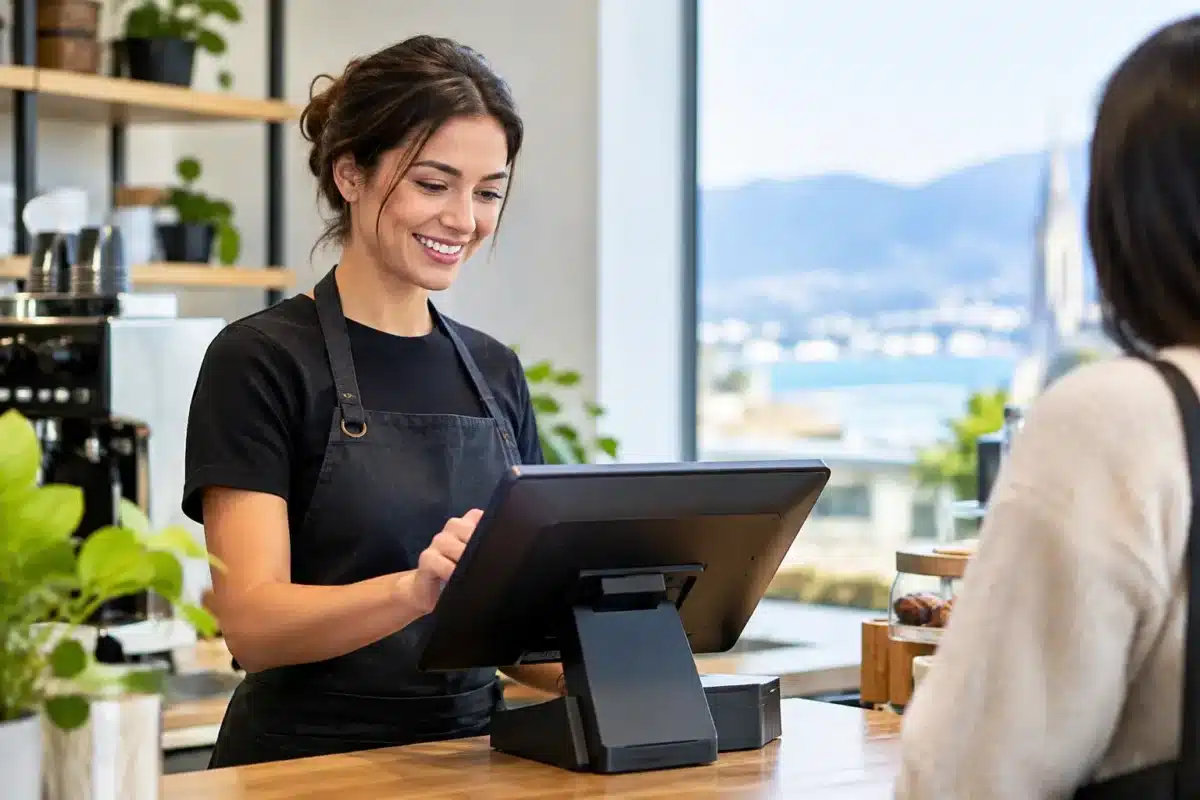
A Christchurch POS refresh is not just a matter of replacing an ageing counter computer. It is a chance to remove the small delays that frustrate staff and customers all day: slow logins, frozen sales screens, unreliable displays, cable clutter and machines that cannot run current software properly. For a busy retailer, café, clinic or service counter, dependable hardware is part of the customer experience.
The right refresh does not have to mean buying expensive, brand-new equipment across every site. Professionally refurbished business-grade desktops and monitors can provide the performance, ports and durability many point-of-sale setups need, while keeping more of the budget available for software, peripherals and staff training.
Start Your Christchurch POS Refresh With the Counter
Before comparing processors or screen sizes, look at how the counter operates during its busiest hour. A POS setup that works in a quiet office can struggle when multiple staff members are processing payments, printing receipts, checking stock and serving customers at once.
Ask where the bottlenecks actually are. Is the computer slow to start? Does the screen make it difficult to read orders at a glance? Are staff moving between separate devices to check inventory? Is there enough space for the terminal, receipt printer, scanner and payment device without creating a tangle of cables?
A practical site check should cover four areas:
- the age, condition and operating system support of each existing PC
- the number and type of USB, display and network connections required
- the monitor size, viewing angle and available counter space
- the software and peripherals that must remain compatible after the change
This early work prevents a common mistake: buying a fast PC that does not have the connections needed for the equipment already on the counter. It also helps identify where one replacement can solve several issues at once, such as replacing an old tower and undersized display with a compact desktop and larger monitor.
Choose Hardware for the Job, Not the Spec Sheet
POS work is usually not demanding in the same way as video editing or engineering design. What matters is consistent performance, quick access to business software and enough connectivity for the devices around it. A well-configured ex-lease Dell, HP or Lenovo business desktop can be a sensible fit for many counters.
For a single-station setup running browser-based POS software, email, stock lookup and receipt printing, an Intel Core i5 business desktop with a solid-state drive and adequate memory is often more than enough. The solid-state drive makes a noticeable difference to boot times and day-to-day responsiveness compared with an older hard drive.
If the counter runs a heavier stock platform, accounting integration, a second customer-facing screen or several browser tabs at once, allow more memory and choose a model with room for expansion. Small form factor desktops save valuable space, while mini PCs suit very tight counters where the unit can be mounted out of sight. A full-size desktop may still be the better choice where several add-in devices or extra internal storage are required.
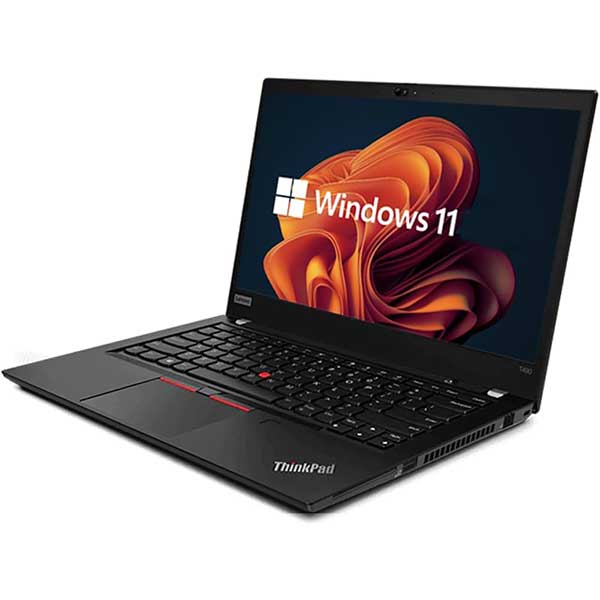
Windows 11 readiness should also be checked before purchase. A machine that is technically working but unsupported by current security updates is not a good long-term foundation for a business system handling customer transactions and staff access.
The Monitor Matters More Than Many Buyers Expect
A POS monitor is read hundreds of times a day. If the display is too small, dim or poorly positioned, staff lose time scanning product lists, order notes and stock details. A quality 22-inch or 24-inch monitor is often a useful step up from an ageing small display, especially for businesses using detailed web-based POS screens.
The best size depends on the counter. A compact café till may need a smaller footprint, while a retail counter handling product search and customer queries may benefit from more screen space. Where staff regularly switch between POS software and stock or booking systems, a second monitor can be worthwhile. It reduces window switching and gives the operator a clearer view of the task in front of them.
Check the stand, display inputs and cable routing before deciding. A monitor with height adjustment can improve comfort in a shared workstation, but a fixed stand may be perfectly suitable where space is limited and the position is already right.
Keep Peripherals in the Plan
The computer is only one part of a working POS station. Receipt printers, barcode scanners, cash drawers, label printers, payment terminals and customer displays all need to work together. Compatibility should be confirmed with the POS software provider and payment provider before equipment is ordered.
USB ports are particularly important. Older counter systems often rely on several wired accessories, and front-facing ports can make quick troubleshooting easier. Ethernet is also valuable where a stable wired connection is preferred over Wi-Fi. Wireless can be convenient, but a fixed counter with access to cabling generally benefits from the consistency of a wired network connection.
Do not assume an old printer or scanner should automatically be retained. If it is already causing paper jams, dropouts or driver issues, carrying it into a new setup can undermine the refresh. On the other hand, reliable peripherals that are supported by the new operating system may not need replacing. The goal is to spend where it removes risk, not to replace equipment for the sake of it.
Roll Out in Stages to Avoid Counter Downtime
Replacing live POS hardware during trading hours is rarely a good idea. Even a straightforward workstation change can take longer than expected once software logins, printer settings, user permissions and payment terminal connections are involved.
Prepare the new PC before it reaches the counter. Install updates, configure accounts, load the approved POS application and test every peripheral where possible. Label cables and power supplies clearly. This makes future troubleshooting far easier, especially when several workstations look identical.
For businesses with multiple counters or locations, trial one station first. Let staff use it through a normal trading period and gather feedback on screen layout, speed, printer behaviour and workflow. Any issues can then be corrected before the remaining systems are changed.
Keep the outgoing equipment available until the new setup is proven. A short overlap provides a practical fallback if a driver, setting or software permission has been missed. It is also a sensible time to back up any local files and securely remove business data from devices that are being retired.
Why Refurbished Business Hardware Makes Sense
Point-of-sale systems need equipment that is dependable, not flashy. Ex-lease business desktops are designed for commercial environments and are commonly built with better serviceability, connectivity and chassis quality than entry-level consumer machines. When professionally refurbished, tested and matched to the job, they offer strong value for businesses replacing several devices at once.
This approach can make a meaningful difference to a Christchurch business budget. Instead of stretching funds on the newest model available, you can select proven hardware with the specifications your POS setup actually requires. That may leave room for a better monitor, a backup unit, additional memory or a second display where it will have a direct effect on staff productivity.
NZ Laptop Wholesale can help buyers compare refurbished desktops, monitors and accessories based on real counter requirements rather than unnecessary specifications. Clear information on processor generation, memory, storage, display connections and condition makes it easier to build a setup that is fit for purpose.
A well-planned POS refresh should leave staff with fewer workarounds, customers with shorter waits and the business with hardware that is easier to support. Start with the workflow at the counter, confirm compatibility before buying, and choose reliable equipment that gives your team room to work properly.


