











General
Best Computers for Home Office Work in NZ
A slow computer costs more than patience. It interrupts calls, delays invoices, turns a quick spreadsheet update into a chore, and leaves you wondering whether you need to replace everything. The best computers for home office work are not necessarily the newest or most expensive models. They are the machines with the right business-grade specifications for the work you actually do.
For many New Zealand households, a professionally refurbished ex-lease computer is the sensible middle ground. Enterprise hardware is built for daily use, often has better ports and serviceability than entry-level consumer devices, and can deliver excellent value when it has been tested and prepared properly.
What a home office computer needs to do
Start with the job, not the brand name. A computer used for email, browser-based accounting, video meetings and Microsoft 365 has different needs from one handling large spreadsheets, design files, programming tools or multiple displays.
Reliability matters just as much as raw speed. Home office equipment should start promptly, hold a stable video call, connect easily to a monitor and webcam, and have enough memory to keep several programs open without slowing down. It should also be suitable for the version of Windows you need, particularly if Windows 11 readiness is a priority.
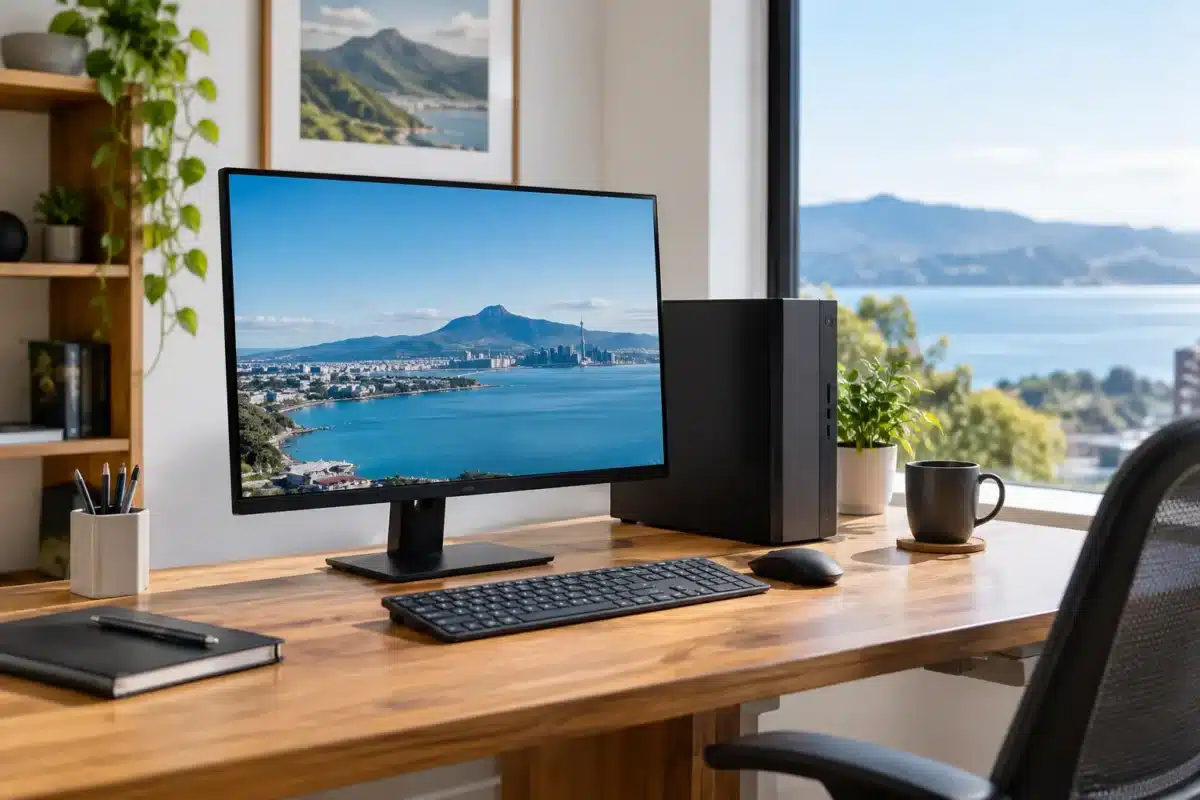
A good buying decision also considers your workspace. If you have a permanent desk, a compact desktop paired with a proper monitor is often more comfortable and better value than a laptop. If you work between home, school, client sites or a second office, a business laptop with a dock can make more sense.
Best computers for home office users by setup
Compact business desktops for a fixed desk
A small-form-factor desktop is one of the strongest choices for everyday office work. Models from the Dell OptiPlex, HP EliteDesk and Lenovo ThinkCentre ranges were designed for business environments, so they commonly include useful connections for monitors, keyboards, network cables and accessories.
For a home office, look for an Intel Core i5 processor from the 8th generation or newer, 8GB of RAM as a minimum, and an SSD. This combination handles email, web research, online banking, cloud storage, documents and video calls comfortably. Moving to 16GB of RAM is worthwhile if you regularly work with large Excel files, many browser tabs or several programs at once.
The main trade-off is portability. A desktop stays at the desk, but that can be a benefit when it means a full-size keyboard, larger monitor and fewer compromises. It is also easier to add storage, replace a component, or connect dual monitors as your workload grows.
Business laptops for flexible work
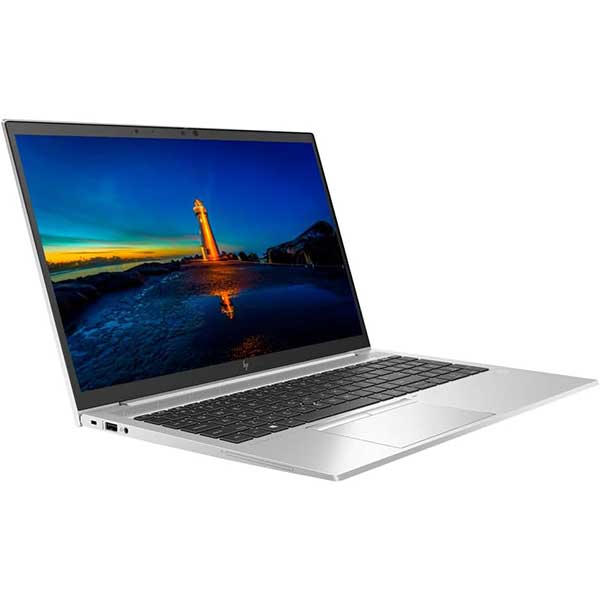
A refurbished business laptop is ideal when your office is not always the same room. Dell Latitude, HP EliteBook and Lenovo ThinkPad models are popular for good reason: they are generally designed for regular travel and work use, with practical keyboards, solid hinge designs and a better range of ports than many thin consumer laptops.
For general administration, study, customer communication and remote meetings, a 14-inch laptop with a Core i5 processor, 8GB of RAM and a 256GB SSD is a practical starting point. A 15.6-inch screen provides more room for spreadsheets and side-by-side windows, although it is less convenient to carry around.
Check the battery condition and charging arrangement on any refurbished laptop. A laptop that spends most of its life at a desk can be connected to an external monitor, keyboard and mouse. Add a suitable docking station and it becomes a tidy, capable workstation, while still giving you the freedom to take it to a meeting or work from another room.
Mini PCs for small spaces
Mini PCs, including Intel NUC-style systems, suit home offices where desk space is limited. They can sit behind a monitor, on a shelf or beside a modem, leaving room for paperwork and other equipment. They are particularly useful for reception desks, basic administration, remote access machines and shared family workspaces.
A quality mini PC can run standard office tasks very well, but it is worth checking its ports before buying. Make sure it supports the monitor arrangement you want and has enough USB connections for a keyboard, mouse, webcam and external drive. Some compact models use laptop-style components, so future upgrades may be more limited than with a standard desktop.
Larger desktops for heavier workloads
If you edit photos, work with large databases, use accounting software alongside many browser tabs, or keep a computer for several years, a full-size desktop may be the better option. The extra room can allow more memory, more storage and, where needed, a dedicated graphics card.
Not every home office needs this level of hardware. Paying for high-end graphics performance makes little sense for email and document work. However, choosing a machine with a stronger processor and 16GB of RAM can be good value where delays affect paid work every day.
Specifications that are worth paying for
The processor, memory and storage have the biggest effect on ordinary office performance. A business-class Intel Core i5 is the dependable sweet spot for most people. Core i7 systems are useful for heavier multitasking and demanding software, while Core i3 machines can suit lighter work if the price is right and the rest of the specification is sensible.
Memory, or RAM, determines how well a computer copes when you have a browser, email, Teams or Zoom, accounting software and documents open together. Eight gigabytes is workable for basic use. Sixteen gigabytes offers more breathing room and is the better long-term choice for busy users.
An SSD is essential for a responsive home office computer. Compared with an older mechanical hard drive, an SSD starts Windows faster, opens programs sooner and makes the whole system feel more usable. Storage capacity depends on your files. A 256GB SSD suits cloud-based work and normal documents, while 512GB or more is preferable for local photos, video, archives or larger project folders.
Ports should not be an afterthought. HDMI or DisplayPort connections, USB ports, an audio jack and Ethernet can save a lot of adaptor frustration. If dual monitors are part of your plan, confirm the computer or dock can run both screens at the resolution you need.
Why refurbished business hardware makes sense
Ex-lease equipment is not the same as unknown second-hand hardware. Businesses often replace computers on a planned cycle, even when the machines still have years of useful life. That creates an opportunity to buy commercial-grade Dell, HP and Lenovo systems at a much lower price than a comparable new device.
The condition and preparation process matter. A professionally refurbished computer should be checked, cleaned, tested and clearly described so you know its processor, memory, storage, operating system and cosmetic condition. A warranty also gives buyers more confidence than a private sale with no support if something goes wrong.
NZ Laptop Wholesale focuses on this practical value: tested business-grade equipment that is suitable for real work without the cost of buying new. For a small business replacing several machines, choosing refurbished can free up budget for monitors, docking stations, backup storage or other tools that improve the whole workspace.
Do not overlook the screen and desk setup
The computer is only one part of a productive home office. A larger external monitor can make a greater day-to-day difference than upgrading from a Core i5 to a Core i7. Text is easier to read, spreadsheets are easier to manage, and you can keep a video call open while working on a document.
Dual monitors are worthwhile for people who compare documents, manage accounts, respond to customers or switch constantly between systems. They are not compulsory for everyone, but a second screen often reduces window juggling and helps keep work organised.
Use a proper keyboard and mouse if you are at the desk for long periods. Position the monitor at a comfortable height, keep cables under control and allow space for a notebook or printed paperwork. The best computer will still feel frustrating in a cramped setup with an undersized screen.
Before you buy, write down the programs you use, the number of displays you want, whether portability matters, and how much local storage you need. That short checklist makes it easier to choose a dependable computer that fits your work and your budget, rather than paying for specifications you will never use.


