










General
Accounting Firm Workstations That Work Harder

A slow computer is rarely just an IT problem in an accounting practice. It can hold up bank reconciliations, make large spreadsheets painful to review, delay client emails and turn deadline season into a bigger job than it needs to be. The right accounting firm workstations give staff enough speed, screen space and reliability to stay focused on client work rather than waiting for software to catch up.
For many New Zealand firms, buying brand-new equipment for every desk is not the best use of budget. Professionally refurbished business hardware can provide the performance needed for Xero, MYOB, Microsoft 365, IRD portals, document management and video meetings, while keeping upgrade costs under control.
Start with the work, not the processor name
An accountant preparing tax returns, a bookkeeper managing cloud files and a practice manager running payroll do not necessarily need identical machines. The best setup depends on the applications in use, how many programs are open at once and whether staff work mainly from the office, home, or both.
For general accounting work, a business-grade desktop or laptop with an Intel Core i5 processor, 16GB of RAM and a solid-state drive is a sensible starting point. This specification is comfortable for browser-based accounting platforms, email, Teams calls, PDF review and day-to-day spreadsheets. An SSD matters more than many buyers expect. It improves start-up times, file access and the general responsiveness of a workstation.
Staff working with very large Excel files, multiple company records, complex reporting or heavier practice-management software may benefit from an Intel Core i7 processor and 16GB or 32GB of RAM. More memory is useful when several browser tabs, Excel workbooks, PDFs, cloud storage tools and communication apps are all open at the same time.
Avoid judging a workstation by storage capacity alone. A 1TB hard drive sounds generous, but an older mechanical drive can make an otherwise capable PC feel slow. A 256GB or 512GB SSD is usually the more practical choice for an office machine, particularly where files are held in approved cloud storage or on a business server.
Dual monitors make a measurable difference
Most accounting work involves comparing information. You may be checking a bank statement against a ledger, reviewing source documents alongside a tax return, or moving figures between Excel and accounting software. One screen forces constant switching. Two screens make the process easier to follow and easier to check.
A practical dual-monitor workstation might use two matching 23.8-inch or 24-inch Full HD monitors. This gives enough room for a spreadsheet on one display and Xero, MYOB, emails or supporting documents on the other. Matching screens also create a cleaner desk layout and make it easier to position documents consistently.
For staff using a laptop, a docking station can turn the same device into a proper desk setup. One connection can provide charging, external monitor support, keyboard, mouse and network access, depending on the dock and laptop model. This is particularly useful for hybrid teams that need a portable machine without compromising their office productivity.
Screen size is not simply a comfort feature. It can reduce scrolling, minimise window switching and make figures easier to review. However, bigger is not always better. Two 24-inch monitors suit most desks and most users well. Larger displays can be worthwhile for reporting-heavy roles, but they take up more space and cost more.
Desktop or laptop for an accounting practice?
A compact business desktop is often the best-value option for permanent office desks. Enterprise small-form-factor models from Dell, HP and Lenovo are designed for commercial use, fit neatly beside or beneath a monitor, and are straightforward to deploy across a team. They typically offer strong performance for the price and are easy to pair with dual monitors.
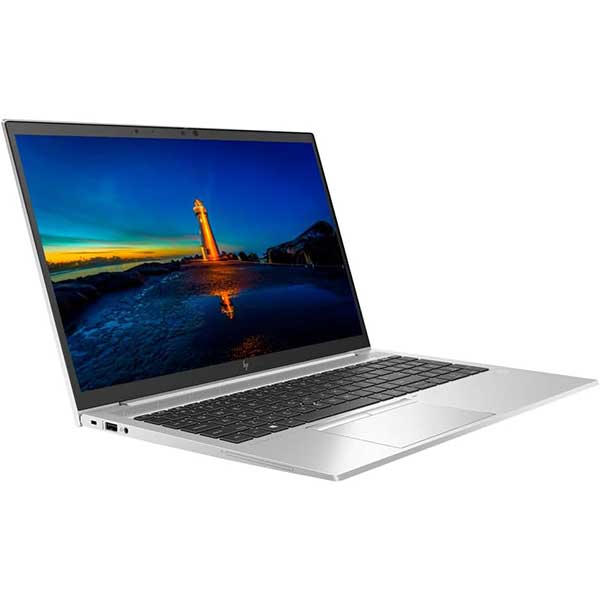
Laptops make more sense for partners, managers, field staff and anyone who regularly works between office and home. A 14-inch business laptop is usually a practical balance of portability and usable screen space. At the desk, connect it to a dock and external monitors. Away from the desk, it remains a full working device for client meetings and remote work.
Some firms choose a mixed fleet: desktops for administration and bookkeeping roles, with laptops for client-facing and hybrid staff. That approach can make good financial sense. There is no need to pay for portability where it will not be used, but staff who need mobility should not be limited by a fixed workstation.
What to look for in accounting firm workstations
Reliable ex-lease hardware is well suited to office fleets because it was built for business use from the start. Commercial Dell, HP and Lenovo systems generally have sturdier construction, better port options and more consistent parts availability than entry-level consumer PCs. When professionally refurbished, tested and supplied with clear specifications, they offer a practical way to standardise equipment without paying new-device prices.
Prioritise these features when comparing machines:
- An Intel Core i5 or i7 processor from a generation suitable for Windows 11
- At least 16GB of RAM for staff who work across several programs and browser tabs
- A solid-state drive, ideally 256GB or larger
- Support for two external monitors, either directly or through a compatible dock
- Windows 11 readiness and current security updates
- Enough USB ports for keyboard, mouse, headset, printer or other desk accessories
A built-in webcam and microphone are worth considering for laptops used in client meetings. For office desktops, a quality USB webcam and headset may be the better option. The right choice depends on how often each staff member uses video calls and whether privacy or desk tidiness is a priority.
Security and consistency belong in the buying decision
Accounting firms handle sensitive client information, so a workstation purchase should consider more than speed. Windows 11-compatible hardware helps keep devices on a supported operating system, while business-grade machines often include security features such as TPM support for device encryption.
Your wider security setup still matters. Use strong unique passwords, multi-factor authentication, managed antivirus, regular updates and appropriate access controls for cloud platforms and client folders. A reliable computer cannot replace good security practices, but outdated hardware can make maintaining them harder.
Consistency across the fleet also saves time. If every desk has a different operating system, charger, monitor connection and hardware setup, troubleshooting becomes slower and replacement devices are harder to prepare. Standardising around a few proven models, monitor types and docking solutions makes day-to-day support far simpler.
For a small practice, this may mean choosing one desktop configuration for fixed desks and one laptop configuration for mobile staff. For a growing firm, it can mean keeping a spare ready-to-go device on hand so an unexpected hardware failure does not interrupt payroll or month-end work.
Refurbished hardware is a practical budget decision
New equipment has its place, particularly where a business needs specialised software, very long replacement cycles or a specific manufacturer configuration. But for mainstream accounting tasks, refurbished enterprise devices often deliver better value. The money saved can go towards a second monitor, docking station, backup device, warranty cover or a broader fleet refresh.
The key is to buy from a supplier that clearly states the model, processor, memory, storage, condition and warranty terms. “Refurbished” should mean more than a quick clean. Ask whether the equipment has been tested, whether a fresh operating system is installed, and whether the system is ready for Windows 11.
NZ Laptop Wholesale focuses on professionally refurbished business hardware that suits practical office requirements, from compact desktops for fixed workstations to laptops and monitors for flexible teams. For firms in Auckland, Hamilton, Wellington, Christchurch, Whangarei and across New Zealand, that can be a sensible route to reliable equipment without stretching the IT budget.
Build desks people can work at all day
A good workstation is not just a PC on a desk. Position monitors at a comfortable height, use a proper keyboard and mouse, and make sure cables, chargers and docks are suitable for the setup. Small improvements can make a noticeable difference during long periods of data entry and document review.
Before purchasing, list each role in the firm and the software, monitor setup and mobility it genuinely requires. That simple exercise helps prevent both under-specced machines that frustrate staff and expensive over-specced machines that never use their full capability. A well-chosen, business-grade workstation gives your team a dependable place to get accurate work done when it matters most.


