










General
USB-C vs Thunderbolt Docks for Work Setups
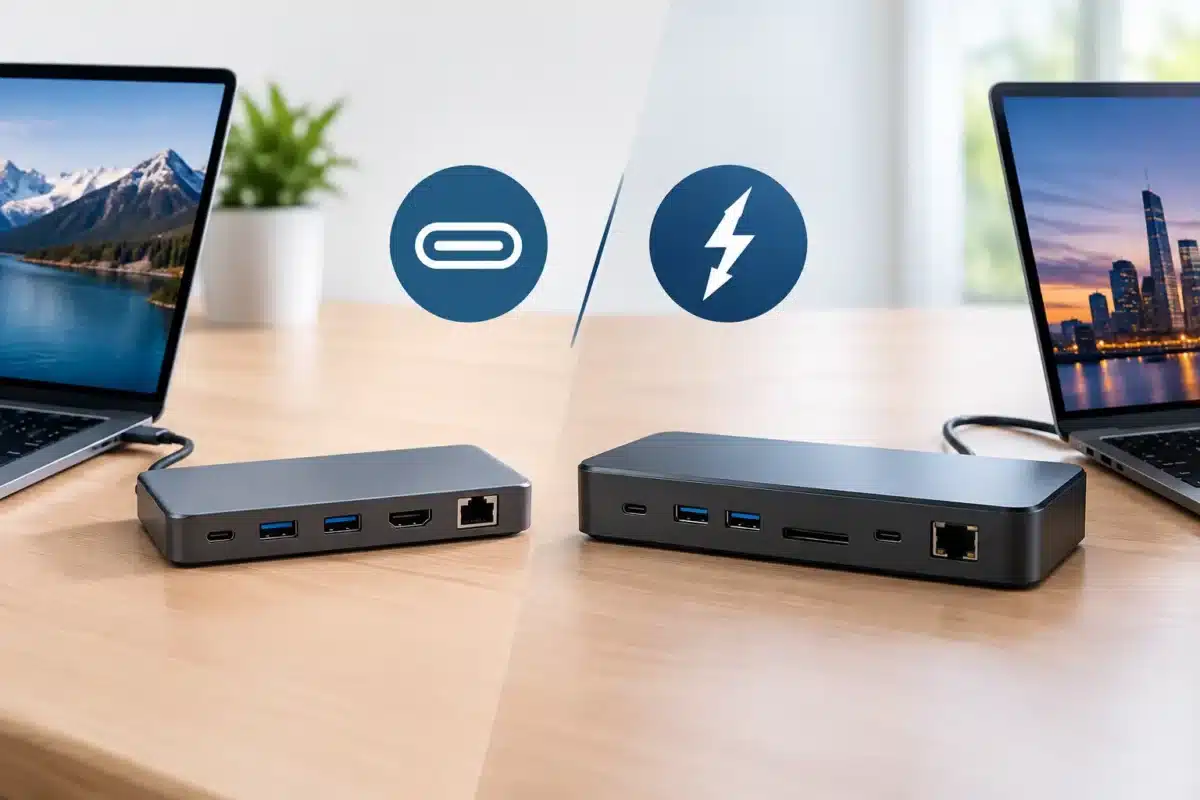
A dock can turn one laptop into a proper desk setup in seconds: plug in one cable, then use your monitor, keyboard, mouse, network cable and charger. The catch is that USB-C vs Thunderbolt docks is not simply a question of which connector looks better. Both commonly use the same compact USB-C-shaped plug, but the capability behind that port can be very different.
For a student connecting one monitor and a few peripherals, an affordable USB-C dock may be exactly right. For a busy office running multiple high-resolution screens, fast external storage and wired networking, a Thunderbolt dock can be worth the extra spend. The right choice comes down to the laptop you already own and the work you need it to do.
USB-C and Thunderbolt use the same plug, not the same technology
USB-C describes the connector shape. It is the small, reversible port now found on many business laptops, tablets and mobiles. A USB-C dock can carry power, video and data through that single connection, provided the laptop supports those features.
Thunderbolt is a higher-speed connection standard that also uses a USB-C-shaped port. Thunderbolt 3 and Thunderbolt 4 support up to 40Gbps of bandwidth, compared with many USB-C docks that operate at 5Gbps, 10Gbps or 20Gbps. That extra bandwidth matters when several demanding devices are connected at once.
The labels can be confusing. A laptop may have USB-C, USB4 or Thunderbolt ports, and their features are not always identical. Look for the lightning-bolt symbol beside the port or check the laptop specifications. Do not assume that every USB-C port supports video output, charging or Thunderbolt just because the plug fits.
USB-C vs Thunderbolt docks: the practical differences
A USB-C dock is usually the sensible value option for everyday work. It can provide HDMI or DisplayPort, USB ports for accessories, Ethernet, audio and Power Delivery charging. For common office tasks such as email, documents, web-based systems, video calls and schoolwork, its performance is generally more than enough.
Thunderbolt docks are built for greater expansion. Their higher bandwidth gives more headroom for dual 4K displays, high-refresh monitors, fast external SSDs, multiple USB devices and network access operating together. They are particularly useful for users who regularly move between a mobile setup and a full workstation.
That does not mean Thunderbolt automatically gives a better picture or charges every laptop faster. Display support depends on the dock, the laptop graphics hardware and the monitor resolution. Charging depends on the dock’s power supply and what the laptop accepts. A 100W dock will not force 100W into a laptop that only needs 65W, while a power-hungry workstation may still need its original charger.
Display support is where compatibility matters most
Many buyers choose a dock to run two monitors, so read the supported display specifications carefully. A USB-C dock may handle one 4K monitor comfortably, or two Full HD monitors for standard office work. Some higher-spec USB-C models can support two 4K displays, but this depends on the laptop supporting DisplayPort Alt Mode and the right display configuration.
Thunderbolt docks usually offer more reliable flexibility for multi-monitor setups, particularly two 4K displays at 60Hz. They have the bandwidth to carry more video data while leaving capacity for storage and peripherals. This makes them a strong option for spreadsheet-heavy roles, design work, finance teams and staff who need several applications visible at once.
Mac compatibility needs a separate check. Some Apple Silicon MacBook models support only one external display natively, regardless of whether a USB-C or Thunderbolt dock has two video outputs. A dock using DisplayLink technology may offer another route, but it requires software and is not the same as native video output. Always match the dock to the exact laptop model, not just the brand.
Ports and bandwidth affect day-to-day convenience
A basic USB-C dock is often enough for a keyboard, mouse, webcam, USB headset, Ethernet and one or two displays. The limitation appears when you add fast drives, high-resolution screens or several devices transferring data at the same time. The dock has to share its available bandwidth across everything connected to it.
Thunderbolt provides a larger data pathway, which is useful for video editors, photographers, engineers and anyone working from large files on external SSDs. It can also support Thunderbolt daisy-chaining on compatible equipment, reducing cable clutter for some setups.
For most refurbished business laptops used in administration, education or remote work, the difference may not be noticeable. Paying more for a Thunderbolt dock makes sense when its extra capacity will genuinely be used, rather than simply because it is the newer or premium option.
Will a Thunderbolt dock work with a USB-C laptop?
Sometimes, but never treat it as guaranteed. Many Thunderbolt 4 docks can work with USB-C or USB4 laptops in a reduced-function mode. In that situation, the dock may still provide charging, USB accessories and one display, but it may lose some display outputs, bandwidth or specialist features.
Older Thunderbolt 3 docks are less predictable with standard USB-C laptops. Some work partially, while others require a Thunderbolt-equipped host computer. The reverse is easier: a USB-C dock will often work with a Thunderbolt laptop, because Thunderbolt ports are commonly compatible with USB-C functions.
This is why a dock should be selected from the laptop specifications first. Enterprise Dell, HP and Lenovo laptops can look very similar while having different port capabilities across model generations. Check whether the port supports Power Delivery, DisplayPort Alt Mode, USB4 or Thunderbolt, then compare that with the dock’s stated compatibility.
Choose the dock that fits the job
A USB-C dock is usually the better buy if you need a clean, reliable desk setup for one monitor or straightforward dual Full HD screens, along with charging and everyday accessories. It keeps costs sensible and suits many home offices, school desks and small business workstations.
A Thunderbolt dock is the better fit when you need two high-resolution displays, fast external storage or more expansion without compromising performance. It is also a practical choice for a fleet of compatible business laptops where staff need a consistent desk setup across hot desks or offices.
There is a middle ground as well. USB4 can offer performance closer to Thunderbolt on supported laptops, but USB4 specifications vary. Treat each dock and laptop as its own combination rather than relying on one label alone.
Before buying, confirm four details: the exact laptop model and port type, the number and resolution of monitors, the charging wattage required, and the ports needed for your existing accessories. Also check what cables are included. A high-quality dock is only as useful as the cable and power supply connecting it to the laptop.
For value-focused setups, start with the simplest dock that meets the real requirement. A professionally refurbished business laptop paired with the right dock can deliver a tidy, dependable workstation without the cost of replacing equipment that is still perfectly capable.


