










General
Office Docking Station Setup That Works Daily
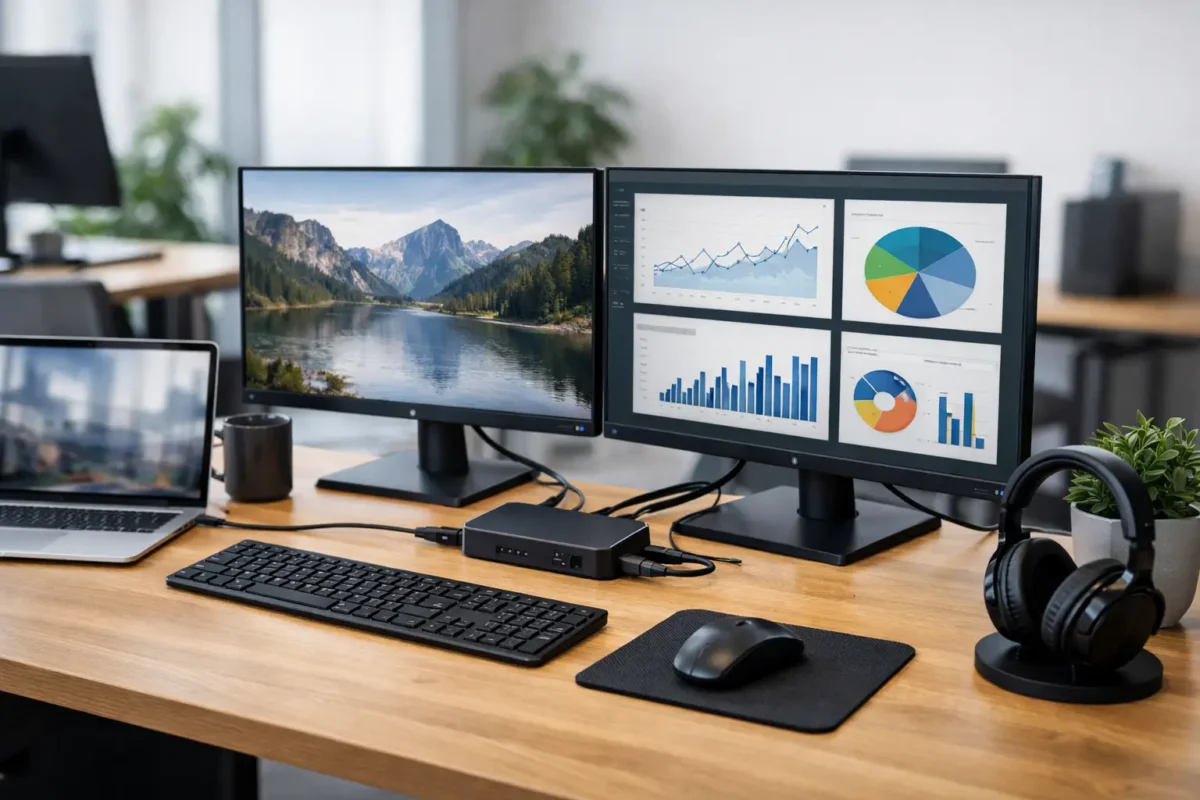
A good office docking station setup should let a staff member arrive, plug in one cable and get straight to work. If it takes several cables, unreliable display connections or a charger that cannot keep up, the desk is not saving time – it is creating support calls.
For small businesses, home offices and shared workspaces, a dock is a practical way to get more from a business laptop. It can turn a compact Dell, HP or Lenovo notebook into a proper desktop workspace with external monitors, a full keyboard, mouse, wired network and power. The key is matching the dock to the laptop and the way the desk will actually be used.
Start with the laptop, not the dock
The most common mistake is choosing a docking station based only on its ports. Before looking at a dock, check the laptop’s USB-C or Thunderbolt connection, charging requirement and external display capability.
USB-C describes the connector shape, not every feature it supports. A USB-C port may charge a laptop and transfer basic data, but it may not support video output. For a dock to run monitors through USB-C, the laptop generally needs DisplayPort Alt Mode. Thunderbolt ports usually offer greater display and data bandwidth, but a Thunderbolt dock can still be unnecessary if the laptop and monitors only need a basic USB-C solution.
Check the laptop manufacturer’s specifications where possible. For ex-lease business laptops, model details matter. Two devices that look similar may have very different charging needs and display limits. A 65W laptop may work well with a 90W dock, while a higher-performance model may need 100W or more to avoid slow charging messages or reduced performance under load.
It also pays to consider the operating system. Windows laptops usually offer the widest choice of docking options, but the number of screens and supported resolution can differ by model. Chromebooks can work well with compatible USB-C docks for school or administration desks, though it is wise to confirm monitor support before buying for a fleet.
Choose the right office docking station setup
There is no single best dock for every workplace. A simple office desk with two Full HD monitors has different needs from a finance workstation running two high-resolution displays, wired Ethernet and multiple USB accessories.
USB-C docks for everyday desks
A USB-C dock suits most standard office work: email, browser-based systems, documents, video calls and cloud software. Look for enough video outputs for the monitors you already own, USB ports for a keyboard and mouse, Gigabit Ethernet and suitable power delivery.
For a fixed desk, a dock with DisplayPort outputs is often a sensible choice because many business monitors include DisplayPort. HDMI is equally useful where that is what the monitors support. Avoid relying on adapters unless necessary. Every extra adapter is another possible point of failure, especially in shared spaces.
Thunderbolt docks for higher demands
Thunderbolt docks are better suited to compatible laptops that need higher bandwidth, more demanding display configurations or fast external storage. They are commonly used with premium business notebooks, creative workstations and users working across several high-resolution screens.
They cost more, so the value depends on the job. Paying for Thunderbolt for a single 1080p monitor and a keyboard may not make sense. On the other hand, it can be worthwhile when a staff member needs dependable dual 4K output, fast file transfers and charging from one connection.
Universal USB graphics docks
Some docks use DisplayLink or similar USB graphics technology to add extra monitor support. These can be useful when a laptop has limited native display outputs, particularly in hot-desk areas. However, they need software drivers and are not always the best fit for graphics-heavy work, fast-moving video or locked-down managed devices.
For everyday office applications, they can be a practical answer. For video editing, CAD or users who need the lowest possible display latency, native USB-C or Thunderbolt video output is normally the safer option.
Plan the desk before plugging anything in
Set up the monitor positions and cables before connecting the laptop. Put screens at a comfortable height, with the main display directly in front of the user. A second screen should sit close beside it rather than forcing constant head turning. For many office users, two matching 22 to 24-inch monitors at Full HD resolution provide excellent value and are easier to manage than one very large screen.
Place the dock where its ports are accessible but where it will not be knocked off the desk. Behind a monitor stand or beneath the rear edge of the desk often works well. Keep the laptop connection cable easy to reach, with enough slack to plug in without dragging the dock around.
Use the dock’s original power supply where available. A random USB-C charger might physically fit, but it may not provide enough wattage or may cause intermittent behaviour. For office rollouts, standardising the same dock, charger and monitor model across desks makes replacements and troubleshooting far easier.
Connect the equipment in the right order
With the dock powered, connect the monitors, keyboard, mouse and Ethernet cable first. Then connect the dock to the laptop using the correct host cable. Finally, start the laptop or wake it from sleep.
Once Windows has loaded, open Display Settings and check that every screen is detected. Select Extend these displays rather than Duplicate these displays if the user needs separate working space. Drag the monitor icons so they match the physical desk layout. This small step prevents the mouse pointer appearing to move in the wrong direction between screens.
Set each monitor to its recommended resolution and refresh rate. If text looks blurry, Windows display scaling may be the issue rather than the monitor itself. A 4K screen often benefits from scaling above 100 per cent, while a Full HD office monitor usually looks best at its native setting.
For wired networking, confirm that the laptop has switched from Wi-Fi to Ethernet where required. Wired Ethernet is useful for fixed office desks because it offers consistent performance for large uploads, cloud backups and video calls. Wi-Fi still has its place for flexible workspaces, but it should not be the only plan for a desk used all day by a busy staff member.
Avoid the power and display traps
A dock can have two HDMI ports and still fail to run two monitors at their intended resolution. The limit may be the laptop’s graphics hardware, the USB-C connection’s available bandwidth or the dock itself. Read the supported display specifications as a complete combination, not as separate headline claims.
For example, a dock may support two monitors, but only at Full HD when both are connected. Another may support one 4K screen at a higher refresh rate but reduce capability when a second display is added. This is not necessarily a fault. It is how the dock and laptop share available bandwidth.
Power is another regular issue. If a laptop warns that the charger is slow, loses battery while connected or reduces performance during demanding work, the dock may not supply enough power. A 65W dock can be perfectly suitable for many compact business laptops, but it is not a universal answer. Check the manufacturer’s minimum charging recommendation and allow some headroom where possible.
Make shared desks easier to use
Hot-desking only works when every desk behaves predictably. Label the main laptop cable, keep unused cables out of reach and use simple instructions at the desk: connect one USB-C cable, wait for screens to wake, then sign in. Staff should not need to work out which cable is for charging or which screen input to select.
For a small office buying several setups, standardisation offers real value. Matching refurbished monitors and compatible docking stations can give staff a consistent experience without the cost of buying every item new. NZ Laptop Wholesale focuses on professionally refurbished, business-grade equipment because enterprise hardware is built for exactly this kind of regular office use.
Keep a spare compatible charger and one tested dock available for quick swaps. When a user reports a problem, testing with a known-good cable and dock can quickly show whether the issue is the laptop, the dock, the monitor or the connection.
Troubleshoot before replacing hardware
If the monitor is blank, first check the monitor input source and reseat the cable at both ends. Then disconnect and reconnect the laptop cable. A full shutdown of the laptop and dock power can clear connection issues that a simple restart does not.
If USB devices drop out, remove unnecessary accessories and test again. High-power devices such as external drives can strain a basic dock, particularly if it is not using its correct power adaptor. Update laptop graphics, USB-C or Thunderbolt drivers through the device manufacturer’s approved process, especially after a Windows update.
When a dock works inconsistently across different laptops, the cause is often compatibility rather than damage. Confirm the host port supports charging, video and data as required. A well-matched dock is usually more dependable than an expensive unit with features the laptop cannot use.
A tidy, tested desk setup is a modest investment that pays back every working day. Choose the dock around the laptop, use monitors that suit the work, and keep the connection simple enough that anyone can sit down and be productive.


