





General
A Practical Guide to Business Laptop Ports
A laptop can have the right processor, enough memory and a good battery, then still create daily frustration because it will not connect to the equipment on the desk. A practical guide to business laptop ports starts with the devices you already use: monitors, charging cables, projectors, wired networks, USB accessories and docks. Get those connections right before buying, particularly when choosing reliable ex-lease equipment for an office, school or home workspace.
A guide to business laptop ports for real work
Business laptops are built differently from many consumer models. They are commonly designed to work with docking stations, external displays and wired office equipment over several years. That makes models from Dell, HP and Lenovo especially useful for buyers who need a dependable setup rather than a laptop that only works well on its own.
The catch is that port names can be confusing. Two USB-C ports may look identical while supporting very different features. A laptop might have HDMI but no Ethernet, or it may use a proprietary charging connector alongside USB-C. Product photos help, but the written specifications are what should guide a purchase.
Before comparing models, make a quick note of what needs to plug in on day one. A remote worker with one monitor has different requirements from a reception desk with a printer, wired network, keyboard, mouse and dual displays. Buying for a student is different again: USB-A for a flash drive or older accessory may be more useful than an advanced dock connection.
The ports that matter most
USB-A: still useful in everyday offices
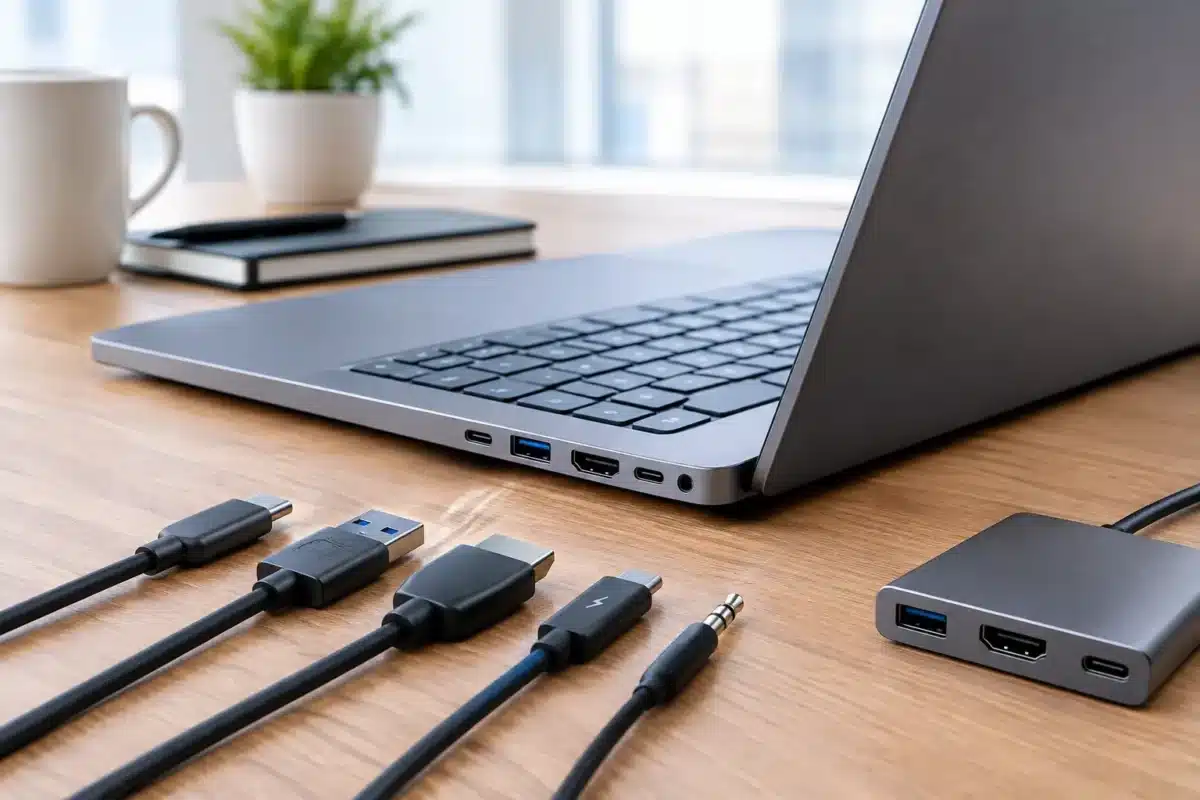
USB-A is the familiar rectangular USB port found on older flash drives, wired keyboards, mice, printers and many wireless receiver dongles. It is no longer the newest standard, but it remains practical. A business laptop with two or three USB-A ports can reduce the need for adaptors at a shared desk or in a classroom.
USB-A speeds vary. USB 3 ports are generally marked with a blue insert or an SS symbol, although this is not universal. For a mouse, keyboard or printer, speed is not a concern. For an external hard drive used for backups or large files, a faster USB 3 connection is worthwhile.
USB-C: small port, big differences
USB-C has an oval shape and can be plugged in either way up. It can carry charging power, data, video or all three, but the connector alone does not guarantee every function. This is the most important detail to check when selecting a modern business laptop.
A USB-C port that supports Power Delivery may charge the laptop from a compatible USB-C charger or dock. DisplayPort Alt Mode allows a monitor to run through USB-C. Thunderbolt ports, usually identified by a lightning symbol, provide higher bandwidth and are particularly useful for demanding docks, high-resolution displays and fast external storage.
For a simple one-monitor setup, standard USB-C video support may be enough. For dual monitors through one cable, check both the laptop and dock specifications. Some docks use DisplayLink technology, which can add displays through USB data, but it often needs software and is not always ideal for graphics-heavy work. It depends on the work being done, not just the number of screens required.
HDMI and DisplayPort: direct monitor connections
HDMI is the most common direct connection for modern monitors and TVs. It is easy to use at home, in meeting rooms and with many classroom displays. A built-in HDMI port is convenient when a laptop needs to connect straight to a monitor without carrying a dock or adaptor.
DisplayPort is more common on business monitors and docking stations. A full-size DisplayPort connection is less common on newer laptops, while Mini DisplayPort appears on some older professional models. Both can offer excellent display performance, but the version matters if you are driving high resolutions or high refresh rates.
For standard office work, a 1080p or 1440p monitor is usually straightforward. Dual 4K displays place greater demands on the laptop graphics, the dock, the cables and the port standard. Do not assume that a dock with two display outputs means every laptop can run both screens at its preferred resolution.
Ethernet: stable networking when Wi-Fi is not enough
Wired Ethernet is valuable in offices, schools and fixed workstations where stable video calls, large file transfers or secure local network access matter. Some slim laptops no longer include an RJ45 Ethernet port, so a USB-C or USB-A Ethernet adaptor may be needed.
An integrated Ethernet port is still a genuine advantage for a workstation that stays in one place. It avoids using an adaptor and frees up USB ports for other accessories. For staff who move between sites, a compact Ethernet adaptor is a reasonable compromise.
Audio, SD card and older connections
A 3.5 mm audio jack remains useful for wired headsets, particularly in call-heavy roles where Bluetooth charging and pairing are a nuisance. SD or microSD card readers can matter for photographers, educators and anyone transferring files from cameras, but they are not essential for most office buyers.
Older business laptops may include VGA, serial ports or Smart Card readers. These are specialised rather than outdated in every situation. A VGA port can still be useful in older meeting rooms, while a Smart Card reader may suit organisations with established security systems. The right port is the one that works with the equipment you actually have.
Choose ports around your desk setup
A laptop should support the workspace without turning it into a tangle of adaptors. For a basic home office, HDMI or USB-C video, two USB ports and a headset jack will cover most needs. A USB-C charging port is a bonus if you want a cleaner desk with one compatible monitor or dock cable.
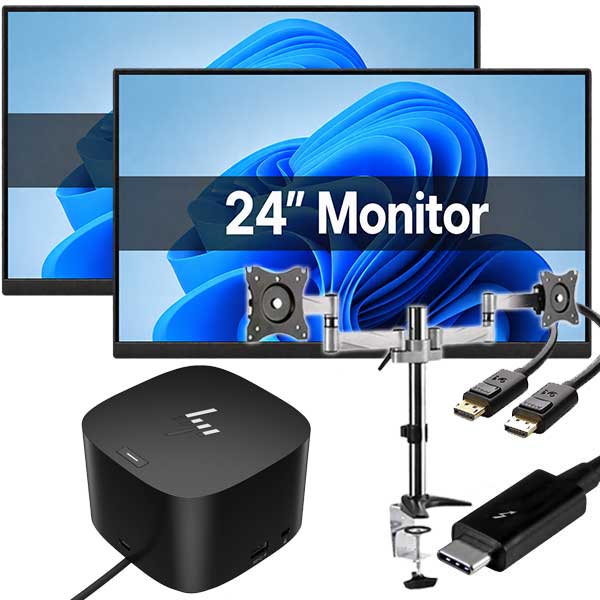
For dual-monitor office work, focus on whether the laptop supports a suitable dock and the display resolution you need. Many ex-lease business laptops are well suited to this job because they were originally designed for managed office fleets. A compatible dock can provide charging, display outputs, Ethernet and extra USB ports while keeping the laptop easy to unplug and take to a meeting.
For shared desks, port placement is worth considering. Side-mounted USB ports make it easier to connect a flash drive or mobile. Rear-facing dock connections can keep cables tidy. Small details like this affect day-to-day usability more than they appear to on a specification sheet.
Check these details before buying refurbished
Professionally refurbished business laptops offer strong value, but generations vary. A model from a few years ago may have USB-A, HDMI and a dedicated dock connector, while a newer equivalent may rely mostly on USB-C. Neither is automatically better. The better option is the one that fits your existing equipment and replacement plan.
Check the exact model number rather than relying on a product family name. Manufacturers often use the same laptop range across several configurations, and ports can change between screen sizes or model years. Confirm the number and type of USB ports, whether USB-C supports charging and video, the available display outputs, and whether a matching dock is included or required.
Also check what comes in the box. A power adaptor is essential, but display cables, Ethernet adaptors and docks are often separate items. Budgeting for them upfront prevents a good-value laptop from becoming a more expensive purchase after checkout.
When adaptors are a sensible solution
Adaptors are not a problem by default. A quality USB-C to HDMI adaptor is a practical choice for occasional presentations, and a USB Ethernet adaptor makes sense for a laptop that is mostly used on Wi-Fi. The issue comes when several cheap adaptors are doing the work of one proper dock.
If a laptop will live at a desk and connect to multiple accessories every day, choose a compatible docking station. It reduces wear on the laptop ports, keeps cabling organised and makes it easier for staff to connect correctly. For mobile use, fewer accessories usually means fewer things to forget or replace.
The best port setup is not the one with the longest specification list. It is the one that lets you charge, connect, present and work without extra fuss. When comparing a refurbished business laptop, match its ports to the desk you have now and the monitor setup you are likely to need next year.


