










General
How to Connect an Interactive Display Wirelessly
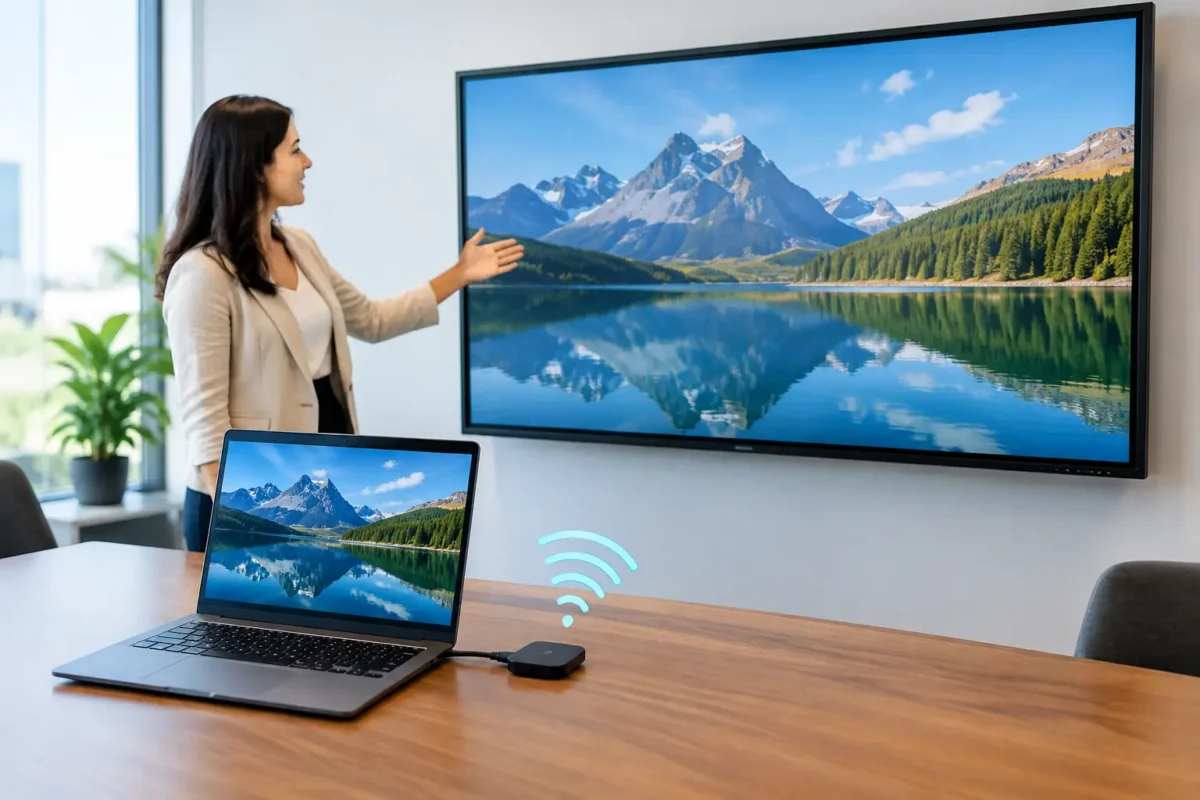
A meeting should not begin with five minutes spent finding the right cable, changing the display input and asking whose adaptor will work. If you need to connect interactive display wirelessly, the right setup lets staff, teachers and students share a Windows laptop screen quickly while keeping the room tidy and ready for use.
Wireless screen sharing is practical for classrooms, boardrooms, training spaces and collaborative offices. It also has limits. A wired HDMI or USB-C connection is still the better choice for high-frame-rate video, gaming, specialist software and situations where zero delay matters. For presentations, documents, web pages and everyday collaboration, wireless display connection is usually the more flexible option.
What you need before connecting wirelessly
Start by checking what the interactive display and laptop actually support. Many modern interactive panels include a wireless casting app or receiver. Others need an optional wireless presentation module plugged into the display. Your laptop may use Windows Wireless Display, Miracast, a manufacturer app, or a USB button that transmits the screen to the panel.
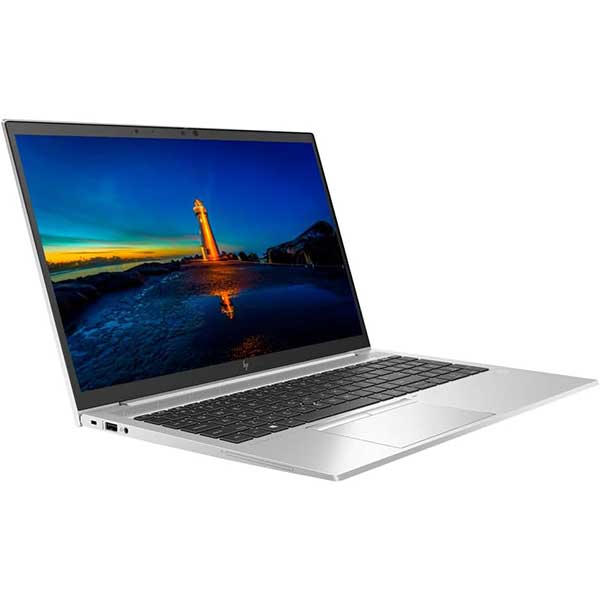
A business-grade refurbished Windows laptop is often a sensible fit for this job. Dell Latitude, HP EliteBook and Lenovo ThinkPad models commonly include modern Wi-Fi hardware and the ports needed for a backup cable connection. Before buying for a school or office, confirm that the device supports Windows 11 where required and has dual-band Wi-Fi. Older entry-level laptops can be fine for documents, but their wireless performance may be less consistent in busy rooms.
Your network matters just as much as the devices. A strong 5 GHz Wi-Fi connection is preferable to a crowded 2.4 GHz network. The display, laptop and wireless receiver may need to be on the same network, depending on the system. Miracast can often create a direct connection instead, which is useful where guest Wi-Fi is restricted.
Also check the panel’s resolution. A 4K interactive display can receive a lower-resolution cast without issue, but a modest laptop may struggle to transmit 4K video smoothly. For normal PowerPoint presentations, spreadsheets and browser-based teaching, 1080p is usually a reliable and sensible setting.
How to connect an interactive display wirelessly from Windows
The exact menus vary between display brands, but the process is usually straightforward. Turn on the interactive display, open its screen-sharing or casting feature, and note the display name or connection code shown on screen.
On a Windows 10 or Windows 11 laptop, press Windows key + K. This opens the Cast panel and searches for available wireless displays. Select the interactive panel, then accept any PIN or connection prompt. Windows will normally duplicate the laptop screen first, so the audience sees exactly what is on the laptop.
For more working space, press Windows key + P and select Extend. The interactive display becomes a second screen, allowing the presenter to keep notes, email or a lesson plan on the laptop while showing content to the room. This is particularly useful in training sessions and client meetings, where a stray notification is not something you want on the big screen.
Once connected, test touch control if the display supports it. Some panels allow you to control the laptop directly from the touchscreen, but this depends on the casting method and drivers. Wireless display sharing may show the image while limiting touch feedback. If touch control is essential, a USB touch cable or the manufacturer’s dedicated wireless solution may be required.
Using Miracast and Windows Wireless Display
Miracast is built into many Windows laptops and interactive displays. It sends the screen wirelessly without needing an app on every device. It is convenient for meeting rooms where people arrive with different laptops, but both the laptop’s Wi-Fi adaptor and graphics hardware must support it.
If the panel does not appear in the Windows key + K list, check that its wireless display receiver is enabled. On the laptop, make sure Wi-Fi is switched on, even if the laptop is connected to the internet by Ethernet. Restarting the Wi-Fi adaptor can also help if the device has been used across several networks.
Some workplace IT policies disable wireless display features for security reasons. That is not necessarily a fault with the laptop or panel. Ask the administrator whether Miracast is allowed, or whether the organisation uses an approved presentation app or USB casting button instead.
Using an app or wireless presentation button
Many interactive display brands provide their own casting app. This may offer better touch compatibility, split-screen sharing or annotation tools than a basic Miracast connection. The trade-off is that users may need to install software, enter a room code or be connected to the same Wi-Fi network.
Wireless presentation buttons are a good option for shared rooms. A user plugs the button into a laptop’s USB-A or USB-C port, waits for it to connect, then presses the button to share. This reduces setup time for visitors and avoids asking every presenter to join a network. It can also be easier for schools or offices managing a mix of Windows laptops, Chromebooks and personal devices.
Check the ports before choosing this option. Many newer laptops have USB-C, while many reliable ex-lease business laptops retain USB-A as well. A laptop with both gives staff more flexibility and reduces the need for adaptors.
Getting the best wireless display performance
Wireless sharing is affected by distance, Wi-Fi congestion and the number of devices in the room. If video stutters or the image lags, move closer to the access point, disconnect unnecessary devices from the local network and make sure the laptop is using 5 GHz Wi-Fi. Avoid placing the receiver behind a metal cabinet or directly beside other wireless equipment.
Update the laptop’s Wi-Fi and graphics drivers if connection problems continue. With refurbished hardware, this is part of good deployment practice: test the machine on the intended network, apply current Windows updates and confirm the display connection before it goes into daily use.
For fixed meeting rooms, it is worth keeping an HDMI cable and suitable USB-C adaptor available as a backup. Wireless is ideal for quick sharing, but a cable can save a presentation when a guest laptop has restricted settings, an unsupported operating system or an urgent deadline. This is not a step backwards. It is practical planning.
Battery life also deserves attention. Casting uses the Wi-Fi adaptor and graphics processor, so a laptop may drain faster than it would when editing a document. For a long lesson or workshop, connect the laptop to power before starting.
Security and guest access considerations
A display that accepts any nearby device is convenient until the wrong screen appears during a meeting. Set the panel to require a PIN, room code or on-screen approval where possible. Use a separate guest network if visitors need to cast, rather than sharing the main staff network.
Schools should consider who can connect during class time. A teacher-controlled connection method is often preferable to an always-open receiver. Offices should also clear saved devices and disconnect after each session, especially in shared boardrooms.
Avoid displaying confidential information before the connection is confirmed. When using duplicate mode, everything on the laptop is visible, including pop-up messages and open browser tabs. Extend mode, notification controls and a quick check of the desktop make professional presentations much safer.
When a wired connection is the better option
Wireless connection is not the answer for every setup. Use a cable when you need the most stable signal, full touchscreen response, high-quality video or a long session with no concern about battery use. Video editing demonstrations, live events and detailed CAD work are common examples.
A good compromise is to make wireless casting the default for everyday sharing and retain HDMI or USB-C for demanding tasks. Choose a laptop with suitable ports, current Wi-Fi and enough processing power for the applications your team actually uses. Reliable hardware matters more than chasing specifications that will never be used.
For New Zealand schools, small businesses and home offices, a well-tested refurbished business laptop paired with a compatible interactive display can deliver a capable collaboration setup without the cost of buying every device new. Set it up once, test it with the people who will use it, and keep the backup cable within reach.


