
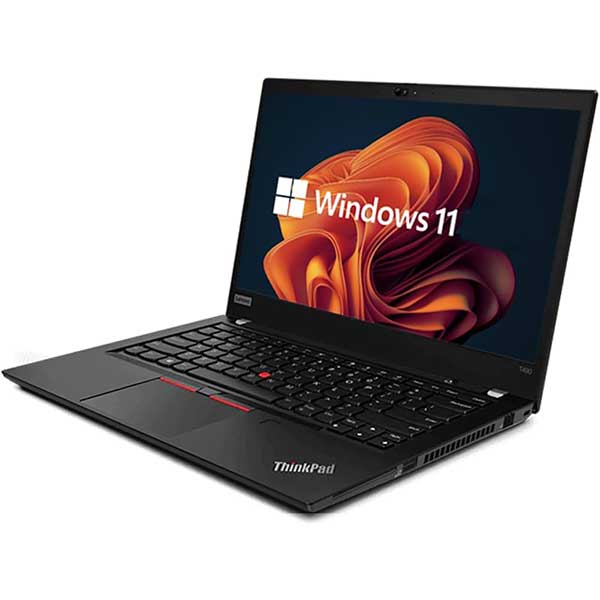











Updating the BIOS on a laptop or desktop can sound intimidating, but on most modern business computers the process is relatively straightforward.
The important part is doing it correctly.
A BIOS update works at a much lower level than a normal Windows update. If the wrong BIOS is installed, the update is interrupted, or the computer loses power during the process, you can potentially end up with a computer that will not start.
There is also one increasingly common issue that catches people out: BitLocker or Windows Device Encryption. A BIOS update changes part of the computer’s firmware, which can sometimes cause Windows to ask for the BitLocker recovery key when the computer restarts.
This guide explains how to update the BIOS safely on a Windows laptop or desktop, including Dell Latitude, Dell OptiPlex, HP EliteBook, HP EliteDesk, Lenovo ThinkPad and similar business-grade computers.
Quick Answer: How Do You Update a BIOS?
For most Windows computers, the basic process is:
- Identify the exact make and model of your computer.
- Back up anything important.
- Check whether BitLocker or Device Encryption is enabled.
- Make sure you have access to your BitLocker recovery key.
- Suspend BitLocker protection if it is enabled.
- Connect the computer to reliable power.
- Download the correct BIOS update from the computer manufacturer’s support website.
- Run the BIOS update and follow the manufacturer’s instructions.
- Do not turn the computer off while the BIOS is updating.
- Allow the computer to restart and complete the update.
- Check that Windows starts normally and re-enable BitLocker protection if necessary.
Most importantly: never install a BIOS file intended for a different computer model.
What Is the BIOS?
BIOS stands for Basic Input/Output System. On modern computers you may also see the term UEFI, which is the newer firmware technology that has largely replaced the traditional BIOS.
For most users, however, “BIOS” is still the familiar term used to describe the firmware that starts before Windows.
The BIOS helps initialise important hardware including your:
- Processor
- Memory
- Storage
- USB controllers
- Graphics hardware
- Security hardware such as the TPM
- Boot devices
Once the hardware has been initialised, the computer can then start Windows.
Because the BIOS operates underneath Windows, updating it is different from installing a normal application or driver.
Why Would You Update Your BIOS?
You do not necessarily need to update your BIOS simply because a newer version exists. However, manufacturers regularly release BIOS updates to fix problems or improve compatibility and security.
A BIOS update may be worth installing when:
- The manufacturer identifies the update as important or critical.
- You are troubleshooting a hardware or stability problem.
- The update addresses a known security issue.
- The computer is having charging, USB-C, docking or power-management problems addressed by a firmware update.
- A newer BIOS is required to support a particular hardware or operating system feature.
- The computer manufacturer or support technician has specifically recommended the update.
If the computer is working perfectly and the available update does not address anything relevant to you, there may be no urgent reason to update it.
Before Updating Your BIOS
This is the most important part of the process.
1. Back Up Important Files
A BIOS update should not normally affect the files stored on your SSD or hard drive, but it is still sensible to make sure important documents, photos and business files are backed up before making firmware changes.
2. Identify the Exact Computer Model
Do not download a BIOS simply because the model name looks similar.
For example, a Dell Latitude 5400, Latitude 5410 and Latitude 5420 are different computers. Likewise, different generations of HP EliteBook or Lenovo ThinkPad models may use completely different BIOS packages.
You can often find the model using:
- The label underneath the laptop
- The serial number or service tag
- Windows System Information
- The manufacturer’s support utility
To check from Windows, press Windows Key + R, type:
msinfo32
Then press Enter.
Look for System Manufacturer, System Model and BIOS Version/Date.
3. Check BitLocker Before You Start
This step is particularly important on Windows 11 computers.
BitLocker encrypts the contents of your drive and uses information about the computer’s hardware and security configuration as part of the protection process.
Because a BIOS update changes firmware, Windows can sometimes interpret this as a significant hardware or security change and ask for your BitLocker recovery key on the next startup.
Do not wait until you are staring at a blue BitLocker recovery screen to start looking for the key.
How to Check Whether BitLocker Is Enabled
Click Start and search for:
Manage BitLocker
If BitLocker Drive Encryption opens, check the status of your Windows drive, normally C:.
Depending on your version and configuration of Windows, you may instead have Device Encryption. In Windows 11 this can usually be checked under:
Settings > Privacy & security > Device encryption
Not every computer will display this option.
Make Sure You Have the Recovery Key
A BitLocker recovery key is a 48-digit number that can unlock the drive if Windows cannot automatically verify the computer.
Depending on how the computer was configured, the key may be:
- Stored in your Microsoft account
- Saved to another device or USB drive
- Printed or saved as a file
- Stored by your workplace or organisation
- Managed by your IT administrator
If the computer belongs to a business, school or organisation, check with the person responsible for IT before changing the BIOS.
4. Suspend BitLocker Protection
If BitLocker is enabled, suspending protection before the BIOS update can reduce the chance of Windows requesting the recovery key after the firmware changes.
Search Windows for Manage BitLocker, locate the operating system drive and select:
Suspend protection
This does not decrypt the entire drive. It temporarily suspends the BitLocker protection mechanism while the firmware change is made.
After the BIOS update has completed successfully and Windows is starting normally, confirm that BitLocker protection has resumed.
5. Connect Reliable Power
A laptop should be connected to its charger before beginning a BIOS update.
Where practical, we recommend connecting the laptop directly to its normal power adapter rather than relying solely on battery power.
For a desktop computer, make sure the power connection is secure and avoid performing the update when there is a reasonable chance the computer could unexpectedly lose power.
Once the BIOS update begins, do not deliberately turn the computer off.
How to Update the BIOS in Windows
The easiest method on many Dell, HP and Lenovo business computers is to run the manufacturer’s BIOS update utility directly from Windows.
Step 1: Find the Manufacturer’s Support Page
Go to the official support website for the manufacturer of your computer.
For the business-grade computers we commonly work with at NZ Laptop Wholesale, this will usually be:
- Dell Support for Latitude, Precision and OptiPlex computers
- HP Support for EliteBook, ProBook, EliteDesk and ProDesk computers
- Lenovo Support for ThinkPad and ThinkCentre computers
Whenever possible, search using the machine’s serial number or service tag. This reduces the chance of selecting the wrong model.
Step 2: Find the BIOS or UEFI Download
On the manufacturer’s driver page, look for a category named something similar to:
- BIOS
- BIOS/UEFI
- Firmware
- System BIOS
Compare the available version with the BIOS version shown in Windows System Information.
Step 3: Read the Update Information
Before clicking install, have a look at the release notes.
These may tell you:
- What the update fixes
- Whether the update is considered critical, recommended or optional
- Whether another BIOS version needs to be installed first
- Whether there are any special installation instructions
This is particularly important on older computers where a manufacturer may require an intermediate firmware update before jumping directly to the latest version.
Step 4: Run the BIOS Update
Download the update intended for your exact computer and run it from Windows.
You may need to right-click the downloaded file and choose:
Run as administrator
Follow the manufacturer’s prompts.
The utility will normally confirm the current BIOS version and the version being installed before proceeding.
Step 5: Let the Computer Restart
Once the update begins, the computer will normally restart.
You may see:
- A BIOS update progress bar
- A manufacturer logo
- A black screen
- The cooling fan changing speed
- The computer restarting more than once
Some firmware updates take longer than a normal Windows restart.
Do not press the power button simply because the computer appears to be taking longer than usual.
Leave it connected to power and allow the update process to finish.
Updating the BIOS on a Dell Laptop or Desktop
Dell business computers such as Latitude laptops and OptiPlex desktops normally make BIOS updates relatively straightforward.
You can identify the machine using its Dell Service Tag, then locate the BIOS under Dell’s Drivers & Downloads section.
Before installing:
- Confirm the Service Tag or exact model.
- Check the current BIOS version using
msinfo32. - Check BitLocker and make sure the recovery key is available.
- Suspend BitLocker if it is enabled.
- Connect the charger if using a laptop.
- Download the BIOS update for that exact Dell model.
- Run the update and allow the computer to restart.
Dell systems may display a dedicated firmware update screen during the restart. This is normal.
Updating the BIOS on an HP Laptop or Desktop
HP business computers such as EliteBook, ProBook, EliteDesk and ProDesk models can normally be updated using a BIOS package downloaded from HP Support.
HP also offers its own support utilities on compatible systems, which may identify relevant BIOS and driver updates automatically.
If downloading the BIOS manually:
- Identify the exact HP product or serial number.
- Locate the computer on HP Support.
- Open the BIOS section.
- Read the update description and any prerequisites.
- Check BitLocker before proceeding.
- Keep the computer connected to power.
- Run the HP BIOS update utility.
- Allow the update and restart process to finish completely.
Only install a BIOS supplied for your specific HP computer.
Updating the BIOS on a Lenovo ThinkPad or ThinkCentre
Lenovo provides downloadable BIOS update utilities for many ThinkPad laptops and ThinkCentre desktops.
The general process is similar:
- Identify the exact machine type or serial number.
- Find the computer through Lenovo Support.
- Go to Drivers & Software.
- Locate the BIOS/UEFI category.
- Read the update notes carefully.
- Check BitLocker and your recovery key.
- Connect reliable power.
- Download and run the appropriate BIOS update utility.
- Follow the instructions and do not turn the computer off during the update.
ThinkPad BIOS packages sometimes include important prerequisites in their release notes, so it is worth reading them rather than simply downloading the newest file and clicking through.
Can Windows Update Install a BIOS Update?
Yes. On some computers, BIOS and other firmware updates can be distributed through Windows Update.
You may see an update described as:
- System Firmware
- Firmware
- UEFI Firmware
- A manufacturer firmware update
The same basic precautions still apply.
In particular, make sure you have access to your BitLocker recovery key before allowing significant firmware updates to install.
Can You Update a BIOS From USB?
Yes. Many business computers can update their BIOS without running the installer from within Windows.
A manufacturer may provide a method using:
- A USB flash drive
- A built-in BIOS update utility
- A bootable BIOS update environment
- A BIOS recovery tool
This can be useful if Windows will not start or if the normal Windows update utility cannot be used.
However, the procedure varies significantly between manufacturers and models, so follow the instructions specifically provided for your computer.
What If the BIOS Update Seems Stuck?
Be cautious.
BIOS updates can occasionally sit at the same percentage or display a blank screen for longer than expected.
Turning the computer off while firmware is actively being written can cause a much bigger problem than simply waiting.
If the update appears stuck:
- Leave the computer connected to power.
- Do not immediately force it off.
- Give the update time to complete.
- Check the manufacturer’s recovery instructions from another device if necessary.
Some modern business computers include BIOS recovery features, but the recovery procedure varies between models.
What If Windows Asks for a BitLocker Recovery Key Afterwards?
Do not panic if you see a blue BitLocker recovery screen after the BIOS update.
This does not necessarily mean your files have been lost or that the BIOS update failed.
Windows may simply be asking you to prove that you are authorised to access the encrypted drive because the system firmware has changed.
You will normally need the 48-digit BitLocker recovery key.
Once the correct recovery key has been entered, Windows can usually continue starting normally.
This is exactly why we recommend locating your recovery key before performing the update.
What If the Computer Does Not Start After a BIOS Update?
First, give the computer sufficient time. Firmware updates can involve multiple restarts.
If it definitely will not boot after the update:
- Disconnect unnecessary USB devices and accessories.
- Leave the computer connected to power.
- Try starting it again.
- Check whether the manufacturer provides a BIOS recovery procedure for that exact model.
A failed BIOS update is not something to repeatedly experiment with if you are unsure what has happened. At that stage, it may be better to get someone familiar with the machine to look at it.
Should You Reset BIOS Settings After an Update?
Usually, no.
If the computer starts normally and everything is working correctly, there is generally no reason to start changing BIOS settings afterwards.
It is worth remembering that some firmware updates can change or reset certain BIOS settings.
If the computer previously used a specialised configuration, check settings relating to things such as:
- Boot order
- Secure Boot
- Virtualisation
- Storage configuration
- TPM or security settings
- Wake-on-LAN
For an ordinary home or office computer, however, the manufacturer’s default settings are normally appropriate.
Do You Need to Keep Updating the BIOS?
BIOS updates are not something most people need to check every week or month.
For a normal home, study or office computer, it makes more sense to update the BIOS when there is a good reason to do so rather than continually looking for new firmware.
Reasons may include an important security update, a manufacturer recommendation or troubleshooting a problem that the newer BIOS specifically addresses.
BIOS Update Checklist
Before you click the final update button, run through this checklist:
- Correct computer? Confirm the exact model or serial number.
- Correct BIOS? Only use firmware intended for that machine.
- Important files backed up? Do this before making significant system changes.
- BitLocker checked? Know whether drive encryption is enabled.
- Recovery key available? Make sure you can access it before restarting.
- BitLocker suspended? Suspend protection where appropriate before the firmware update.
- Power connected? Do not rely on a nearly empty laptop battery.
- Update instructions read? Check for prerequisites or special instructions.
- Ready to leave it alone? Do not interrupt the computer once the BIOS update begins.
Frequently Asked Questions About BIOS Updates
Is it safe to update the BIOS?
Yes, when you use the correct BIOS supplied by the computer manufacturer and follow the installation instructions. The main risks come from installing firmware intended for the wrong model or interrupting the computer while the BIOS is being written.
Will updating my BIOS delete Windows?
A normal BIOS update does not reinstall Windows or intentionally delete your personal files. Your Windows installation and data are stored separately on the computer’s SSD or hard drive. It is still sensible to have a backup before making firmware changes.
Will updating the BIOS improve performance?
Not necessarily. Some BIOS updates improve hardware behaviour, compatibility, stability or power management, but you should not assume that installing a newer BIOS will make a computer noticeably faster.
How do I know what BIOS version I have?
Press Windows Key + R, type msinfo32 and press Enter. Look for BIOS Version/Date in the System Information window.
Why is BitLocker asking for a recovery key after a BIOS update?
BitLocker uses information about the computer’s security configuration to help protect the encrypted Windows drive. A firmware change can cause BitLocker to request additional verification during startup. Entering the correct recovery key allows you to prove that you are authorised to access the encrypted drive.
Can I turn my laptop off during a BIOS update?
No. Avoid deliberately shutting down, restarting or removing power while the BIOS update is being written. Allow the manufacturer update process to finish completely.
Should I install every BIOS update?
Not necessarily. Read the release notes and consider why the update has been released. Security updates, critical fixes and updates that address a problem you are experiencing are generally more relevant than an optional update with no benefit to your particular computer.
A Final Word
Updating a BIOS is not something to be frightened of, but it is something worth taking seriously.
On modern Dell, HP and Lenovo business computers, the update process is normally well automated. The key is preparation: make sure you have the correct BIOS for the exact computer, keep the machine connected to power, check BitLocker beforehand and then leave the computer alone while the update is taking place.
If you own an ex-lease business laptop or desktop and are unsure whether a BIOS update is appropriate, identify the exact model and current BIOS version before doing anything.
And if your current computer is reaching the end of its useful life, you can also browse our range of professionally refurbished laptops and refurbished desktop computers. Our business-grade ex-lease computers are tested and cleaned in Auckland and shipped securely throughout New Zealand.
NZ Laptop Wholesale
Practical refurbished IT equipment, backed by real local support.


