










General
Office Monitor Setup Guide for Better Work
A monitor that is too low, too close or poorly arranged can make an otherwise capable laptop or desktop feel frustrating to use. This office monitor setup guide covers the practical details that make the biggest difference: screen position, dual-monitor layouts, connections and display settings that suit real work.
Start with the desk and the way you work
Before choosing a monitor position, look at what happens on the desk each day. A receptionist moving between email, booking software and calls has different needs from an accountant working across spreadsheets, or a student writing assignments beside research windows. The best setup is not the one with the most screens. It is the one that keeps your main tasks visible without constant resizing, neck turning or desk clutter.
A single 24-inch or 27-inch monitor is often enough for focused work, email, documents and web-based systems. Dual monitors are worthwhile when you regularly compare files, enter data from one system into another, attend video meetings while working, or keep reference material open all day. For many small offices, two matching 22-inch or 24-inch business monitors offer better value and easier placement than one oversized display.
Measure the usable desk space, not just the desk itself. Allow room for the keyboard, mouse, notebook, dock and the monitor stands. If the desk is shallow, large screens may sit uncomfortably close unless you use monitor arms or choose a smaller screen size.
Office monitor setup guide: get the height and distance right
Set the top edge of your primary monitor at, or slightly below, eye level when sitting naturally in your chair. Your eyes should generally land around the upper third of the screen, so you look slightly downward at the centre rather than lifting your chin. People who wear progressive lenses may prefer the monitor a little lower to avoid tipping their head back.
Place the display roughly an arm’s length away. For most office monitors, that means about 50 to 75 cm from your eyes. The right distance depends on screen size, resolution and personal comfort. A 27-inch screen at 1440p can sit farther back than a 22-inch Full HD monitor, while a low-resolution display pushed too far away can make text harder to read.
Raise a low monitor with a proper stand, a monitor riser or an adjustable arm. Avoid balancing it on unstable piles of books or boxes. A stable screen is safer, easier to clean around and less likely to shift when the desk moves.
Your chair matters as much as the monitor. Sit back with your lower back supported, keep both feet supported by the floor or a footrest, and position the keyboard so your shoulders can stay relaxed. If you fix screen height but still reach forward for the mouse, the desk is not set up properly yet.
Positioning one screen
With one monitor, centre it directly in front of you. This sounds obvious, but a screen often ends up offset to make space for a laptop or paperwork. Over a full working week, repeatedly twisting towards an off-centre monitor can become uncomfortable.
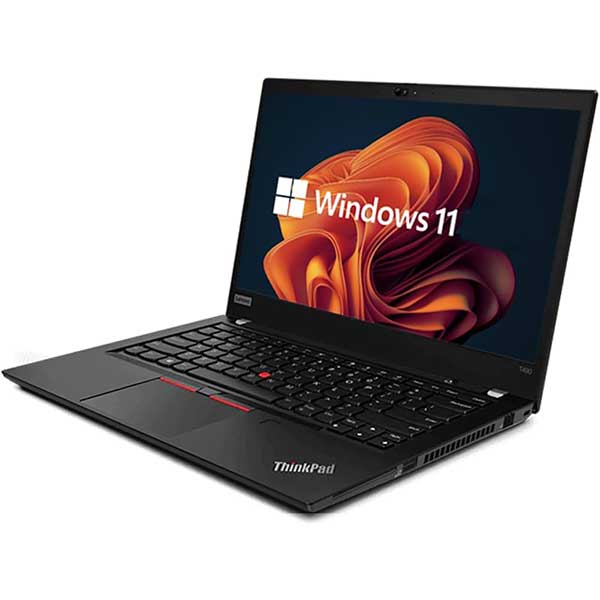
If you use a laptop alongside the screen, make the external monitor the main display and place the laptop to one side. A laptop stand and external keyboard and mouse will bring the laptop screen closer to a useful height. This is a sensible arrangement for hybrid workers who need the laptop camera for meetings but prefer a larger screen for everyday tasks.
Positioning dual monitors
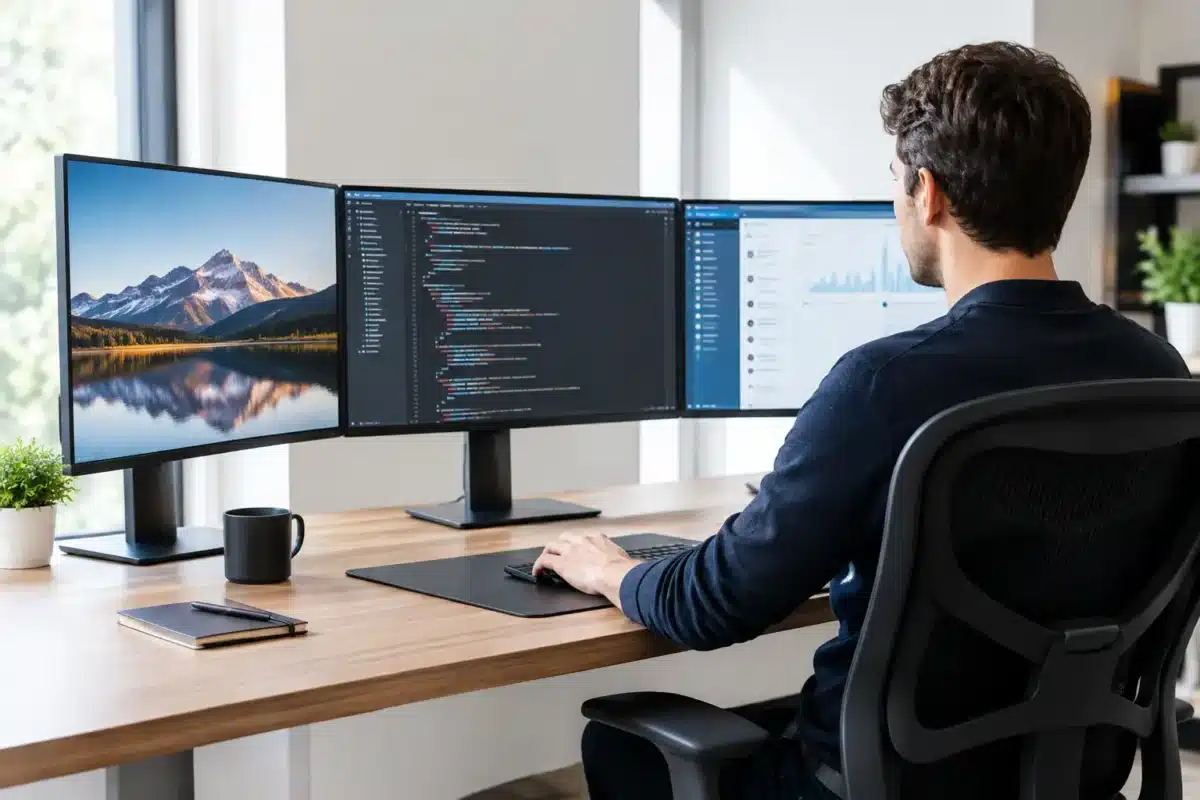
For two monitors used equally, place them side by side in a shallow V shape, with the join between the screens centred in front of you. Angle each screen slightly inward. This reduces glare and keeps the outer edges from feeling too far away.
If one screen is clearly your primary workspace, put that monitor directly in front of you and position the second display to the side. Keep the secondary screen close enough that you can glance at it without turning your whole body. Email, chat, calendars and reference documents work well on the side display, while the main screen handles the work that needs your full attention.
Matching monitors make a dual setup easier because the bezels, height, colour and resolution are consistent. They are not essential, though. A practical refurbished setup may combine an existing screen with a second business-grade monitor. In that case, align the top edges where possible and use the better screen as the primary display.
Choose connections before buying equipment
A common setup problem is buying a monitor that looks right, then discovering the laptop or desktop does not have the matching port. Check the ports on both devices before ordering cables, adapters or a docking station.
Most business monitors and computers use HDMI, DisplayPort or USB-C. Older equipment may use VGA or DVI, but these are less suitable for new office upgrades. DisplayPort and HDMI both work well for standard Full HD and 1440p office displays. USB-C can carry video, data and charging on compatible laptops, but not every USB-C port supports video output.
For a laptop running two external monitors, a docking station is often the cleanest option. It reduces cable swapping, gives you a place for a wired keyboard and mouse, and can provide charging where supported. However, dock compatibility depends on the laptop model, operating system and available USB-C or Thunderbolt capability. Check the specifications rather than assuming every USB-C dock will run two screens at the resolution you want.
For fixed desks, keep cables tidy but accessible. Route power and video cables so they are not pinched by monitor stands or pulled tight when you adjust the screen. Label power supplies and cables in shared offices. It saves time when a desk is moved or a monitor needs troubleshooting.
Set up the display properly in Windows
Once the screens are connected, the default settings may not be the best settings. Open Windows display settings and confirm that the monitors are arranged to match their physical positions. If the left monitor is shown on the right in Windows, dragging the mouse between screens will feel wrong immediately.
Choose “extend these displays” for a true dual-monitor workspace. “Duplicate” is useful for presentations but simply mirrors the same content on both screens. Set your preferred monitor as the main display so new windows, taskbar items and sign-in prompts appear where you expect them.
Use each monitor’s native resolution. For example, a Full HD monitor should normally run at 1920 x 1080, while a 1440p display should run at 2560 x 1440. Lower resolutions can make text look soft. If writing appears too small at the native resolution, adjust Windows scaling before reducing resolution. Scaling at 125% or 150% is often more comfortable on high-resolution displays.
Set the refresh rate correctly too. Standard office monitors commonly run at 60Hz, which is suitable for documents, browser work and video calls. A higher refresh rate can make scrolling feel smoother, but it is not usually the priority for budget-conscious office buying. Screen size, resolution, stand adjustment and reliable connectivity will have a bigger day-to-day impact.
Reduce glare, eye strain and visual clutter
Place monitors at right angles to windows where possible. A screen directly facing a bright window can be hard to see, while a window directly behind you often creates reflected glare. Blinds, curtains or a small change in desk direction can solve more than any software setting.
Adjust brightness to suit the room rather than leaving it at maximum. A monitor that looks bright and impressive in a showroom can feel harsh after several hours in a quieter office. Text should be clear without the screen looking like a light source. If colours are important for design or print work, use the monitor’s colour settings and keep both screens at a similar brightness.
Do not rely on blue-light settings to fix poor ergonomics. Night light modes can be pleasant in the evening, but correct height, distance, lighting and regular breaks do more for long-term comfort. Look away from the screen occasionally, stand up between tasks and vary your focus during the day.
Build a setup that is easy to support
For a home office, one good monitor and a simple USB-C or HDMI connection may be all that is needed. For schools and businesses, standardising monitor sizes, cables and docking stations makes replacements easier and reduces support headaches. Reliable ex-lease business monitors are particularly useful here because they are designed for regular office use and can deliver practical value without new-equipment pricing.
At NZ Laptop Wholesale, the focus is on professionally refurbished, business-grade equipment that suits real desks and real budgets. A tested monitor paired with the right cables or dock can give an older laptop a far more productive working life.
The most effective monitor setup is usually the least complicated one: a screen at the right height, a layout that matches your work, and connections that work every morning without fuss. Set it up once with care, then let the desk get out of the way of the job.


