










General
Chromebook vs Laptop Students – Which Is Best?

A device that handles Google Classroom but cannot run the software needed for a Year 13 assessment is not a bargain. The Chromebook vs laptop students decision comes down to what a student must do over the next few years, not simply what costs least at checkout. For some learners, a Chromebook is the sensible, light, low-cost option. For others, a quality refurbished Windows laptop will prevent expensive limitations later.
Chromebook vs Laptop Students: the practical difference
A Chromebook runs ChromeOS and is designed around the Chrome browser, Google Workspace and web-based applications. It starts quickly, is generally simple to use, and works well when school tasks live online. Students can write assignments, research, use email, join video lessons and manage files through cloud storage without needing a high-powered machine.
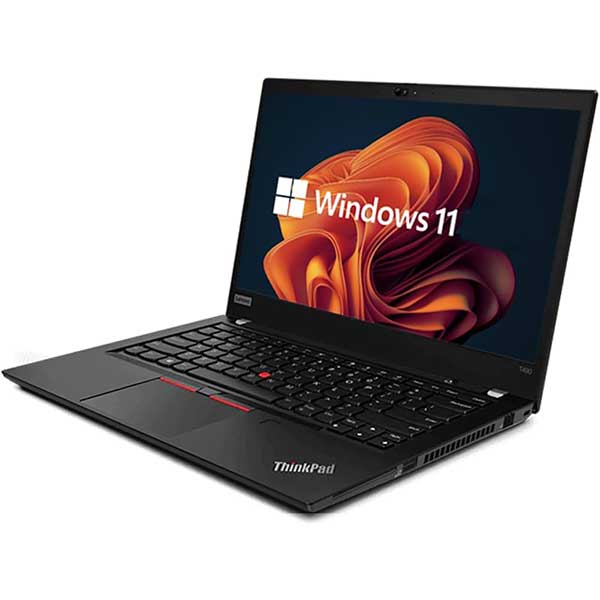
A laptop usually refers to a Windows device in this comparison. It runs desktop software as well as browser-based tools, stores files locally, connects more easily to a wider range of accessories, and gives students more options as their subjects become technical. A professionally refurbished business laptop from Dell, HP or Lenovo can offer this flexibility without the cost of a new consumer model.
Neither is automatically better. A Chromebook is purpose-built for focused everyday schoolwork. A Windows laptop is the more versatile long-term tool.
When a Chromebook is the right student device
Chromebooks suit primary school students and many intermediate or junior secondary students, particularly where the school uses Google Classroom, Google Docs and web-based learning platforms. They are also a good fit for students whose work is mostly reading, writing, presentations, online research and video calls.
Battery life is a major advantage. A student can often get through a school day without hunting for a power point, which matters when a bag is already full of books, sports gear and lunch. Chromebooks are usually light too, making them easier for younger students to carry.
ChromeOS is straightforward. There are fewer settings to manage and fewer opportunities for unwanted software to slow the device down. Updates are handled automatically, and the system is less exposed to the traditional Windows software issues that can frustrate less confident users.
For families working to a tight budget, this simplicity has real value. If the school confirms that all required tools are browser-based, a refurbished Chromebook can be a reliable and affordable BYOD choice.
There are limits, though. A Chromebook depends heavily on an internet connection and cloud-based tools, even though offline features are available for some tasks. Storage is commonly modest, which is fine for documents but less helpful for large media files. Most importantly, ChromeOS cannot run standard Windows desktop programmes.
When a Windows laptop is worth the extra spend
A Windows laptop is usually the safer choice for senior secondary school, tertiary study and students who may move into specialist subjects. It can run Microsoft Office desktop apps, coding tools, accounting software, engineering applications and many creative programmes that are unavailable or restricted on ChromeOS.
This does not mean every student needs a powerful new machine. For standard schoolwork, a refurbished business-grade laptop with an Intel Core i5 processor, 8GB of RAM and an SSD is often a very capable starting point. These machines were built for regular commercial use, so they typically offer better keyboards, sturdier chassis, useful ports and easier servicing than many entry-level consumer laptops.
A Windows device also gives students more room to grow. A Year 9 student may only need Google Docs now, but could later need Excel features, a particular testing application, a design programme or software specified by a polytechnic or university course. Buying for the likely next stage can be better value than replacing a limited device after a year or two.
Windows laptops are not maintenance-free. They need updates, sensible storage management and basic care. They can also be heavier than a Chromebook, especially older 15-inch models. But a compact 13-inch or 14-inch ex-lease laptop often provides a good balance of portability, screen space and performance.
Check the school BYOD requirements first
Before choosing either option, read the school’s current BYOD policy carefully. Some New Zealand schools support Chromebooks well and recommend them for specific year levels. Others require Windows or macOS for particular subjects, assessment platforms or specialist programmes.
Do not rely on a general statement that the school uses Google. A school can use Google Classroom while still expecting students to access Windows-only software in technology, digital design, statistics or senior elective subjects. Ask whether there are required applications, minimum specifications, preferred screen sizes, battery expectations and any restrictions on operating systems.
It is also worth checking how students submit work and sit assessments. Browser compatibility, file formats and offline access can matter more than a long feature list. A device that meets the written minimum may still be inconvenient if it struggles with the student’s actual timetable.
Compare the things students notice every day
The best student computer is one they can use comfortably from first period to homework. Start with the screen and keyboard. A small 11-inch Chromebook can be highly portable, but a 13-inch or 14-inch display is often easier for writing longer assignments, working with spreadsheets and viewing several tabs. A decent keyboard matters far more than flashy styling when essays are due.
Storage is another practical difference. Chromebooks often use 32GB or 64GB of internal storage because files are intended to live online. That is adequate for many students, but it can fill quickly with downloads, photos and offline content. A Windows laptop with a 256GB SSD gives more breathing room for applications and local files.
Ports should not be overlooked. USB-A ports remain useful for flash drives, keyboards and older classroom accessories. USB-C is increasingly common for charging and newer accessories. HDMI can be helpful for connecting to a monitor or classroom display. Check what is included rather than assuming every slim device has the connections needed.
Finally, consider condition and support. A professionally refurbished device should be tested, clearly described and sold with transparent warranty information. Cosmetic marks may be acceptable for a student machine, but a weak battery, damaged hinge or unreliable charger is false economy.
A simple choice by study stage
For primary and intermediate students doing browser-based learning, a Chromebook is often enough. It is portable, easy to manage and usually the lower-cost option.
For secondary students, the answer depends on subjects and school requirements. A Chromebook can still work well for general learning, but a Windows laptop gives more flexibility if the student takes digital technology, media, design, coding or business-focused classes.
For tertiary students, a Windows laptop is normally the more practical default unless the course provider clearly confirms that ChromeOS is suitable. Course-specific applications, larger assignments, external monitors and local file management become more common after school.
Make the purchase last beyond this term
Price matters, but the lowest-priced device is only good value if it stays useful. A student who only needs browser work should not be pushed into an over-specified laptop. Equally, a family should not buy a Chromebook solely because it is cheap when the student will soon need software it cannot run.
NZ Laptop Wholesale’s refurbished business-grade range is particularly relevant for buyers who need dependable Windows performance on a sensible budget. Ex-lease models are a practical alternative to new entry-level laptops, especially when durability, a proper keyboard and clear specifications matter more than a glossy retail display.
Choose the device around the student’s subjects, the school’s rules and the next two or three years of study. That approach gives them a computer that supports the work ahead rather than becoming another problem to solve during a busy school term.


