






Cross-Brand Device Compatibility: Why Business IT Does Not Always Need to Match
If you run a business, school, office, or shared workspace, you have probably ended up with a mix of IT brands over time. One team member has a Dell laptop, another has an HP, the meeting room has Lenovo desktops, and the spare monitors might be Dell, HP, Philips, Lenovo, Samsung or something else entirely.
The good news is that modern business IT equipment is often designed around shared industry standards. That means a standards-compliant HP USB-C docking station may work with a Dell laptop, a Dell monitor may work with a Lenovo desktop, and a USB keyboard or mouse will usually work across almost any Windows computer.
The key phrase here is standards-compliant. When devices use common standards such as USB-C, HDMI, DisplayPort, VESA mounting, Bluetooth, Wi-Fi or standard USB, brand matching is often less important than checking the actual port, cable, power, driver and display requirements.
Quick Summary: What This Means for Business Buyers
- You usually do not need every device to be the same brand if the ports and standards match.
- Monitors are highly cross-compatible when using HDMI, DisplayPort, USB-C DisplayPort Alt Mode, VGA or DVI where supported.
- USB keyboards, mice, webcams and headsets are normally brand-neutral and work across most Windows PCs.
- Docking stations need closer checking, especially around USB-C, Thunderbolt, DisplayLink, charging wattage and monitor support.
- Brand-specific software features may not always work, even when the core hardware function does.
- For business rollouts, consistency still matters because it makes support, setup and troubleshooting easier.
What Is Cross-Brand Device Compatibility?
Cross-brand device compatibility means that one brand of device can work with another brand of device because both follow the same technical standard.
For example, a Dell monitor does not need to connect only to a Dell desktop. If the monitor has HDMI and the desktop has HDMI, they are using the same display standard. In most cases, they should work together.
The same idea applies to many common business accessories. A USB keyboard, USB mouse, Bluetooth headset, HDMI monitor, DisplayPort cable, VESA monitor arm, USB-C charger, or network cable is usually built around a recognised standard rather than being locked to one brand.
Common Examples of Cross-Brand Compatibility
Here are some common real-world examples we see with business-grade ex-lease IT equipment:
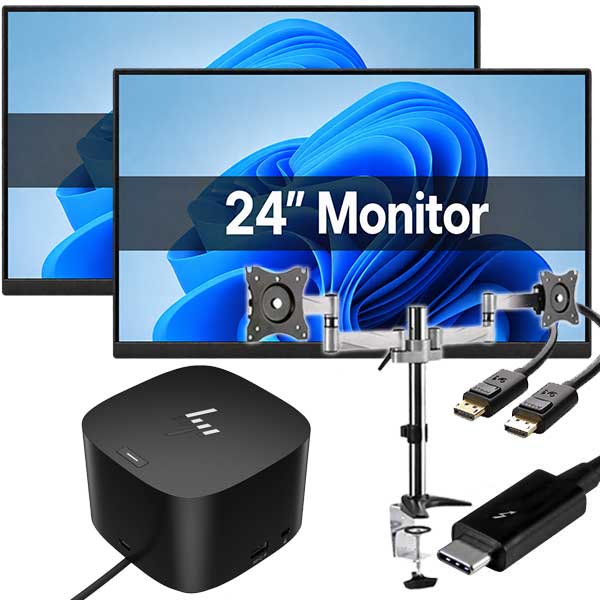
- An HP USB-C docking station connected to a Dell Latitude laptop.
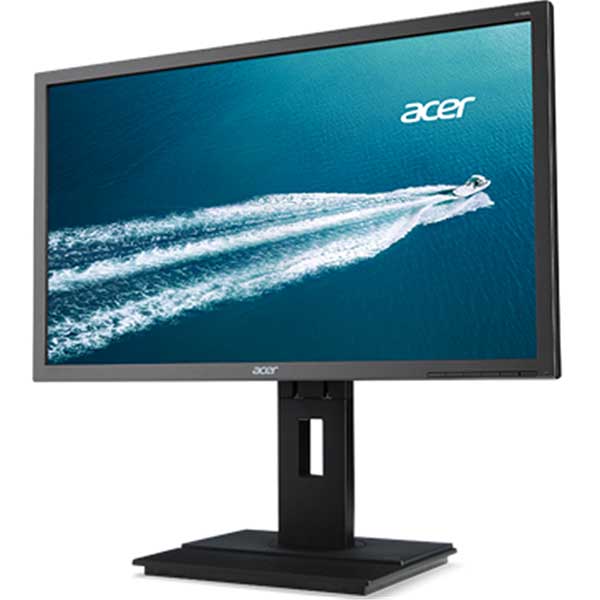
- A Dell monitor connected to a Lenovo ThinkCentre desktop.
- A Lenovo USB-C laptop connected to an HP monitor with USB-C display input.
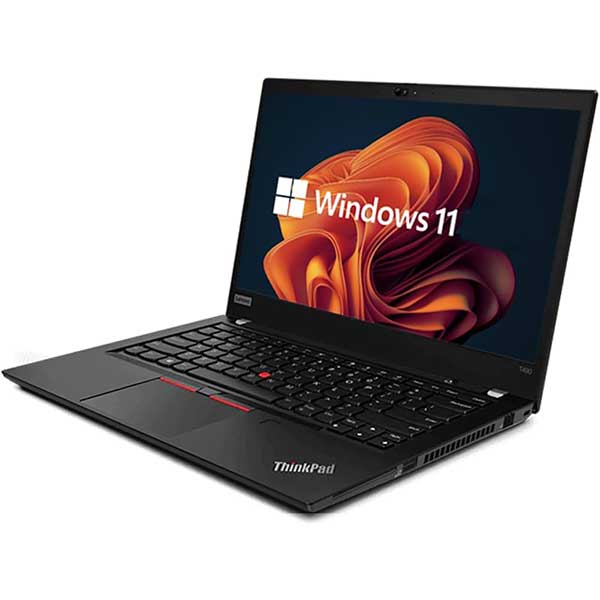
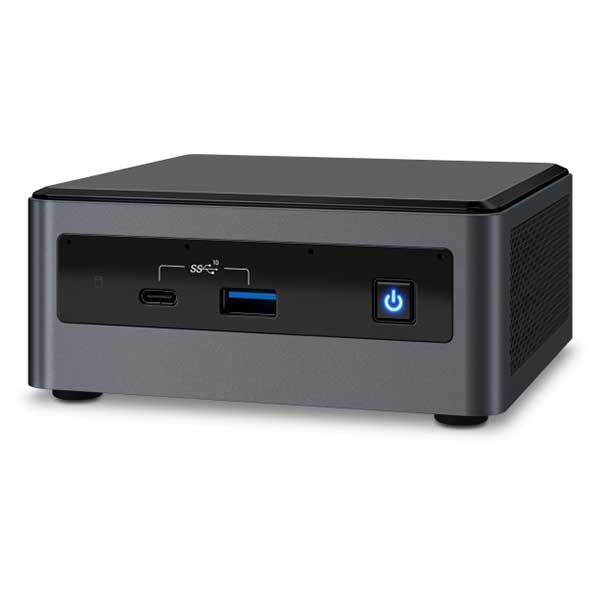
- A generic USB keyboard and mouse used with Dell, HP, Lenovo or Intel mini PCs.
- A DisplayPort monitor connected to a desktop using a DisplayPort cable, regardless of monitor brand.
- A VESA-compatible monitor mounted on a third-party desk arm.
In each case, the important question is not simply “are the brands the same?” The better question is “do both devices support the same connection standard?”
Compatibility Is About Standards, Not Stickers
Brand names are useful for identifying product families, quality levels and support expectations, but the physical brand sticker is not usually what determines compatibility. The underlying standard does.
For business buyers, this is helpful because it gives you more flexibility when purchasing refurbished or ex-lease equipment. You may not need to replace an entire office setup just because one laptop, monitor or dock has changed brand.
Common Standards That Help Devices Work Together
- USB-A: Common for keyboards, mice, webcams, printers, storage devices and some docks.
- USB-C: Used for data, charging, displays and docking, depending on what the port supports.
- Thunderbolt: A higher-performance connection often used for advanced docks, fast storage and multiple displays.
- HDMI: Common for monitors, TVs and projectors.
- DisplayPort: Common on business desktops, docking stations and office monitors.
- VESA mounting: A standard mounting pattern used by many monitors and monitor arms.
- Bluetooth: Common for wireless mice, keyboards, headsets and speakers.
- Wi-Fi: Allows devices from many brands to connect to the same wireless network when standards are supported.
- Ethernet: Standard wired networking used across desktops, laptops, docks and routers.
Comparison Table: What Usually Works Across Brands?
| Device or Accessory | Usually Cross-Brand? | What to Check First | Common Gotcha |
|---|---|---|---|
| Monitor | Yes | HDMI, DisplayPort, USB-C, VGA or DVI support | Resolution or refresh rate may depend on the port and cable used |
| Keyboard and mouse | Yes | USB-A, USB-C, Bluetooth or wireless receiver | Special shortcut keys may need brand software |
| USB-C docking station | Often, but check carefully | USB-C video support, power delivery, driver requirements and monitor outputs | Not every USB-C port supports display output or charging |
| Thunderbolt dock | Often, if Thunderbolt is supported | Thunderbolt version, security prompts, power delivery and drivers | A USB-C shaped port is not always Thunderbolt |
| USB-C charger | Often | USB-C Power Delivery wattage and laptop charging requirements | Low-wattage chargers may charge slowly or not at all |
| Monitor arm or mount | Yes, if VESA compatible | VESA pattern and monitor weight | Some monitors need a brand-specific adapter plate |
| Printer or scanner | Usually | USB, Wi-Fi, Ethernet and driver support | Older models may have limited Windows 11 driver support |
Where Cross-Brand Compatibility Works Best
1. Monitors and Displays
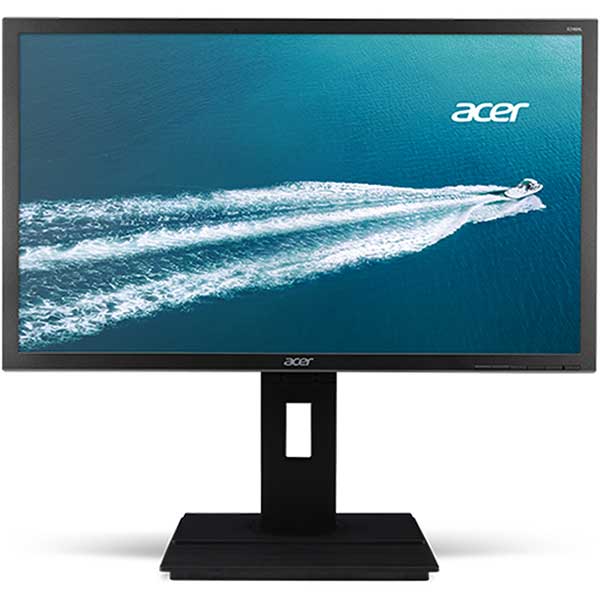
Monitors are one of the easiest examples of cross-brand compatibility. A Dell monitor can usually work with an HP desktop, Lenovo laptop, Intel mini PC, or almost any other computer if the correct display connection is available.
The main things to check are:
- Does the computer have a matching display output?
- Does the monitor have the matching input?
- Do you have the right cable or adapter?
- Does the computer support the monitor’s resolution?
- Are you using the right input source on the monitor menu?
For example, if a desktop has DisplayPort and the monitor has DisplayPort, you can generally use a DisplayPort cable. If the desktop has HDMI and the monitor has HDMI, you can generally use an HDMI cable. If the ports do not match, an adapter may be needed.
2. USB Keyboards, Mice and Basic Accessories
Basic USB accessories are usually very brand-neutral. A USB keyboard does not normally care whether it is plugged into a Dell, HP, Lenovo, ASUS or Acer computer.
For most office setups, this makes it easy to reuse existing accessories when upgrading computers. It also helps businesses reduce waste and keep rollout costs under control.
3. Desk Mounts and VESA Monitor Arms
Many office monitors use VESA mounting holes on the back. If the monitor and mount both support the same VESA pattern, the brand is usually not the main issue.
Before buying or reusing a monitor arm, check the VESA size, screen weight, screen size and whether the monitor stand can be removed. Some slim or all-in-one style monitors may need a special bracket.
4. Networking Equipment
Wi-Fi and Ethernet are designed to work across brands. A Lenovo laptop can connect to a Ubiquiti Wi-Fi network, an HP desktop can connect to a standard Ethernet switch, and a Dell laptop can use a USB Ethernet adapter if the adapter is supported by Windows.
In business environments, the bigger compatibility questions are usually around security settings, drivers, network policy and device management rather than the brand name alone.
Where You Need to Be More Careful
1. USB-C Docking Stations
USB-C docking stations are one of the most common areas where people assume “same plug means same function”. Unfortunately, that is not always true.
A USB-C port can support different combinations of features. Some USB-C ports handle basic data only. Others support charging, display output, docking, high-speed data, or Thunderbolt. The physical connector can look the same, even when the capabilities are different.
Before using a USB-C dock across brands, check:
- Does the laptop’s USB-C port support display output?
- Does the laptop support USB-C charging?
- How many external monitors does the dock support?
- Does the dock use DisplayLink software?
- Does the laptop support the resolution you want?
- Does the dock provide enough wattage to charge the laptop?
- Are firmware, BIOS or driver updates needed?
An HP USB-C dock may work perfectly well with a Dell laptop for display, USB, Ethernet and charging — but it still depends on the dock model and the laptop’s USB-C capabilities.
2. Thunderbolt Docks
Thunderbolt docks can be very capable, but they also rely on the laptop supporting Thunderbolt. A Thunderbolt dock plugged into a non-Thunderbolt USB-C port may not work fully, or may not work at all depending on the dock.
Some laptops may also ask you to authorise the dock before it is allowed to connect. This is normal in many business environments and is designed to improve security.
3. Laptop Chargers
Many newer laptops can charge over USB-C, but charger compatibility still depends on USB-C Power Delivery and wattage. A small USB-C phone charger is not the same as a proper laptop charger.
If the charger does not provide enough power, the laptop may charge slowly, warn you that the charger is underpowered, or refuse to charge while in use.
For business laptops, it is best to use a charger with the correct power rating and a reputable USB-C cable designed for charging.
4. Brand-Specific Features
Even when the main function works, some brand-specific extras may not. For example, a docking station may connect displays and USB devices across brands, but certain firmware tools, power buttons, MAC address pass-through, asset management features or update utilities may be designed for that brand’s own laptops.
This does not always matter for small offices, but it can matter for larger IT teams managing fleets of devices.
Checklist: What to Check Before Mixing Brands
Before buying or reusing mixed-brand business IT equipment, use this quick checklist:
- Check the port type: USB-A, USB-C, HDMI, DisplayPort, VGA, Ethernet or Thunderbolt.
- Check the actual standard: USB-C alone does not confirm display, charging or Thunderbolt support.
- Check power requirements: Especially for USB-C laptop charging and docking stations.
- Check monitor resolution: Make sure the computer, dock, cable and monitor support the resolution you need.
- Check driver requirements: Some docks, printers, scanners and adapters need drivers.
- Check Windows support: Older accessories may not have good Windows 11 driver support.
- Check cables: A poor-quality or wrong-spec cable can cause display, charging or data issues.
- Check business support needs: Consistent models are easier to support across a team.
- Test before rolling out widely: For larger businesses, test one setup before buying or deploying many.
Simple Business Example: Mixed-Brand Office Setup
Imagine a small business has the following equipment:
- Dell Latitude laptops for staff.
- HP USB-C docking stations from a previous office fit-out.
- Lenovo ThinkCentre desktops in the warehouse.
- Dell and HP monitors across different desks.
- Generic USB keyboards and mice.
This type of mixed setup can often work well. The monitors can connect using HDMI or DisplayPort, the USB keyboards and mice are usually fine, and the desktops can operate independently of the laptop brand.
The main item to confirm would be the USB-C dock. The IT team should check whether the Dell laptops support USB-C display output, whether the HP dock provides enough charging power, and whether any drivers or firmware updates are required.
Once one working setup is confirmed, the same combination can often be repeated across similar desks.
Why Business-Grade Equipment Is Often Better for Mixed Setups
Business-grade laptops, desktops, monitors and docks are often built for office environments where standardisation matters. They commonly include practical ports, docking support, VESA mounting options, better serviceability and more predictable fleet behaviour than many consumer-grade devices.
This is one reason professionally refurbished ex-lease equipment can be a strong option for businesses. Ex-lease gear has often come from corporate environments where compatibility, durability and supportability were important from day one.
At NZ Laptop Wholesale, we focus on practical, business-grade refurbished and ex-lease IT equipment. Our devices are tested and cleaned, available for NZ-wide courier, and supported by real local help from our Auckland-based team. Products are backed by our warranty.
When Matching Brands Still Makes Sense
Cross-brand compatibility is useful, but it does not mean brand consistency has no value. For larger organisations, keeping laptops, docks and monitors within a smaller range of models can make life much easier.
Matching or standardising equipment may help with:
- Faster troubleshooting.
- Simpler spare parts management.
- More consistent desk setups.
- Cleaner documentation for staff.
- Bulk imaging and deployment.
- Driver and firmware management.
- Reducing support calls caused by mixed accessories.
For a small business, mixing compatible brands can be a smart way to get value from existing equipment. For a larger business, a more standardised setup may still be worth the extra planning.
Common Compatibility Problems and How to Avoid Them
The dock powers USB devices but no monitor appears
This often means the laptop’s USB-C port does not support display output, the dock needs DisplayLink drivers, the wrong cable is being used, or the monitor input is not selected correctly.
The laptop connects to the dock but does not charge
The dock may not supply enough wattage, the laptop may not support USB-C charging, or the USB-C cable may not be suitable for power delivery.
Only one external monitor works
The laptop, dock or cable may not support multiple displays at the resolution you are trying to run. Some laptops also have limits based on graphics hardware or port configuration.
The monitor works but the picture quality is wrong
Check the resolution settings in Windows, the cable type, the display port used, and the monitor’s own settings menu. Older cables or adapters can limit resolution.
A device works on one computer but not another
This can be caused by driver differences, BIOS settings, security settings, port capability differences, or missing Windows updates.
Safety and Data Warnings
Most accessories such as monitors, keyboards and mice do not affect your stored data. However, some IT changes can create risk if handled carelessly.
- Back up important data before making major hardware, Windows, driver or docking changes.
- Be cautious with firmware updates and follow the manufacturer’s instructions.
- Do not force connectors into ports that do not match.
- Use suitable chargers and cables for laptops, docks and displays.
- For business environments, test first before rolling changes out to multiple staff.
So, Can an HP Dock Work With a Dell Laptop?
In many cases, yes — but it depends on the dock, the laptop and what you need it to do.
If the laptop supports the right USB-C, Thunderbolt, display and charging features, a cross-brand dock can work well. If the laptop only has a basic USB-C data port, the same dock may not provide video output or charging.
The safest approach is to check the exact model numbers, port specifications and power requirements before buying. If you are buying several units for a business, test one full desk setup first.
Final Thoughts
Cross-brand compatibility is one of the practical advantages of standards-based business IT equipment. You do not always need a Dell monitor for a Dell desktop, an HP dock for an HP laptop, or a Lenovo keyboard for a Lenovo PC.
What matters most is whether the devices share the same standards and whether the setup supports the features you actually need.
If you are building or refreshing a business setup, NZ Laptop Wholesale can help with refurbished laptops, desktops, monitors, docking stations and accessories that make sense together. We ship NZ-wide, and because we work with business-grade ex-lease equipment every day, we can help you choose practical combinations rather than guessing from brand names alone.


