







General
Do You Need a Docking Station for Dual Monitors?
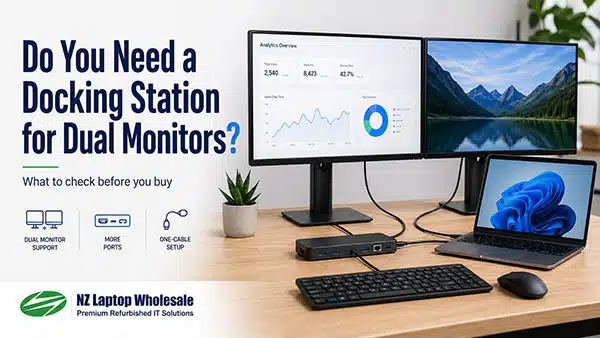
Do You Need a Docking Station for Dual Monitors?
If you have ever tried to plug two monitors into a laptop and quickly realised you do not have enough ports, you are not alone. Dual monitors are one of the easiest ways to make a work-from-home, study, or office desk feel more productive, but getting everything connected properly can be confusing.
In many cases, a docking station is the simplest way to run dual monitors from a laptop. It can give you extra video outputs, USB ports, wired network access, and sometimes power delivery through a single cable. But whether you actually need one depends on your laptop, your monitors, and the type of setup you want.
In this guide, we will explain when you need a docking station for dual monitors, what to check before buying one, and how to avoid the common compatibility traps.
What Does a Docking Station Actually Do?
A docking station is a device that connects to your laptop and expands what it can plug into. Instead of connecting your monitor, keyboard, mouse, charger, network cable, and USB devices separately, you connect them all to the dock. Then your laptop connects to the dock, often with one cable.
For dual monitor setups, the main benefit is simple: a docking station can provide multiple display outputs from one laptop connection.
A typical docking station may include:
- HDMI, DisplayPort, USB-C, VGA, or DVI video outputs
- USB ports for keyboard, mouse, printer, webcam, or storage
- Ethernet for a wired internet connection
- Audio ports on some models
- USB-C charging or power delivery on compatible docks
This makes docks especially useful for people who use a laptop at a desk most of the time but still want to unplug and take the laptop with them when needed.
Do You Need a Docking Station to Run Dual Monitors?
Not always. Some laptops can run two external monitors without a docking station, but many cannot do it cleanly or conveniently.
You may not need a dock if your laptop already has enough display outputs, such as HDMI plus USB-C DisplayPort Alt Mode, and both outputs support external displays at the resolution you want.
You probably do need a dock if:
- Your laptop only has one HDMI port
- Your laptop has USB-C but no dedicated second monitor output
- You want to connect two monitors, keyboard, mouse, and charger with one cable
- You want a tidy desk setup with fewer cables plugged directly into the laptop
- You are setting up a work-from-home desk or office workstation
- You regularly take your laptop away from your desk and want quick plug-and-play access
For most modern desk setups, especially with business-grade laptops, a docking station is the cleanest and most practical option.
The Big Catch: Not Every Dock Works With Every Laptop
This is where many people get caught out. Just because a dock has two monitor ports does not automatically mean your laptop will run two screens through it.
There are a few different types of docking stations, and they work in different ways.
USB-C DisplayPort Alt Mode Docks
USB-C docks that use DisplayPort Alt Mode rely on your laptop’s USB-C port supporting video output. If the laptop’s USB-C port does not support video, the dock’s monitor outputs may not work at all.
This is common with some budget laptops, where the USB-C port may only support data and charging, not video.
If you are unsure, look for terms like:
- USB-C DisplayPort Alt Mode
- USB-C with video output
- Thunderbolt 3 or Thunderbolt 4
- USB-C docking support
You can also read our plain-English guide to why not all USB-C ports and cables are the same.
Thunderbolt Docks
Thunderbolt docking stations are usually more powerful and flexible than standard USB-C docks, but they require a laptop with Thunderbolt support. A Thunderbolt dock may not work properly on a basic USB-C-only laptop.
Thunderbolt docks are often a good option for higher-end business laptops, creative users, and people running higher-resolution monitors.
DisplayLink Docks
DisplayLink docking stations use software to send video through a standard USB connection. This means they can often work with laptops that do not support native USB-C video output.
DisplayLink docks can be very useful, especially for office tasks, spreadsheets, browsing, admin work, and study. However, they usually require drivers to be installed, and they may not be ideal for gaming or high-performance graphics work.
If you are unsure what type of dock you need, our guide on how to set up a DisplayLink docking station is a helpful place to start.
What Should You Check Before Buying a Dock?
Before buying a docking station for dual monitors, check these key things.
1. What Ports Does Your Laptop Have?
Start by looking at the ports on your laptop. Common ports include HDMI, USB-C, Thunderbolt, Mini DisplayPort, and older-style VGA or DisplayPort on some business laptops.
If your laptop has USB-C, do not assume it supports monitors. USB-C is only the shape of the port. The features behind that port can vary a lot.
2. What Inputs Do Your Monitors Have?
Next, check the ports on your monitors. Most modern monitors use HDMI or DisplayPort, while older monitors may use VGA or DVI.
For a cleaner and more reliable setup, it is usually best to match the dock outputs to your monitor inputs where possible. For example, DisplayPort to DisplayPort, or HDMI to HDMI.
If you are still learning the difference between these connections, our guide to common computer video ports explains the basics.
3. What Resolution Are Your Monitors?
Running two Full HD monitors is much easier than running two high-resolution 4K monitors. Some docks support dual 1080p screens easily, while others may struggle with higher resolutions or refresh rates.
For everyday office use, study, admin, browsing, and remote work, dual Full HD monitors are a very practical setup. They give you plenty of screen space without needing expensive hardware.
You can browse our dual monitor bundles if you want a ready-to-go setup with monitors and accessories matched together.
4. Do You Want One-Cable Convenience?
One of the biggest reasons to use a docking station is convenience. With the right dock, you can sit down, plug in one cable, and instantly connect to your monitors, keyboard, mouse, network, and sometimes power.
This is especially useful if you use your laptop both at your desk and on the go.
5. Does the Dock Charge Your Laptop?
Some USB-C and Thunderbolt docks can charge compatible laptops through the same cable used for data and video. This is called USB-C Power Delivery.
However, not all docks provide charging, and not all laptops accept charging through USB-C. If charging through the dock matters to you, check both the dock and laptop specifications carefully.
Dual Monitors With a Dock vs Without a Dock
Here is a simple comparison to help decide whether a dock is worth it for your setup.
| Setup Type | Best For | Things to Consider |
|---|---|---|
| Laptop plugged directly into monitors | Simple setups where the laptop already has enough display ports | Can become messy if you also connect keyboard, mouse, charger, and other devices |
| USB-C docking station | Modern laptops with USB-C video support | Requires compatible USB-C DisplayPort Alt Mode or Thunderbolt support |
| Thunderbolt dock | Higher-end laptops and more demanding setups | Requires Thunderbolt support on the laptop |
| DisplayLink dock | Office users needing dual screens from a wider range of laptops | Requires DisplayLink drivers and is better suited to productivity than gaming |
Who Benefits Most From a Dual Monitor Docking Station?
A dual monitor docking station is especially useful for people who spend a lot of time working from a desk.
It is a good fit for:
- Work-from-home users who want a proper desk setup
- Students who want a laptop screen plus extra monitor space
- Small businesses setting up staff workstations
- Office users working across email, spreadsheets, documents, and web apps
- People using compact business laptops with limited built-in ports
- Anyone who wants to reduce cable clutter
If you already have a good laptop, adding a dock and monitors can often be a smarter upgrade than replacing the whole computer. A tidy dual-screen setup can make an older or refurbished business laptop feel much more practical for everyday work.
Is a Docking Station Better Than Buying a Desktop?
It depends on how you work. A desktop can be a great option if your computer always stays in one place. But if you want the flexibility of taking your laptop with you, a docking station gives you the best of both worlds.
At your desk, your laptop can feel like a full workstation. When you need to leave, you unplug one cable and take the laptop with you.
If you are comparing options, our guide on laptop vs desktop computers in NZ may help you decide which direction makes more sense.
Can Any Laptop Run Two Monitors?
No, not every laptop can run two external monitors in the same way. Some laptops support one external display only. Others can support two or more, but only through the right type of dock or adapter.
The answer depends on:
- The laptop model
- The graphics hardware
- The USB-C, Thunderbolt, HDMI, or DisplayPort capabilities
- The dock type
- The resolution and refresh rate of the monitors
This is why it is worth checking compatibility before buying. A cheap adapter may look tempting, but it may not give you the dual screen setup you actually want.
What Is the Best Dual Monitor Setup for Most People?
For most NZ home office, study, and small business users, a practical dual monitor setup is usually:
- A reliable business-grade laptop
- A compatible docking station
- Two Full HD monitors
- A keyboard and mouse
- A tidy desk mount or monitor stands
This gives you a clean, comfortable workstation without needing a brand new high-end computer. For everyday use, it is a great balance of cost, productivity, and convenience.
If you are building a setup from scratch, you may find it easier to look at our dual monitor bundles or browse our range of laptop docking stations.
Common Mistakes to Avoid
When buying a docking station for dual monitors, avoid these common mistakes:
- Assuming every USB-C port supports video
- Buying a dock without checking laptop compatibility
- Mixing too many adapters and converters
- Expecting a basic dock to run dual 4K monitors smoothly
- Forgetting to check monitor inputs before buying cables
- Buying based only on price rather than compatibility
A good dock does not need to be the most expensive option, but it does need to match the laptop and monitors you plan to use.
FAQ: Docking Stations and Dual Monitors
Do I need a docking station for two monitors?
You may need one if your laptop does not have enough built-in display outputs or if you want a cleaner one-cable desk setup. Some laptops can run two monitors without a dock, but a docking station often makes the setup easier and tidier.
Can I use two monitors with one USB-C port?
Sometimes, yes. It depends on whether your USB-C port supports video output and whether the dock supports dual displays. Some USB-C ports only support data, so it is important to check your laptop specifications.
Why is only one monitor working on my docking station?
This can happen if the laptop does not support dual displays through that dock, the wrong cable is being used, the dock needs drivers, or the display settings in Windows need adjusting. DisplayLink docks also require the correct software to be installed.
Is DisplayLink good for dual monitors?
DisplayLink can be very useful for office, admin, study, browsing, and general productivity work. It is less ideal for gaming or high-performance graphics, but for most everyday dual monitor setups it can work well when installed correctly.
Can I close my laptop and just use two monitors?
Yes, in many cases. You may need to change your Windows power settings so the laptop does not go to sleep when you close the lid. You will also need an external keyboard and mouse.
Final Thoughts: Is a Docking Station Worth It?
If you want to run dual monitors from a laptop, a docking station is often worth it. It makes your desk cleaner, reduces cable clutter, and gives your laptop a more desktop-like feel while still keeping it portable.
The key is choosing the right dock for your laptop and monitors. Check your laptop ports, monitor inputs, display requirements, and whether you need USB-C, Thunderbolt, or DisplayLink support.
At NZ Laptop Wholesale, we work with refurbished business-grade laptops, monitors, docking stations, and dual monitor setups every day. If you are not sure what will work with your laptop, get in touch or browse our docking stations and dual monitor bundles to find a practical setup for your desk.


