



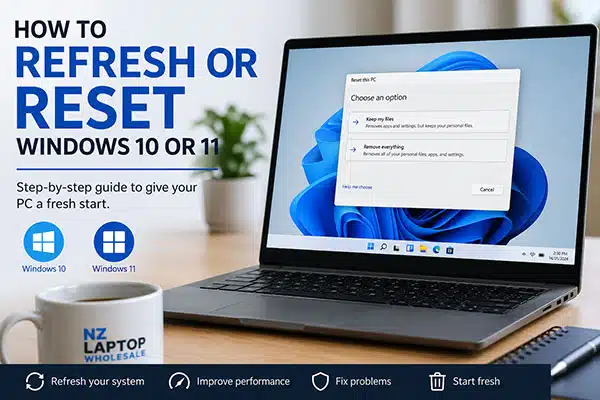
TL;DR: Resetting Windows 10 or Windows 11
Windows 10 and Windows 11 both include a built-in reset option that can reinstall Windows without needing a USB installer. You can choose to keep your personal files or remove everything, depending on whether you are fixing a problem, refreshing the laptop, or preparing it for someone else.
Quick steps: Open Settings, go to System or Update & Security, choose Recovery, then select Reset this PC and follow the prompts.
Before resetting, back up anything important. A reset can help fix slow performance, software issues and clutter, but it may remove apps, settings and files depending on the option you choose.
If your Windows laptop or desktop is running slowly, behaving strangely, or simply needs a clean start, Windows includes built-in recovery options that can help. You can refresh your system while keeping your personal files, or fully reset it and remove everything.
This guide explains how to reset Windows 10 or Windows 11, what each option means, and what you should do before you begin. It is written for everyday users, students, families, work-from-home setups, and small businesses who want a practical, plain-English explanation.
Before You Reset Windows: Back Up First
Before you refresh or reset your computer, take a few minutes to back up anything important. Even if you choose the option to keep your files, it is still smart to have a separate copy of your data in case something goes wrong.
Consider backing up:
- Documents, photos, videos, and downloads
- Desktop files and folders
- Browser bookmarks or saved passwords
- Email archives, if you use desktop email software
- Accounting, school, or business files
- Software licence keys or installer files
- Anything stored outside your normal Documents folder
You can back up to an external USB drive, cloud storage such as OneDrive or Google Drive, or another computer. If you are preparing a device to sell, give away, or recycle, make sure you have copied everything you need before choosing the full reset option.
What Is the Difference Between Refreshing and Resetting Windows?
People often use the words “refresh” and “reset” to mean slightly different things. In Windows 10 and Windows 11, the main built-in option is called Reset this PC. From there, you can choose whether to keep your personal files or remove everything.
| Option | What It Does | Best For |
|---|---|---|
| Keep my files | Reinstalls Windows while keeping personal files such as documents and photos. Apps and many settings are removed. | Fixing problems while trying to keep your files. |
| Remove everything | Reinstalls Windows and removes personal files, apps, and settings. | Starting fresh, selling a device, or passing it to someone else. |
| Cloud download | Downloads Windows files from Microsoft and reinstalls Windows. | When local recovery files may be damaged or unreliable. |
| Local reinstall | Uses files already on the computer to reinstall Windows. | When you have limited internet or want a faster local reinstall. |
When Should You Use “Keep My Files”?
The Keep my files option is usually the best place to start if the computer is still yours and you are trying to fix performance issues, crashes, or general Windows problems.
This option can be useful if:
- Your laptop has become slow or unreliable
- Windows updates are not behaving properly
- You want to remove installed apps and start cleaner
- You are troubleshooting software problems
- You want to keep personal files but refresh Windows itself
It is important to understand that this option does not keep everything. It may keep your personal files, but installed apps, some drivers, and many settings will be removed. You may need to reinstall software such as Microsoft Office, printers, browsers, accounting software, VPN tools, or business apps afterwards.
When Should You Use “Remove Everything”?
The Remove everything option is more serious. It is designed for situations where you want a clean Windows installation and do not want the previous user’s files, apps, or settings left behind.
This option is usually best if:
- You are selling or giving away the computer
- You are preparing a laptop for a new user
- The computer has major software issues
- You want to fully clear personal data from the device
- You are starting again from scratch
If you are selling, recycling, or giving away the PC, choose the option to clean the drive if Windows offers it. This can take longer, but it is a better choice when the goal is to make removed files harder to recover.
How to Reset Windows 11
To reset a Windows 11 laptop or desktop:
- Click the Start button.
- Open Settings.
- Go to System.
- Select Recovery.
- Next to Reset this PC, select Reset PC.
- Choose either Keep my files or Remove everything.
- Choose Cloud download or Local reinstall.
- Follow the on-screen instructions.
If the computer is plugged into power, connected to Wi-Fi, and has a healthy battery, the process is usually smoother. For laptops, it is best to keep the charger connected during the reset.
How to Reset Windows 10
To reset a Windows 10 laptop or desktop:
- Click the Start button.
- Open Settings.
- Go to Update & Security.
- Select Recovery.
- Under Reset this PC, select Get started.
- Choose either Keep my files or Remove everything.
- Choose Cloud download or Local reinstall, if offered.
- Follow the on-screen instructions.
Windows 10 and Windows 11 use very similar reset options, but the settings menus are slightly different. If you are using Windows 10 on an older laptop, it is also worth checking whether the device is suitable for Windows 11 before investing too much time into reinstalling everything.
If you are considering replacing an older computer, you can browse our range of refurbished Windows 11 laptops for practical, business-grade options that are ready for everyday use.
Cloud Download vs Local Reinstall: Which Should You Choose?
During the reset process, Windows may ask whether you want to use Cloud download or Local reinstall. Both options reinstall Windows, but they get the installation files from different places.
Choose Cloud Download If:
- You have a reliable internet connection
- You suspect Windows system files are damaged
- The computer has had failed updates or repeated errors
- You want Windows to download a fresh copy of the required files
Choose Local Reinstall If:
- Your internet is slow or limited
- You want to avoid a large download
- The computer’s local recovery files are likely to be fine
- You are doing a basic refresh rather than fixing deeper Windows issues
For many home users, Cloud download is a good option if internet data is not a problem. For quick resets or limited internet connections, Local reinstall can still work well.
What If Windows Will Not Start?
If Windows will not load properly, you may still be able to reset the computer from the Windows Recovery Environment.
You can usually access recovery options by forcing the computer to restart several times during startup, or by using advanced startup options if Windows partly loads. Once you are in the recovery menu, select:
Troubleshoot > Reset this PC
From there, you can choose whether to keep your files or remove everything. If your device uses BitLocker encryption, you may be asked for a BitLocker recovery key before you can continue.
Windows 11 Option: Fix Problems Using Windows Update
Some newer Windows 11 versions include another helpful recovery option called Fix problems using Windows Update. This can reinstall the current version of Windows using Windows Update while aiming to keep your apps, files, and settings.
You may see this option under:
Settings > System > Recovery > Fix problems using Windows Update
This is different from a full reset. It can be useful if Windows itself is damaged or behaving badly, but you are not trying to wipe the computer. However, it may not appear on every device, especially if the PC is managed by a workplace or is running an older version of Windows 11.
What to Do After Resetting Windows
Once Windows has finished resetting, there are a few important steps to complete before you start using the computer normally again.
- Connect to Wi-Fi or Ethernet.
- Run Windows Update until there are no major updates left.
- Install any missing drivers if required.
- Reinstall your main apps.
- Sign back into OneDrive, Google Drive, email, and browser accounts.
- Restore your backed-up files.
- Check printers, scanners, webcams, and external monitors.
- Install security updates before using the device for banking or business work.
If you are using the laptop for work or study, this is also a good time to check your setup. A laptop docking station can make it easier to connect monitors, keyboard, mouse, Ethernet, and other accessories from one desk setup.
Will Resetting Windows Make an Old Laptop Faster?
Sometimes, yes. A reset can help if the laptop is slow because of old software, too many startup apps, update issues, or a messy Windows installation. It can give the computer a cleaner starting point.
However, a reset will not fix everything. If the laptop is slow because it has very little RAM, an old hard drive, a weak processor, or a failing battery, resetting Windows may only make a small difference.
If you are unsure whether your laptop is worth refreshing or replacing, our guide to budget laptop specs that actually matter is a helpful place to start.
Should You Reset or Replace Your Laptop?
If your laptop is only a few years old and still has decent specs, a Windows reset may be all it needs. But if it is very old, unsupported, physically damaged, or struggling with modern apps, replacing it may be the better long-term choice.
As a rough guide, consider replacing rather than resetting if:
- The laptop cannot run Windows 11 and Windows 10 support is a concern
- It has a slow mechanical hard drive instead of an SSD
- It has very limited RAM
- The screen, keyboard, hinges, or battery are failing
- You rely on it for work, study, or business and downtime is costing you time
For many NZ buyers, a professionally refurbished business-grade laptop can be a practical middle ground between buying brand new and putting up with an unreliable older device. You can view our current range of refurbished laptops, including affordable options for home, school, work, and small business use.
Quick Troubleshooting Tips Before You Reset
A reset is useful, but it is not always the first thing you need to try. Before resetting Windows, you may want to:
- Restart the computer properly, not just close the lid.
- Install pending Windows updates.
- Uninstall apps you no longer use.
- Check available storage space.
- Run a Windows Security scan.
- Disable unnecessary startup apps.
- Check battery health if the laptop shuts down unexpectedly.
If battery life is part of the problem, you may find our guide on ex-lease laptop battery life useful, especially if you are comparing older devices with refurbished business laptops.
Frequently Asked Questions
Does resetting Windows delete everything?
It depends which option you choose. Keep my files aims to keep personal files but removes apps and many settings. Remove everything removes your personal files, apps, and settings, so you should back up first.
Is resetting Windows the same as reinstalling Windows?
Resetting Windows is a built-in recovery method that reinstalls Windows using guided options. A manual reinstall usually involves installation media, such as a USB installer, and can be more advanced.
Should I choose Cloud download or Local reinstall?
Cloud download is often better if you suspect Windows system files are damaged and you have reliable internet. Local reinstall can be useful if your internet is limited or you want to avoid a large download.
Will resetting Windows remove viruses?
It can help remove many software problems, especially if you choose Remove everything, but it is not a guaranteed fix for every security issue. If you suspect malware, back up carefully, avoid copying suspicious files, and run security checks after reinstalling.
Can I reset Windows without a password?
In some cases, you may be able to access reset options from the Windows Recovery Environment. However, if the device is encrypted with BitLocker, you may need the BitLocker recovery key.
Can NZ Laptop Wholesale help if I need a replacement laptop?
Yes. NZ Laptop Wholesale sells professionally refurbished and ex-lease laptops, desktops, monitors, and accessories. Our devices are tested, cleaned, and backed by our Warranty, with NZ-wide courier available.
Final Thoughts
Refreshing or resetting Windows 10 or 11 can be a great way to fix software problems, clean up an older laptop, or prepare a device for a new user. The most important step is choosing the right reset option and backing up your files before you begin.
If your current computer is still suitable, a reset may give it a useful second life. If it is outdated, slow, or no longer reliable, it may be time to look at a better everyday machine.
At NZ Laptop Wholesale, we help everyday New Zealanders, students, families, and small businesses find practical refurbished IT gear without the brand-new price tag. Browse our budget laptops, desktop computers, and monitors online, with secure NZ-wide courier available.


