


General
How to Prepare Laptops for Staff Onboarding

A new staff member should be able to open their laptop, sign in and start useful work without waiting for an administrator to find a charger, reset a password or install a missing app. To prepare laptops for staff onboarding properly, treat each device as part of a repeatable process rather than a last-minute task. That approach saves time, protects company information and gives a new starter confidence from day one.
For small businesses, schools and growing teams, the goal is not to buy the most expensive device. It is to provide dependable business-grade hardware that suits the role, is secure, and is ready when it is needed. A professionally refurbished ex-lease laptop can be an excellent fit when it has the right specifications and has been tested thoroughly before handover.
Start with the role, not the laptop
A receptionist, field technician, accounts administrator and graphic designer do not need the same machine. Buying or assigning devices by role prevents both overspending and frustration.
For everyday office work, web-based systems, video meetings and Microsoft 365, a business laptop with a modern Core i5 processor, 8GB of RAM and an SSD is often a sensible baseline. Staff who work across several browser tabs, large spreadsheets or multiple applications will generally benefit from 16GB of RAM. A larger SSD is worthwhile where files are stored locally, while cloud-first teams may be comfortable with less storage.
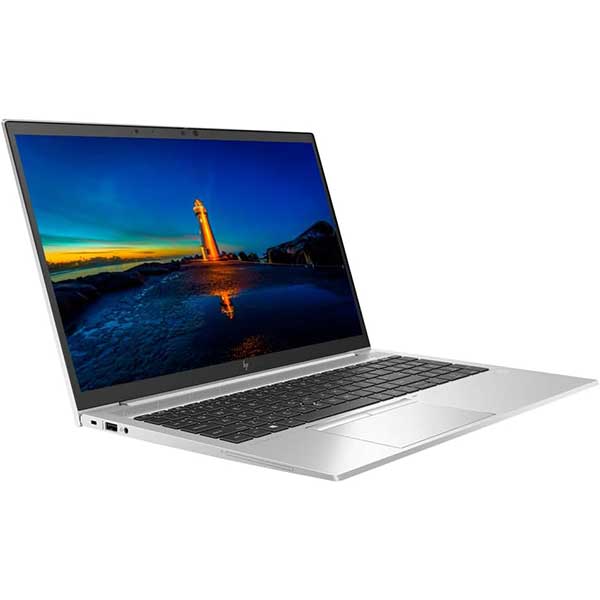
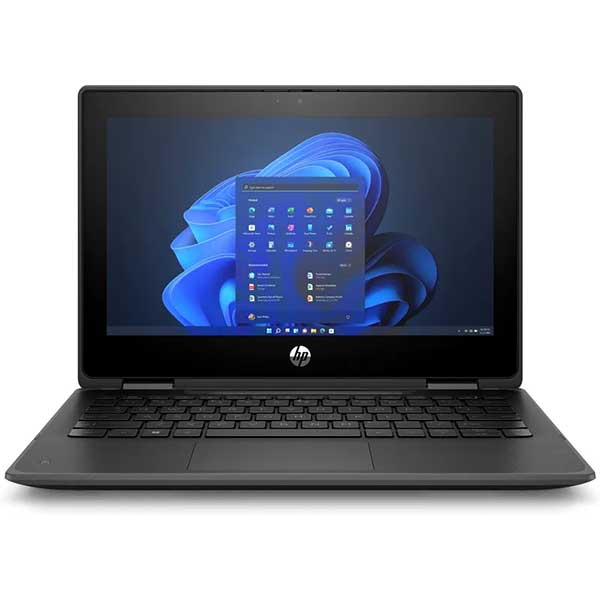
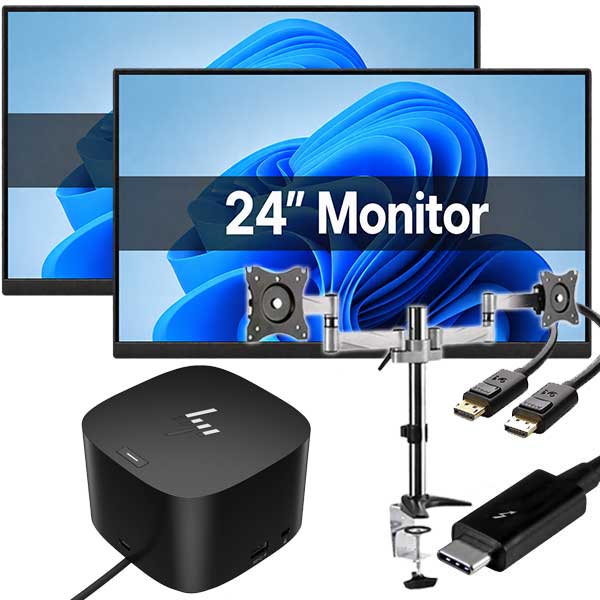
Screen size matters too. A 13 or 14-inch laptop is practical for mobile staff, while a 15-inch model can suit users who spend most of their day working from one desk. If someone regularly handles spreadsheets, accounts software or customer records, a docking station and external monitor may improve productivity more than moving up to a higher-spec laptop.
Check operating system compatibility before committing to a fleet. Windows 11 readiness is particularly relevant for businesses replacing older machines. Confirm that each device supports your required software, peripherals and security settings, rather than assuming a familiar brand or model will do the job.
Prepare laptops for staff onboarding with a standard build
Consistency makes onboarding easier to manage. When every laptop is set up differently, basic support takes longer and important security settings can be missed. Create one standard build for each staff group, such as office, mobile, management or shared-use devices.
Your standard build should include the approved operating system, current updates, drivers, essential applications and browser settings. It should also define what staff can install themselves and what requires approval. A small team may manage this manually with a clear checklist. Larger teams are better served by device management software that applies policies, apps and updates automatically.
Before giving a laptop to a new starter, complete the following preparation steps:
- Install all operating system, firmware and driver updates, then restart the device and check again for pending updates.
- Create or assign the staff member’s work account and confirm they can sign in without using a personal email address.
- Install only the applications needed for their role, such as Microsoft 365, accounting software, a password manager, video conferencing tools and approved cloud storage.
- Set up email, calendars, shared folders, printers and any line-of-business applications they will use from their first week.
- Apply security tools and policies, including antivirus or endpoint protection, full-disk encryption, screen-lock timing and multi-factor authentication.
- Record the asset details, serial number, charger type, assigned user, issue date and condition of the device.
Avoid loading every application the business has ever used. Unnecessary software creates clutter, increases update work and can make a modest laptop feel slower than it is. A clean, role-based setup is easier for staff to understand and easier for your team to support.
Use a temporary administrator account carefully
A common mistake is handing over a laptop with the new employee set up as a local administrator because it seems convenient. It may be convenient for a week, but it also allows unapproved software, changes to security settings and accidental system damage.
Where practical, staff should use a standard account for daily work. Keep administrative access limited to the person or provider responsible for IT. There are exceptions: technical staff may need elevated access, and a very small business may not have formal device management. Even then, use separate administrator credentials and store them securely rather than sharing one generic password.
Secure the device before it leaves your hands
A laptop is not properly ready just because it starts up. It needs to protect business information if it is lost, stolen or used on an unsecured network.
Turn on full-disk encryption and confirm that recovery keys are stored somewhere the business can access if the employee is unavailable. Enable automatic updates so security patches do not rely on someone remembering to run them. Set a sensible automatic screen lock, particularly for staff who work in shared offices, schools, client sites or cafés.
Multi-factor authentication should be enabled for email, cloud storage, finance platforms and other systems containing sensitive information. Explain to staff why it is required. People are more likely to follow the process when they understand that a code prompt is there to protect customer data and company accounts, not to make their morning harder.
Also consider remote management or remote wipe capability for devices that leave the office. The best option depends on your organisation’s size, budget and the information being handled. A sole trader with a handful of laptops may need a straightforward setup, while a business handling customer records should have clearer controls and documented recovery procedures.
Test the whole working experience
Do not stop after checking that the desktop appears. Test the laptop as the staff member will actually use it.
Connect it to Wi-Fi and sign in using the assigned account. Open email, access shared files, join a test video call and confirm that the webcam, microphone and speakers work. Plug in the charger and check the battery is charging. If the laptop will be used with a dock, connect the dock, monitor, keyboard, mouse and Ethernet cable. Confirm the display arrangement, audio device and network connection are correct.
This is especially worthwhile with refurbished equipment and mixed fleets. Quality refurbished business laptops are designed for hard office use and can provide excellent value, but the final setup still needs testing with the exact accessories and software your staff rely on. A USB-C dock that works perfectly with one model may need a driver update or different display setting on another.
Check battery health realistically. A refurbished laptop may not deliver the same battery runtime as a new premium device, and that is often an acceptable trade-off for a considerably lower purchase cost. The key is to match expectations to the role. A desk-based user with a charger and dock has different needs from a salesperson working away from power all day.
Make the handover useful, not just formal
The handover is when a prepared laptop becomes a productive work tool. Give the staff member the device, correct charger and any accessories they need, then take ten minutes to show them the essentials. Point out how to lock the screen, connect to Wi-Fi, use multi-factor authentication, access support and report a lost device.
Provide a short written guide in plain language. It should include the support contact, instructions for common issues, expectations around software installation and a reminder not to share passwords. Staff do not need a technical manual on their first day. They need enough information to work confidently and know where to get help.
For remote workers, arrange the handover before their first day where possible. Shipping a laptop across New Zealand is practical, but leave time for delivery, account activation and a short test call. Sending equipment late turns an otherwise organised onboarding process into a poor first impression.
Keep a record after onboarding
Asset tracking is easy to postpone and difficult to reconstruct later. Record who has each laptop, its serial number, condition, accessories and warranty details at the time of issue. Keep a simple process for staff changes, repairs, replacements and returns.
This record also helps with budgeting. After six or twelve months, you can see which models have been reliable, where repairs are occurring, and whether particular roles need more memory, better docks or larger screens. It turns future purchasing decisions into evidence-based decisions rather than guesses.
NZ Laptop Wholesale can be a practical source of professionally refurbished business laptops when you need dependable Dell, HP or Lenovo equipment without the new-device price tag. The right machine, properly prepared, gives new staff a better start and gives your business fewer avoidable support jobs.


